.png)
How to Upload an AP Invoice
💡Subcontractors normally submit their own invoice for completed work directly into Loop Logics through the link in their purchase order email. At times, though, a trade invoice needs to be uploaded manually instead, this article covers how to do that.
Steps:
Start a new AP Invoice
-
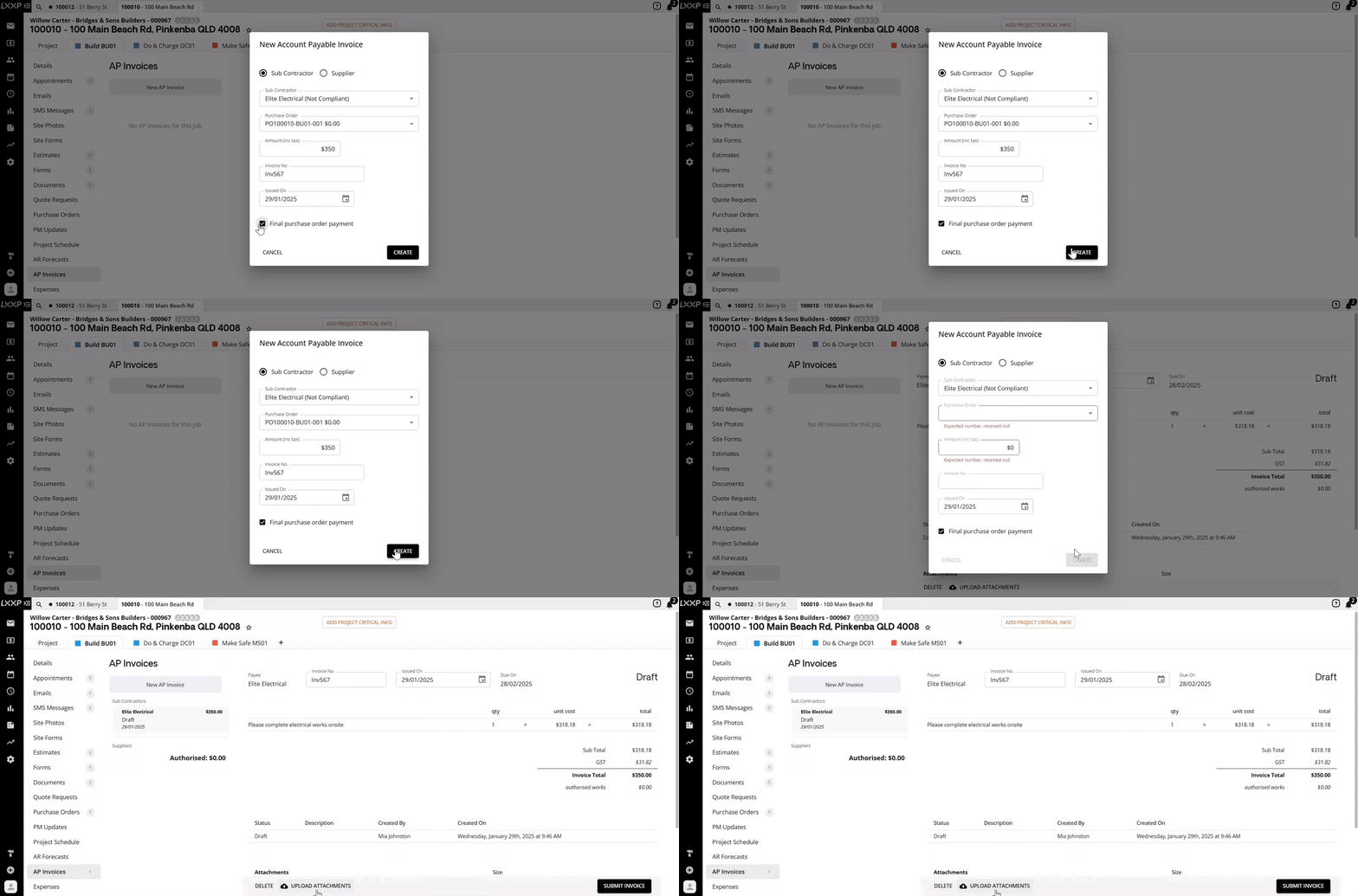
From the job, select AP Invoices from the left-hand menu, then select New AP Invoice.
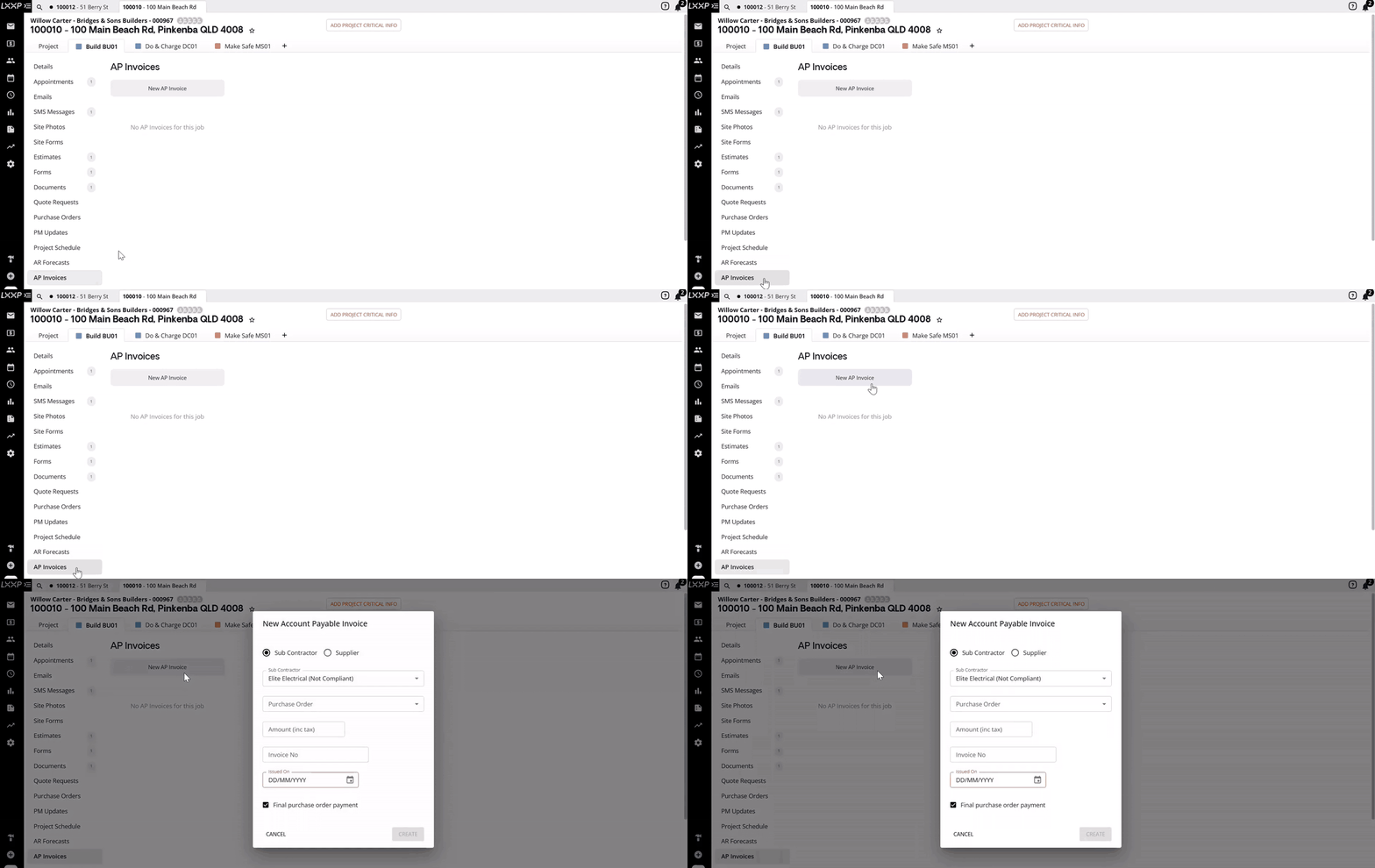
- In the New Account Payable Invoice window, choose whether this invoice is for a Sub Contractor or a Supplier.

Enter the Invoice details
-
From the drop-down menu, select the subcontractor (or supplier) and the corresponding purchase order.
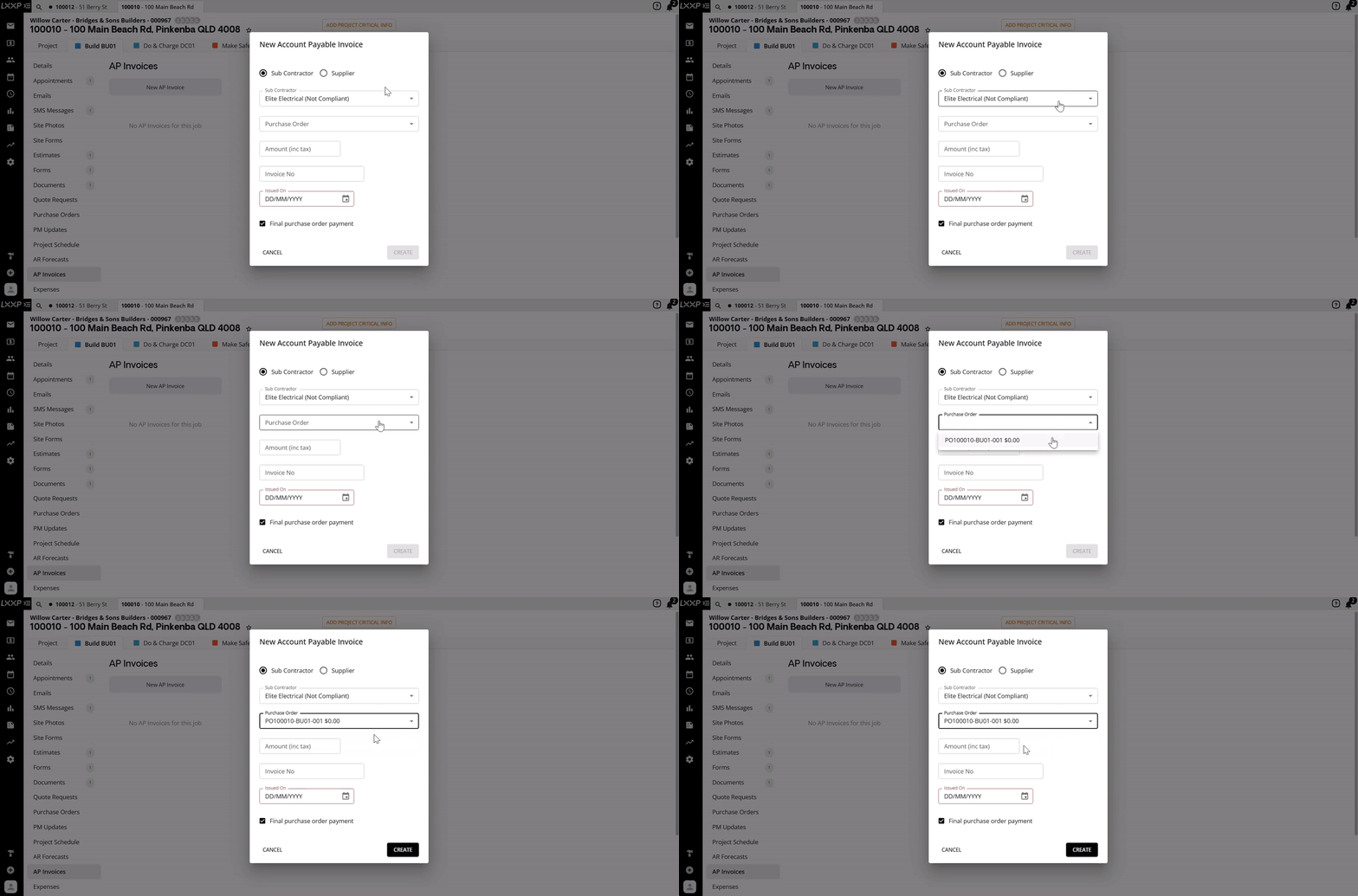
-
Enter the invoice Amount (inc tax) and the subcontractor's Invoice No, then select the Issued On date.
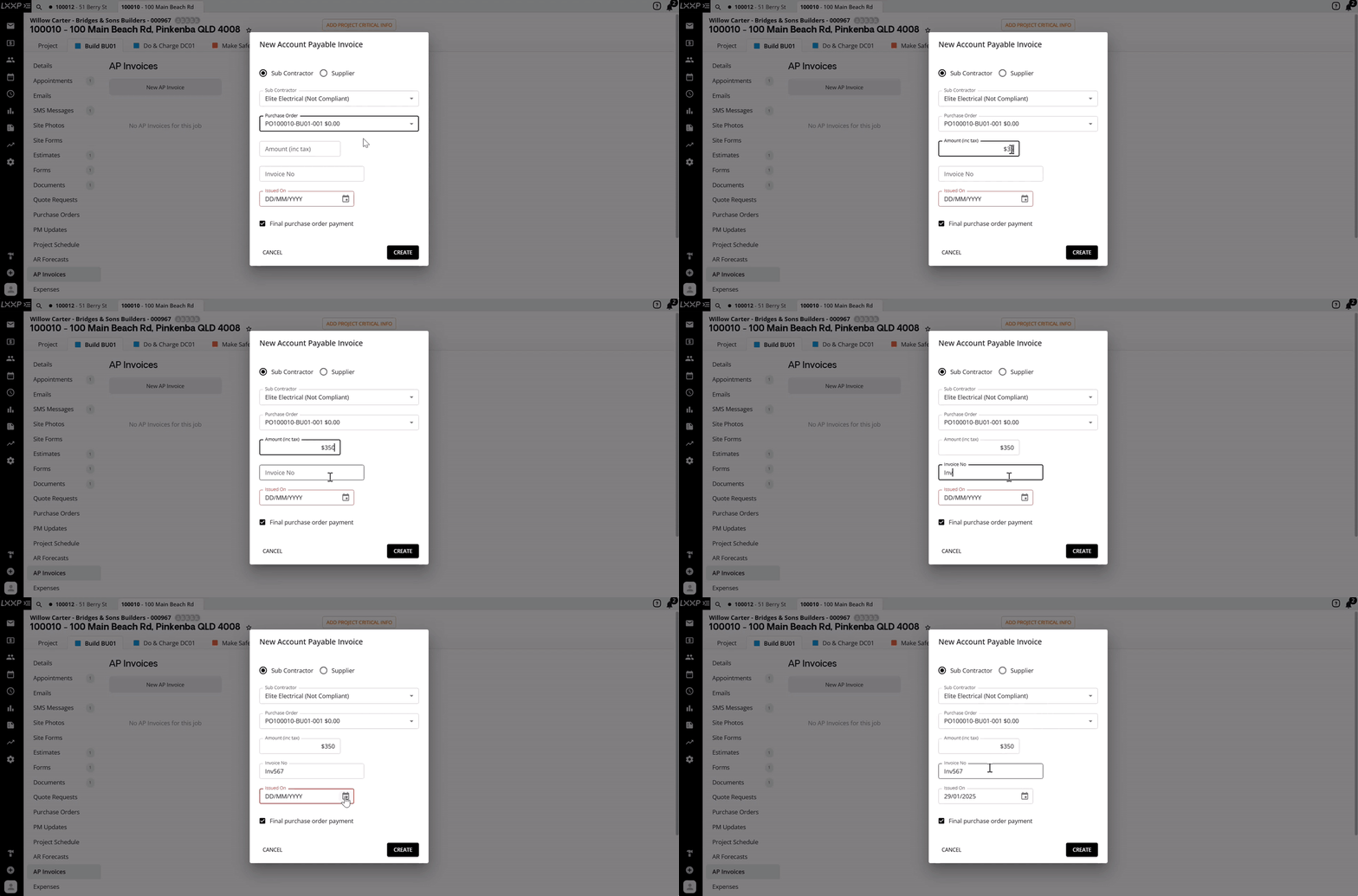
-
Final purchase order payment is selected by default. If this invoice only covers partial works, untick this checkbox so the purchase order stays open for a future invoice against the remaining balance.
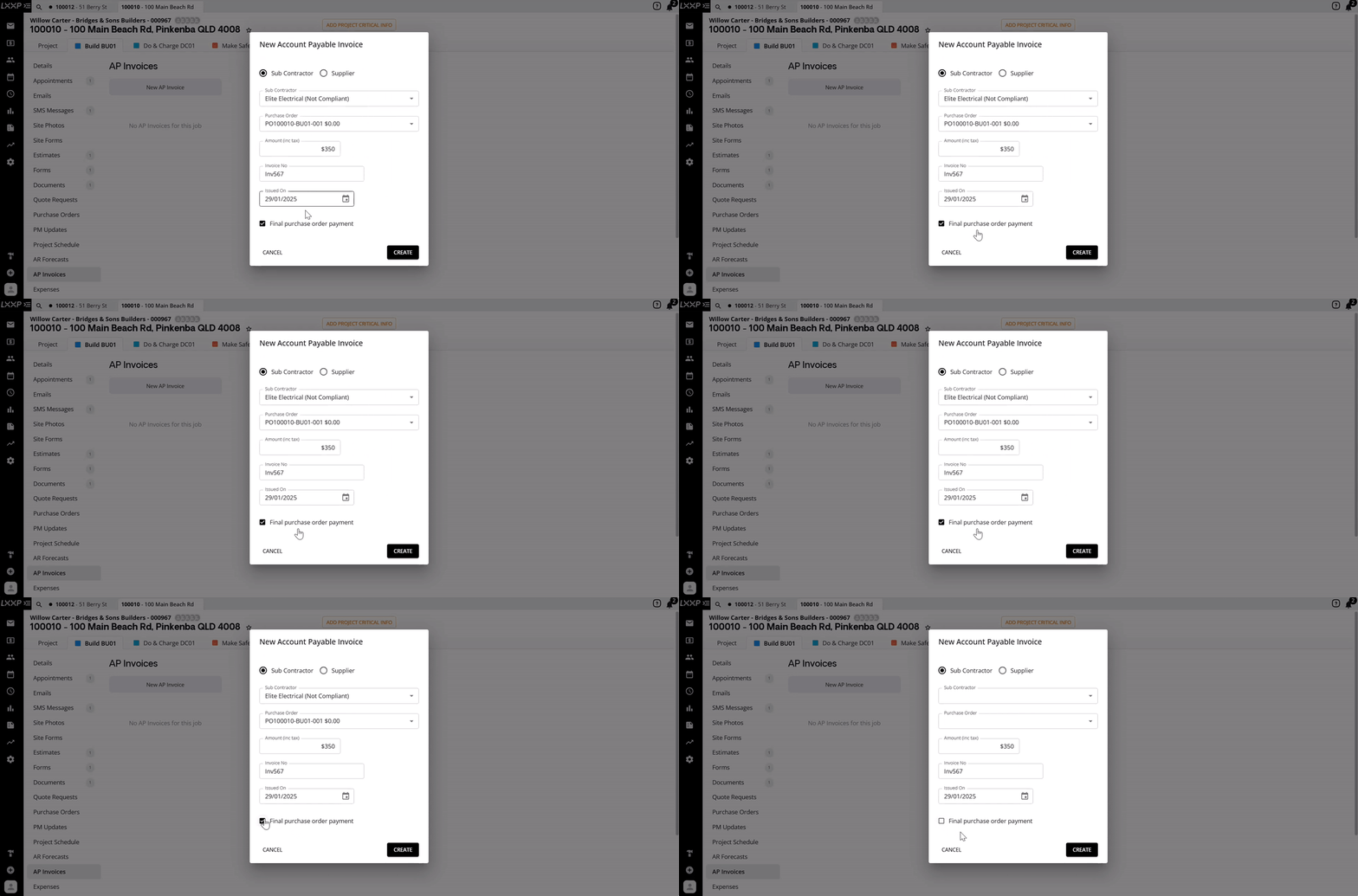
-
Select Create.
Upload the invoice and submit it
-
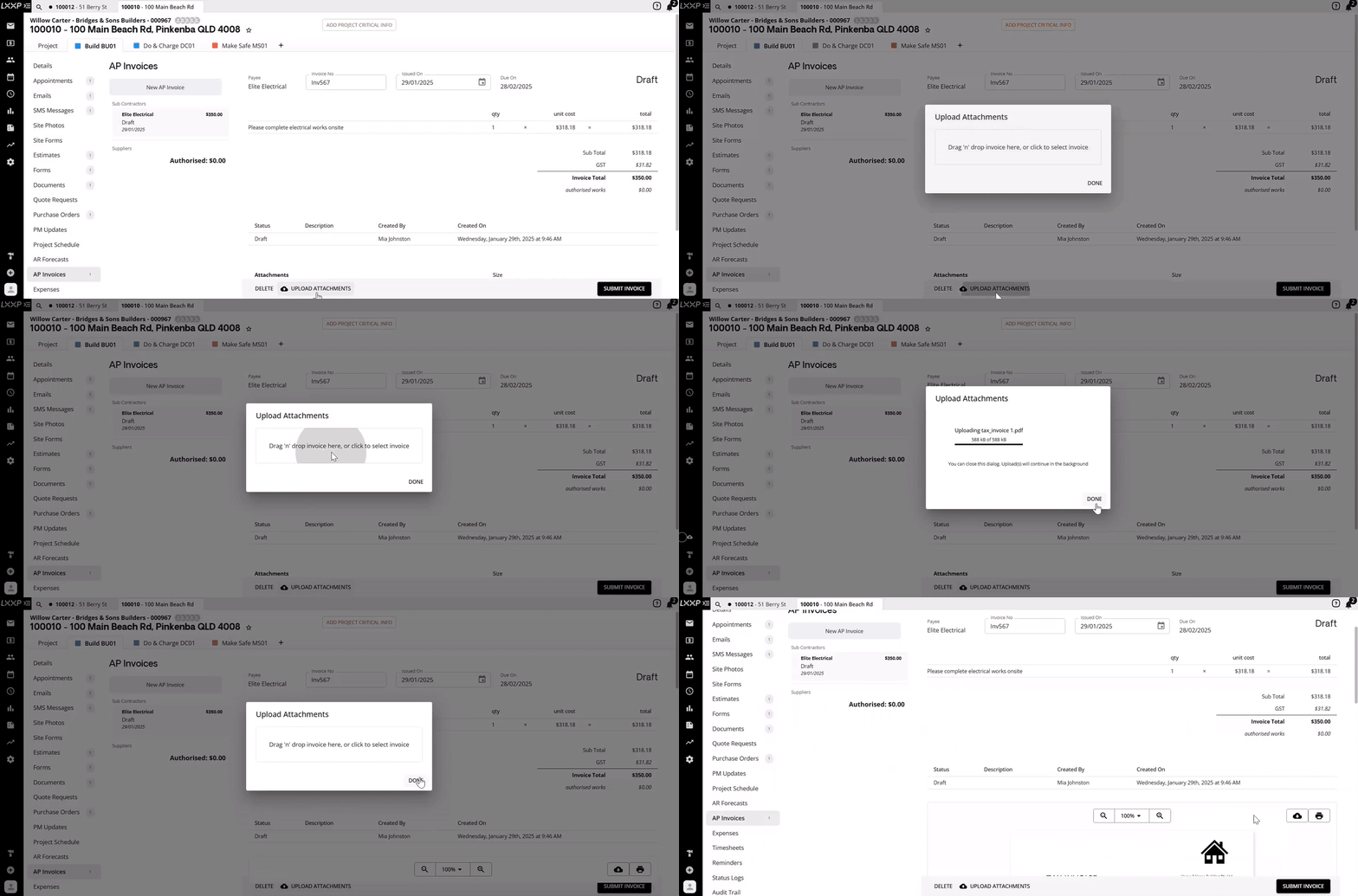
On the invoice screen, select Upload Attachments, then either drag and drop the subcontractor's invoice or click to select it. Select Done once it's added.
-
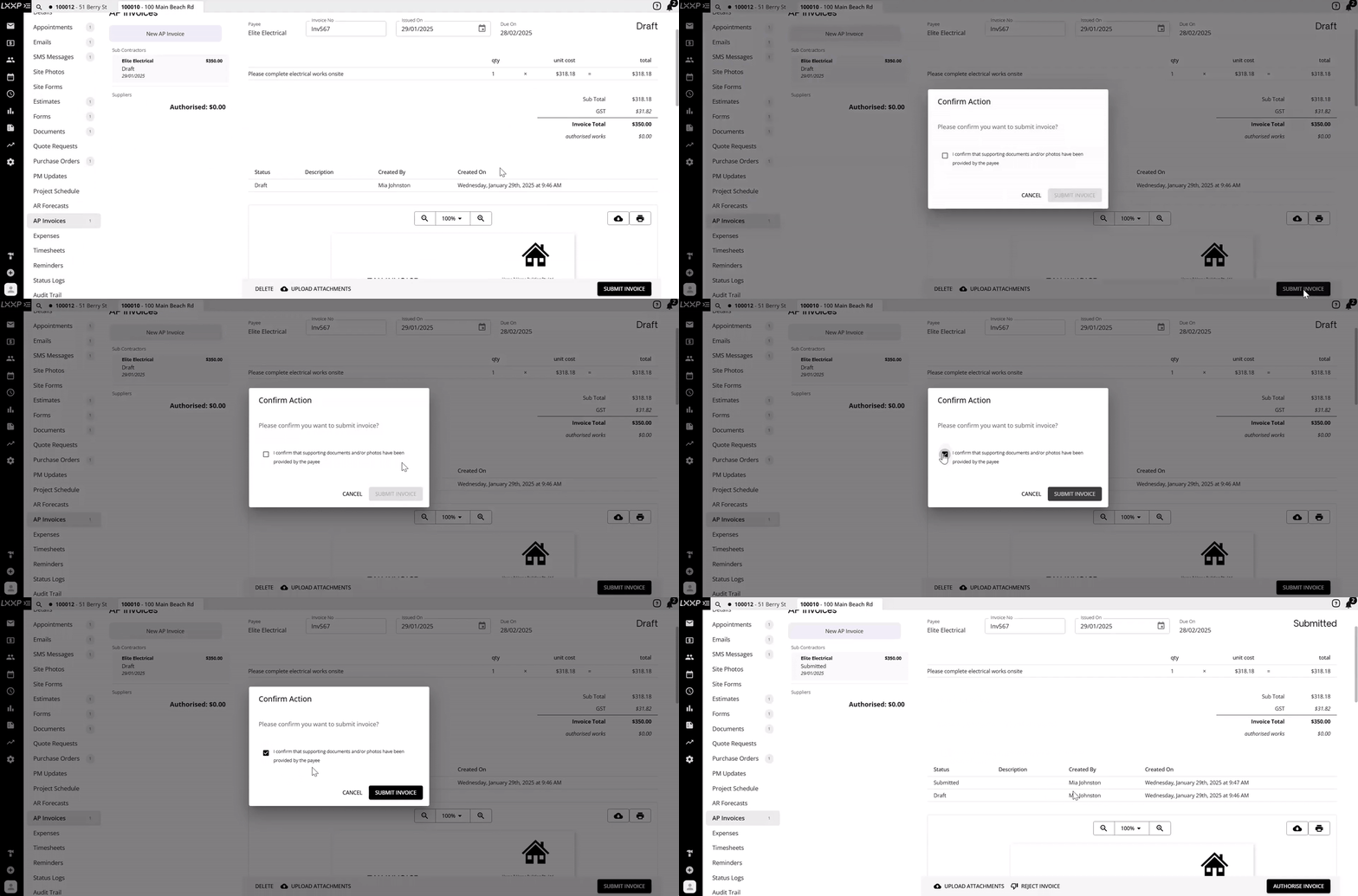
Select Submit Invoice, then confirm that supporting documents and/or photos have been provided by the payee.
-
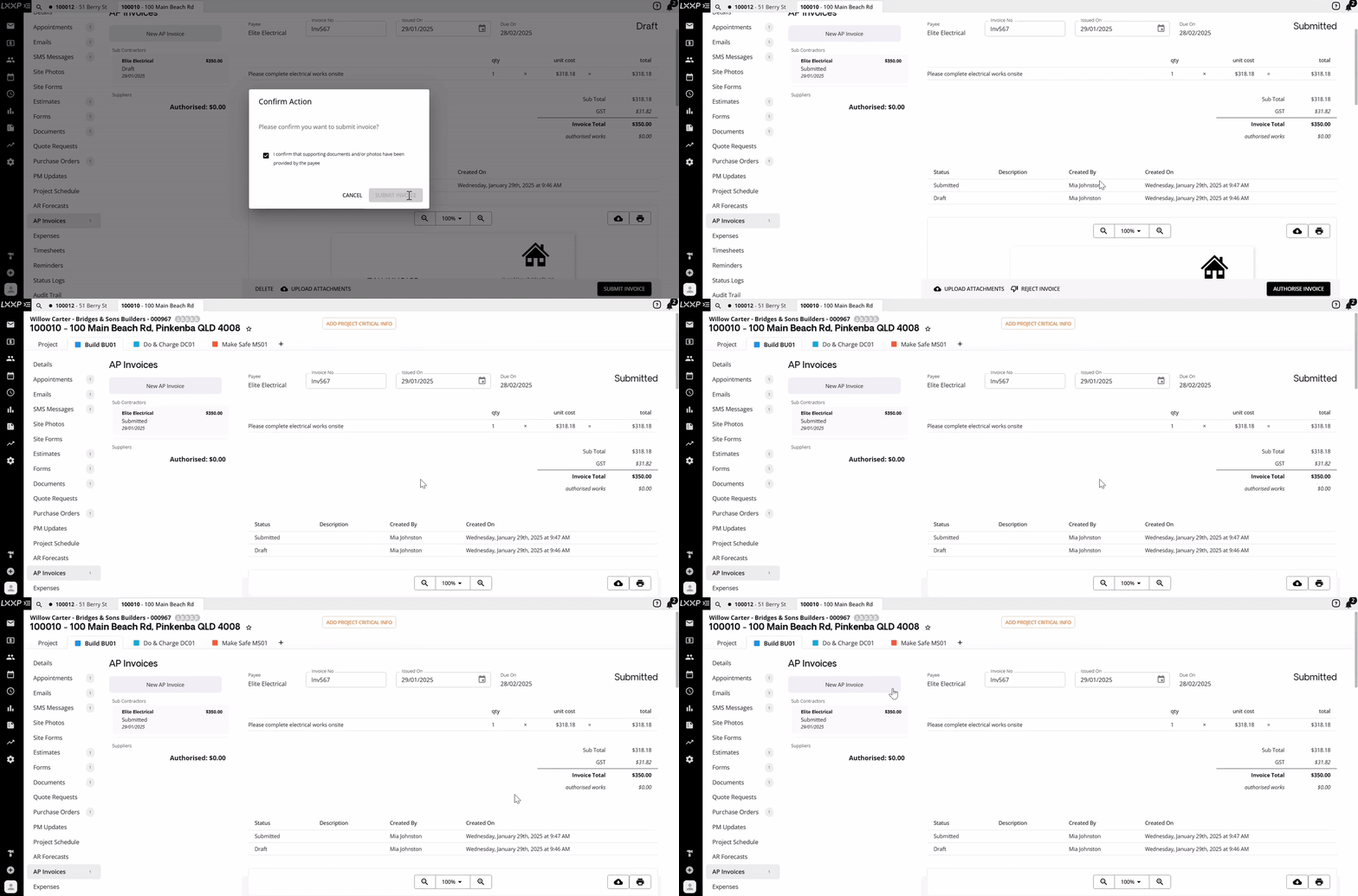
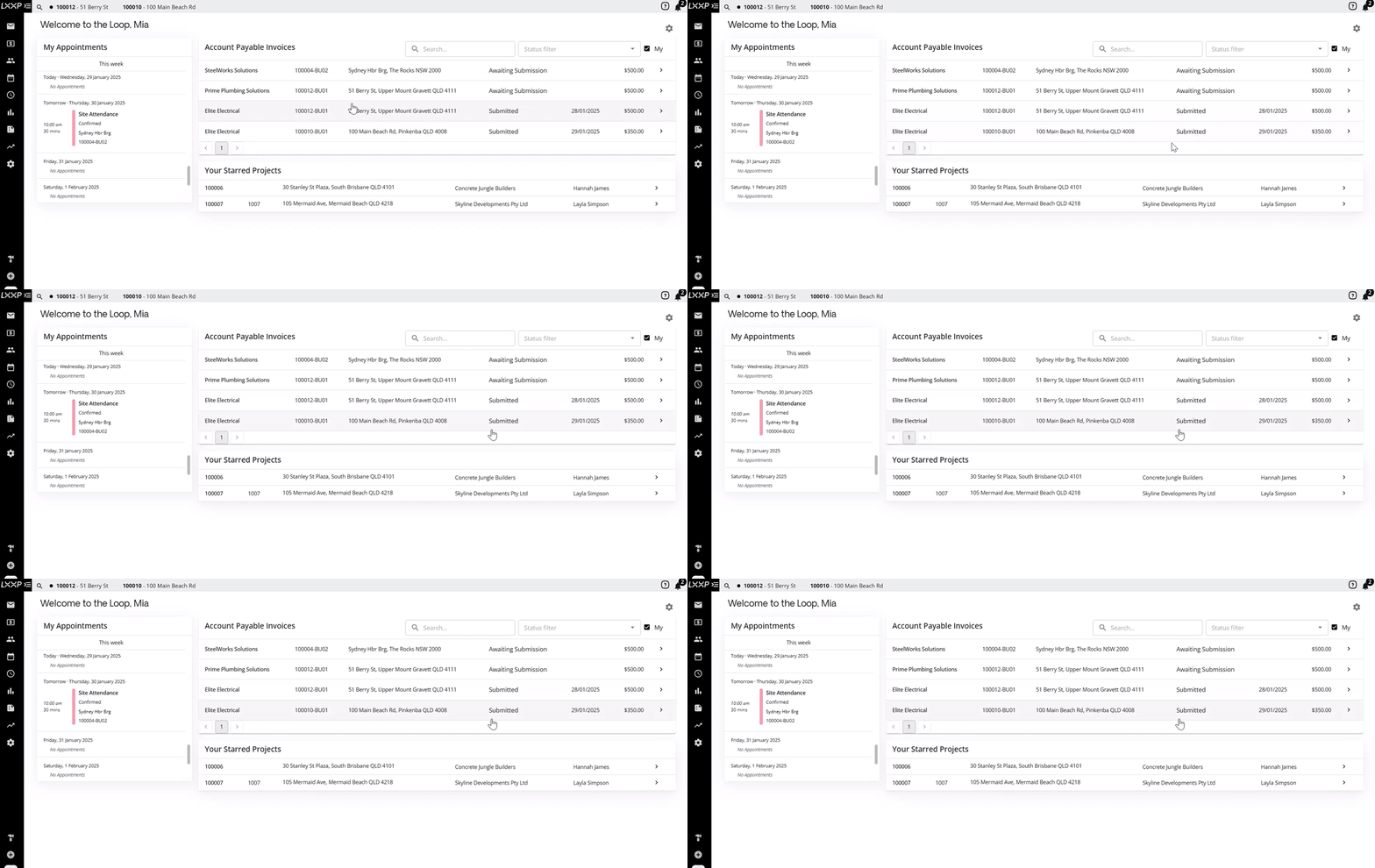
The invoice's status updates to Submitted, and it now appears as submitted on the Account Payable Invoices dashboard, ready for authorisation by the accounts team.
FAQ
When would I need to upload an AP invoice manually instead of waiting for the subcontractor to submit it? Subcontractors normally submit their own invoice through the link in their purchase order email a manual upload is for the times a trade invoice needs to be entered into Loop another way.
What does the "Final purchase order payment" checkbox do? It's ticked by default and marks this as the last invoice against that purchase order. Untick it if the invoice only covers part of the works, so the purchase order link stays open for a future invoice.
Do I need to attach the subcontractor's invoice before I can submit it? Yes, use Upload Attachments to add the invoice (drag and drop, or browse) before selecting Submit Invoice.
What happens after I submit the invoice? It moves to a Submitted status and appears that way on the Account Payable Invoices dashboard, ready for the accounts team to authorise or reject.
❓ Need Help
If you have questions or need assistance, use the chat box in the bottom-right corner to contact the Loop Logics support team or email support@looplogics.com