.png)
How to Use Notes, Templates and Mentions
💡The Notes section on a job's Details page is the place to post important updates and communication specific to that job. You can type a note from scratch or start from a saved template, classify the note to keep things organised, and use comments and @ mentions to keep the right people in the loop.
Steps:
-
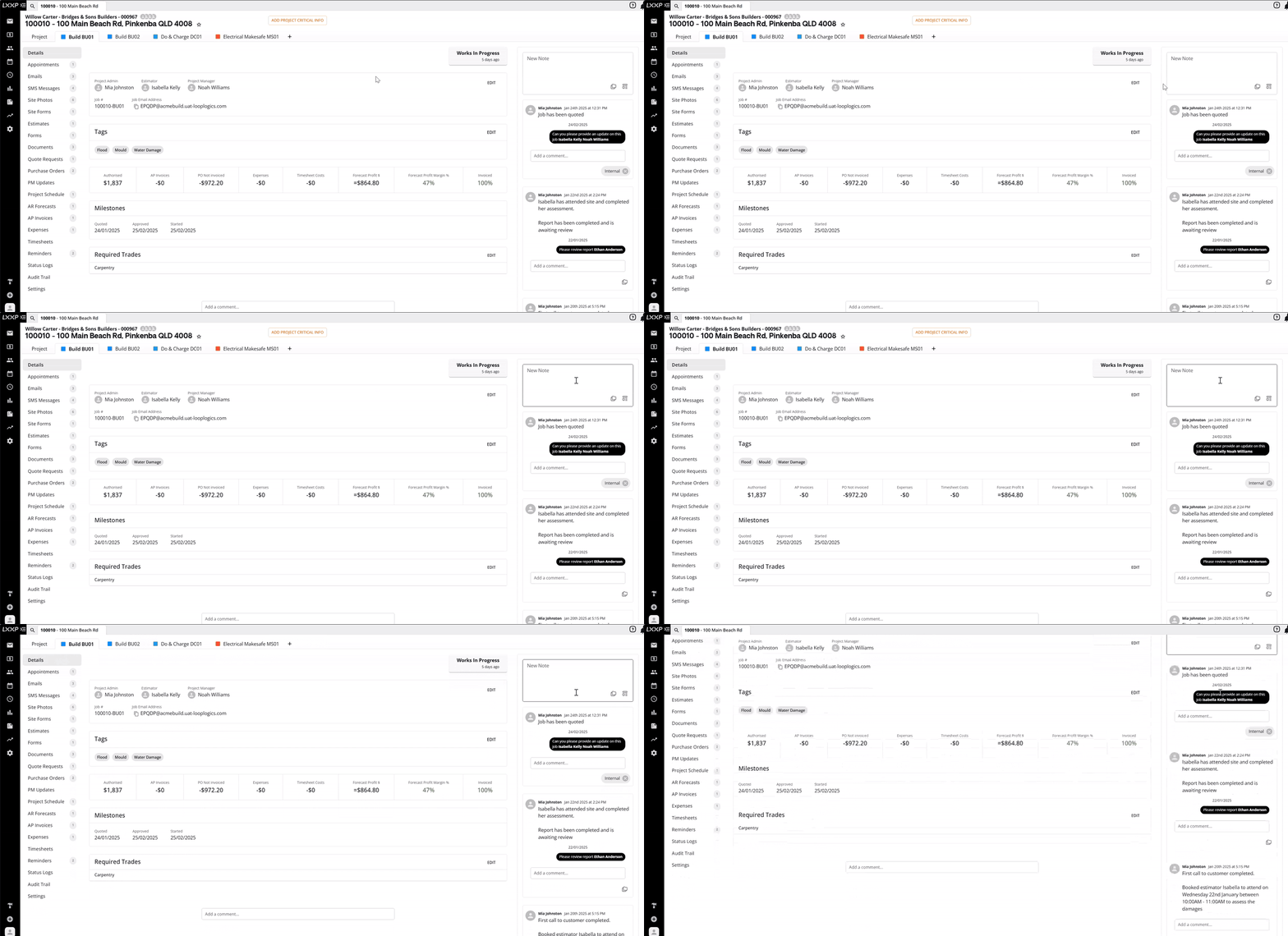
On the job's Details page, click into the New Note box.
-
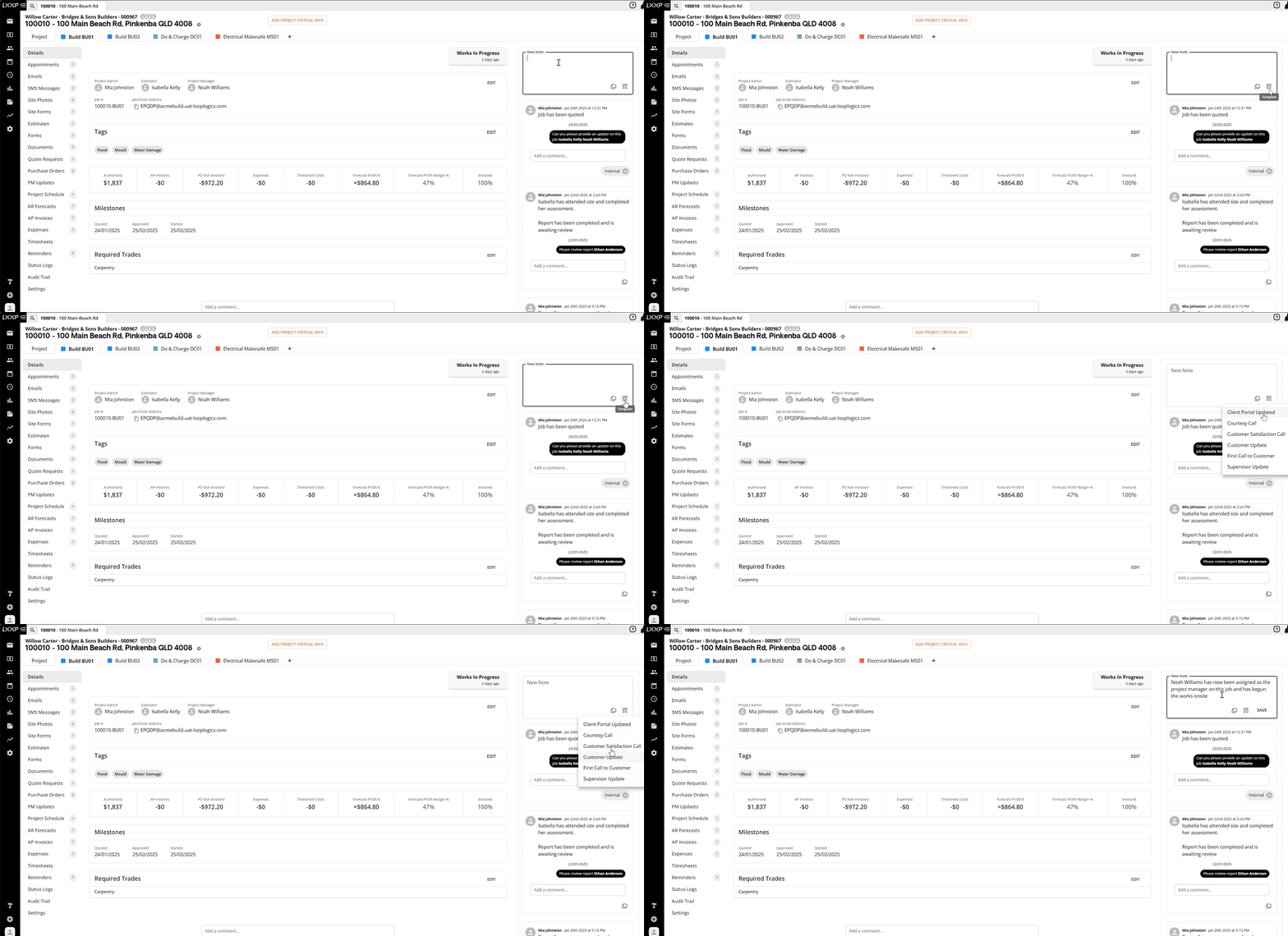
Type your note, or click the template icon in the top-right corner of the box to select from a list of saved note templates (for example, Courtesy Call, Customer Update, or Supervisor Update).
-
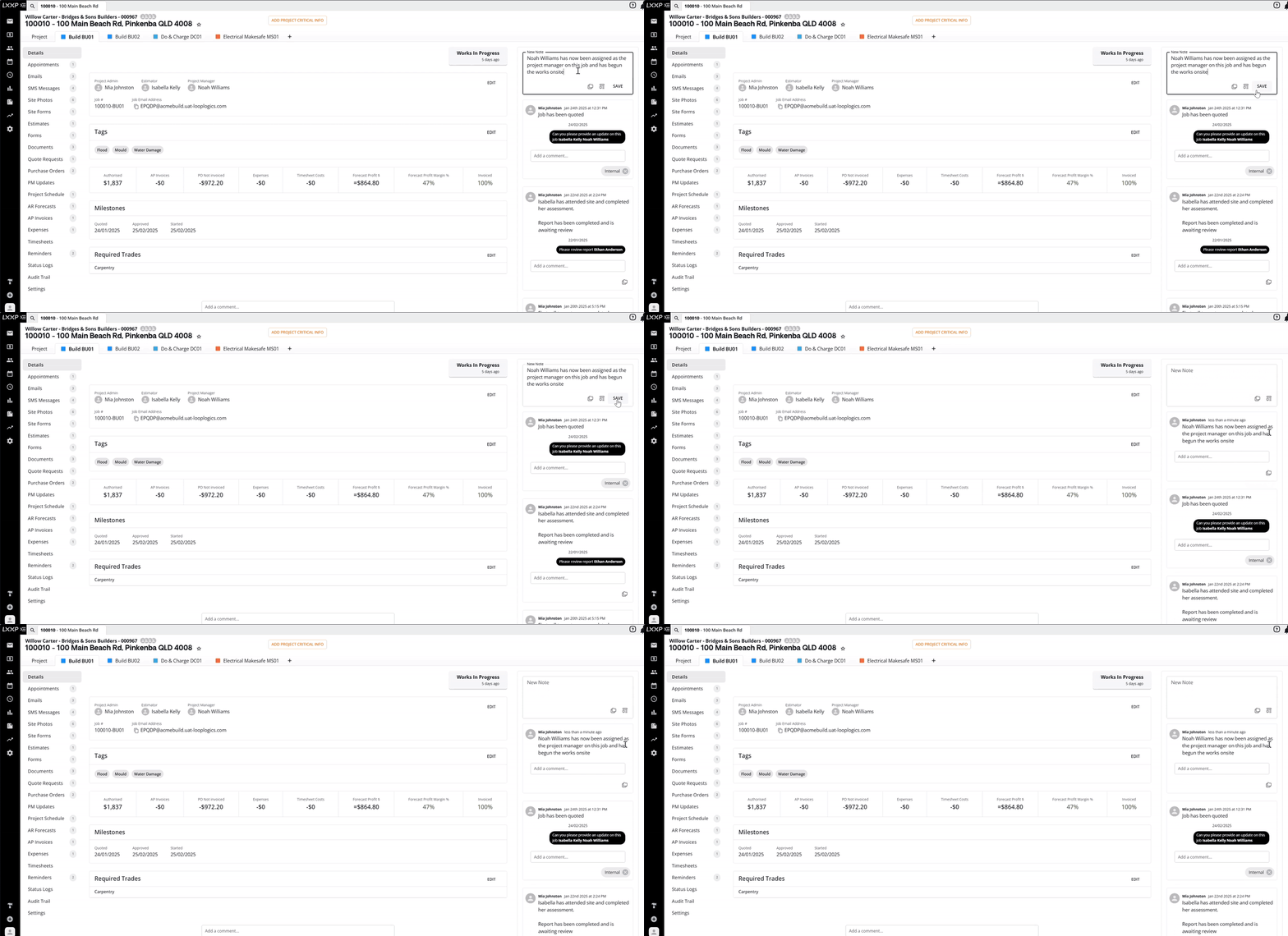
Once you've finished your note, click Save. The note will appear in the notes feed with your name and a timestamp.
-
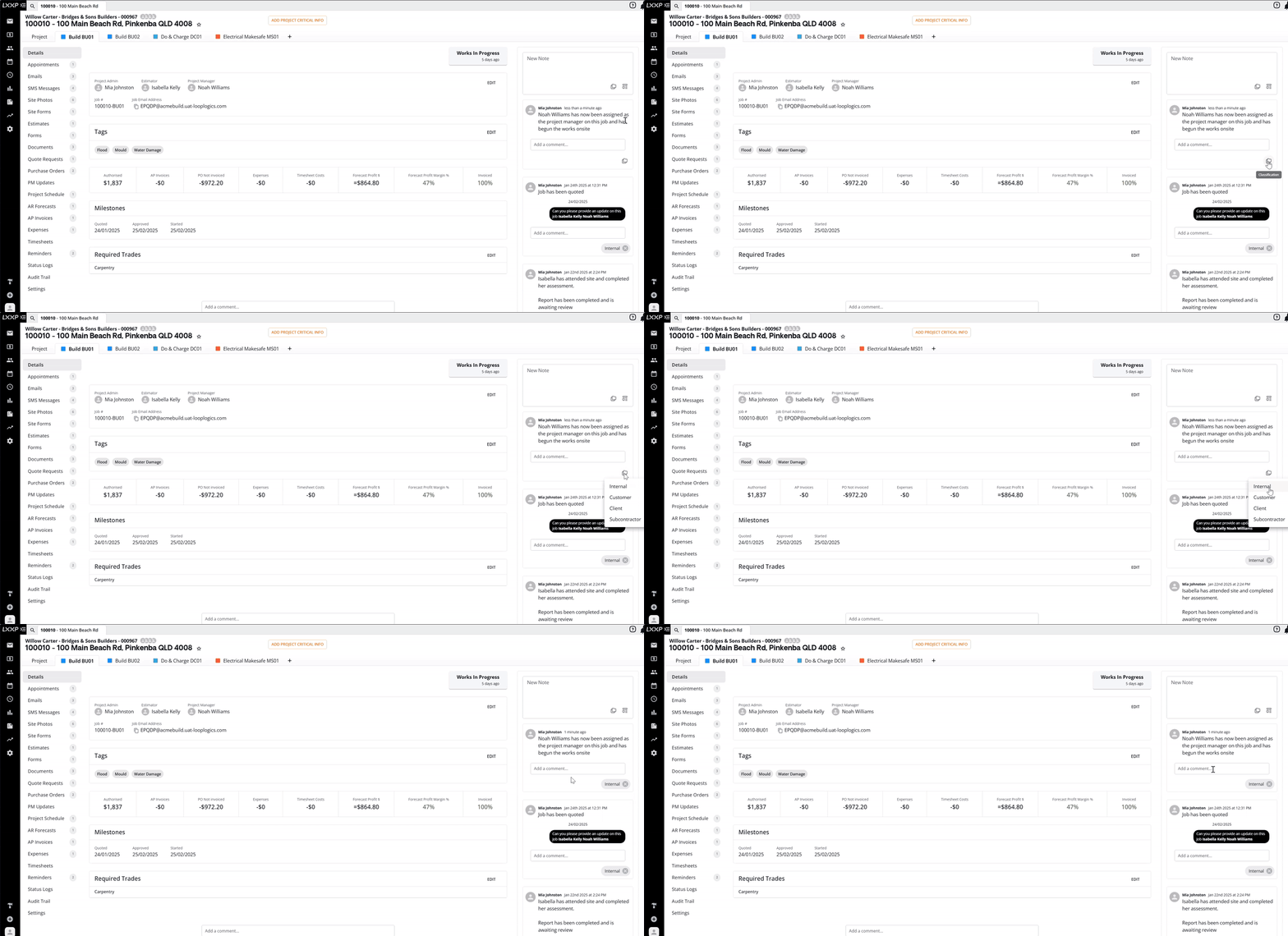
To keep things organised, classify your note using the tag underneath it, choose from Internal, Customer, Client, or Subcontractor.
-
To add further comments to the note, click into the Add a comment box below it and type your message.
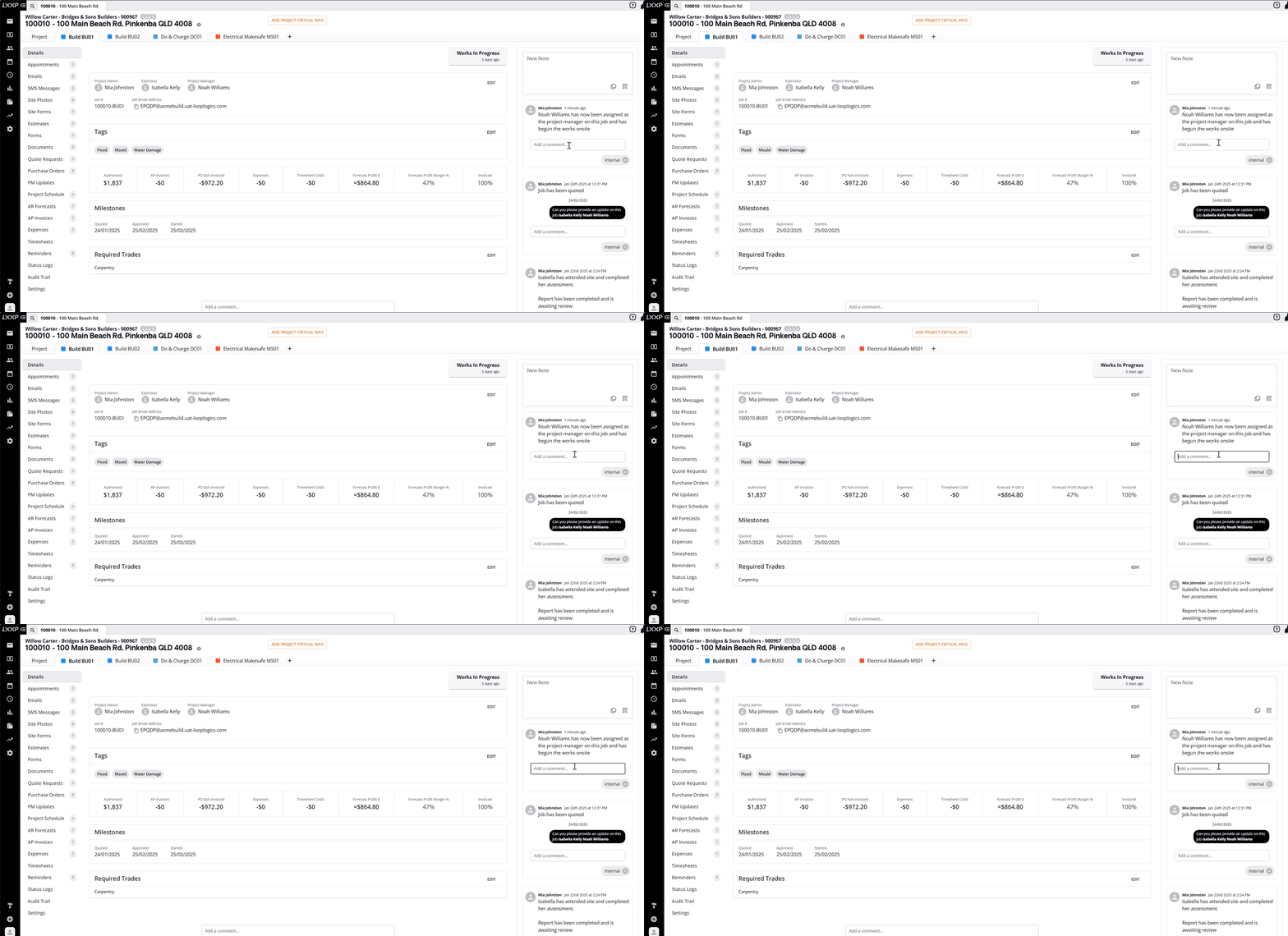
-
To notify a specific user, tag them with a mention by typing the @ symbol in the comment box followed by their username, then press Enter to leave the comment.
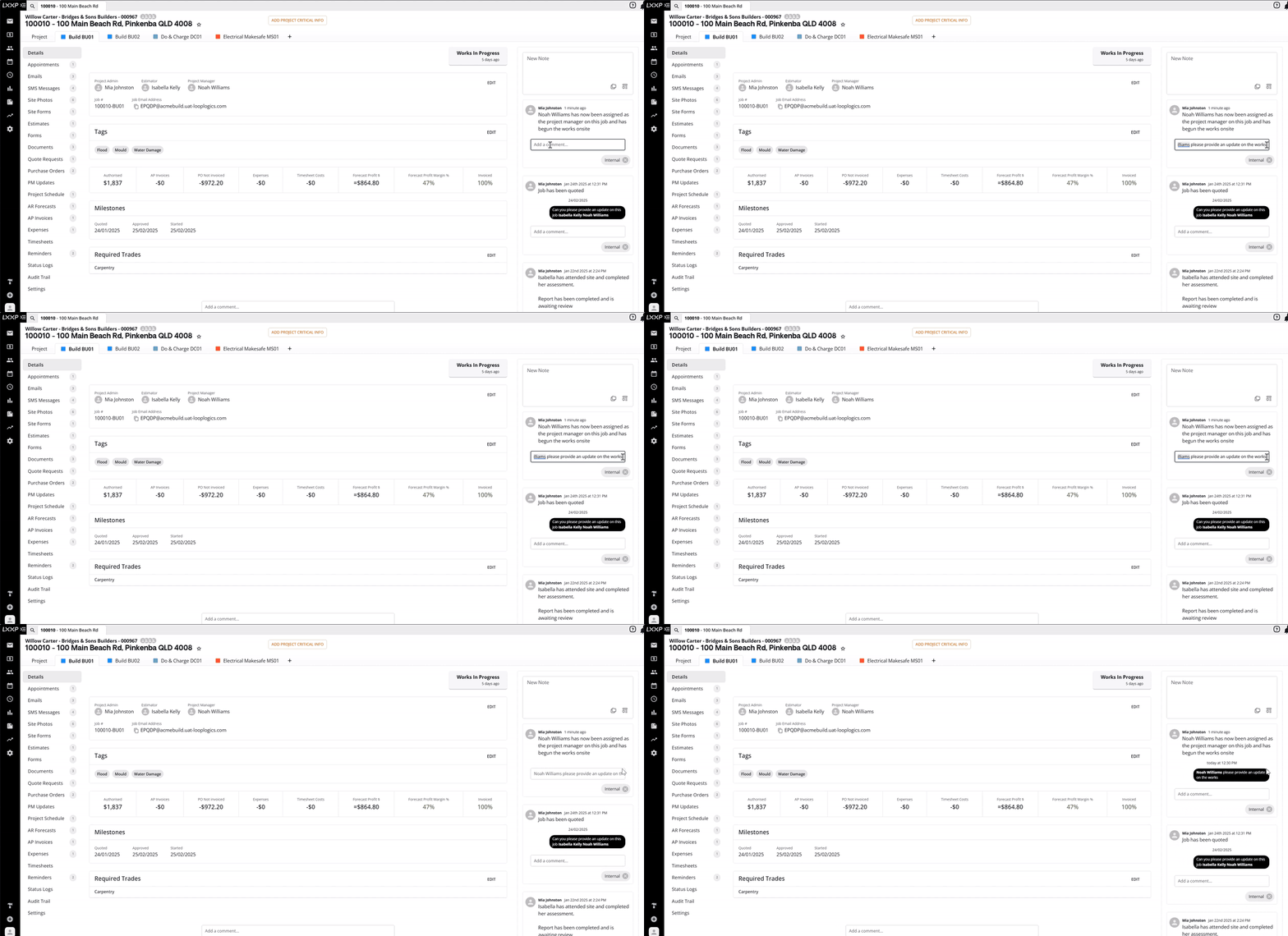
FAQ
What's the difference between a note and a comment? A note is the main entry posted in the Notes section. Comments are added underneath an existing note to keep a related conversation together.
Do I have to use a template? No, templates are optional. You can type a note from scratch or use the template icon to start from a saved template and adjust it as needed.
What are the note classification tags for? Classifying a note as Internal, Customer, Client, or Subcontractor helps keep the notes feed organised and makes it easy to filter for the type of update you're looking for.
What happens when I mention someone in a comment? Tagging a user with @ followed by their username notifies them directly, so they know a comment needs their attention.
❓ Need Help
If you have questions or need assistance, use the chat box in the bottom-right corner to contact the Loop Logics support team or email support@looplogics.com