.png)
How to Submit an Invoice, Photos and Report
💡This is how to submit your invoice, photos and report after you've completed your work order or purchase order.
Steps:
Submitting your invoice, photos and report
- Navigate to the original email you were sent and select the link to submit your invoice, photos and/or report. This will take you to a Works Completed Report you'll need to fill out.
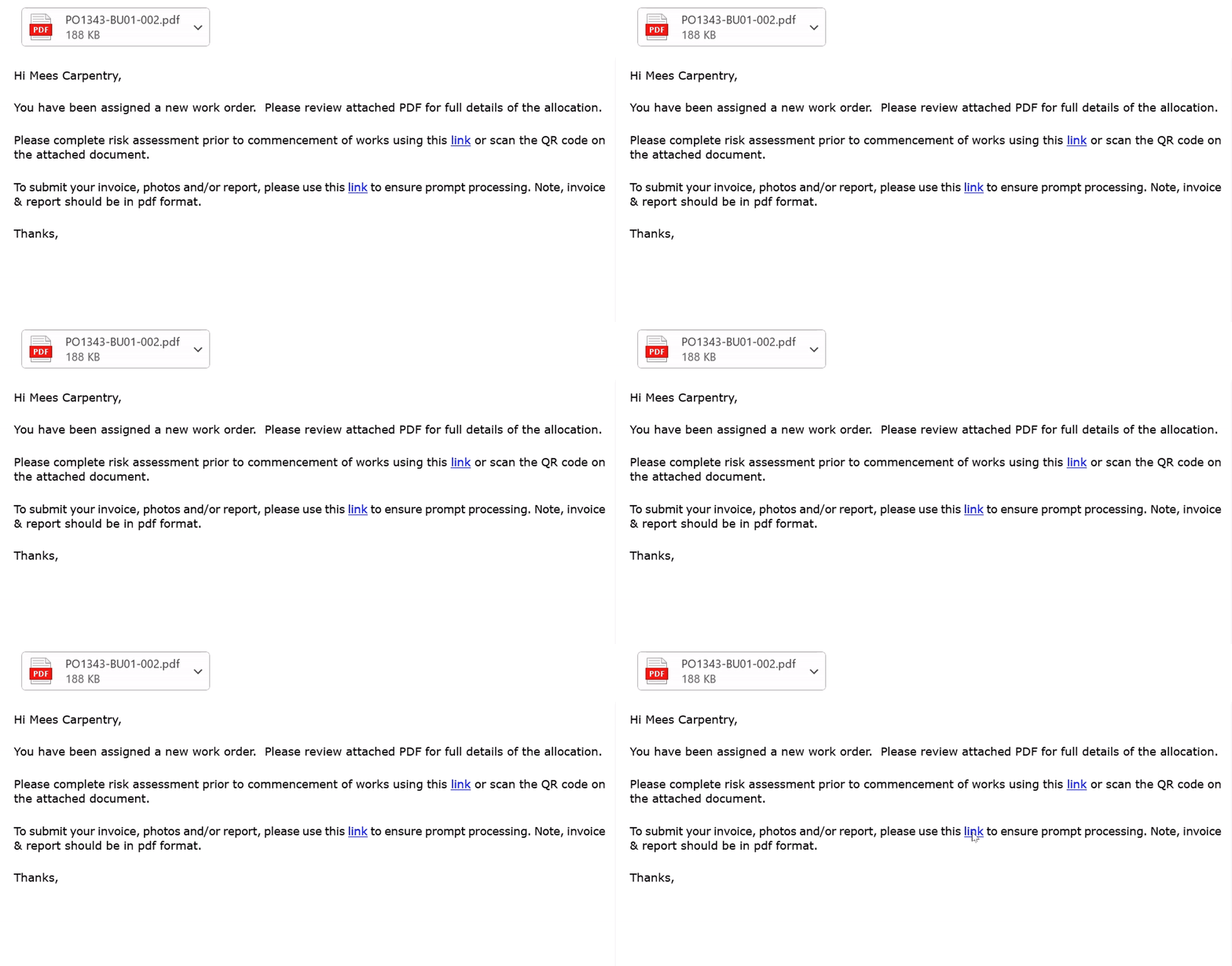
- Select Upload Photos. If you're completing this on your phone, you'll have the option to select photos from your library, take a photo, or choose a file. If you're on desktop, you'll need to upload your photos from your photo library.
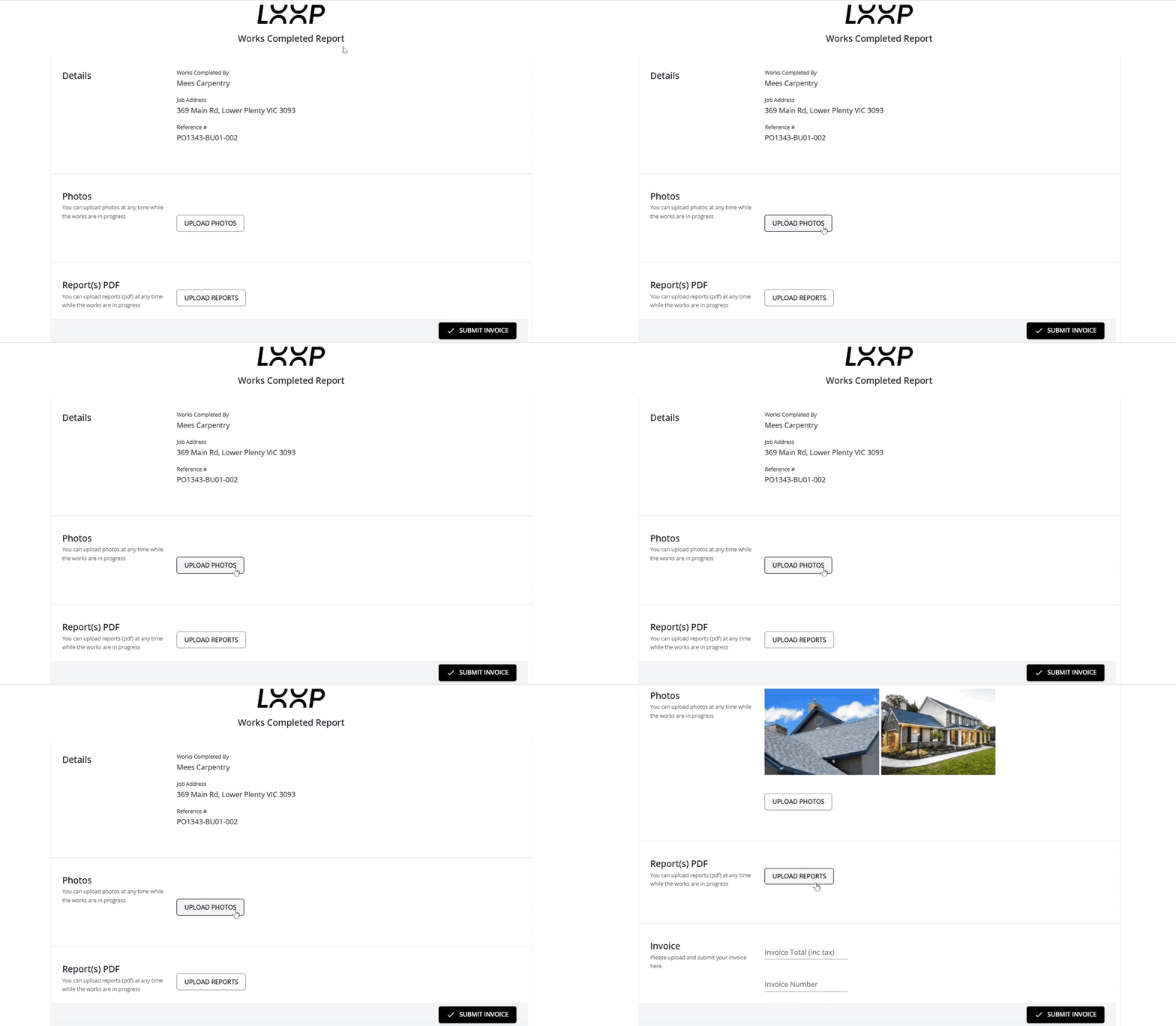
- Select Upload Reports and upload as many reports as necessary.
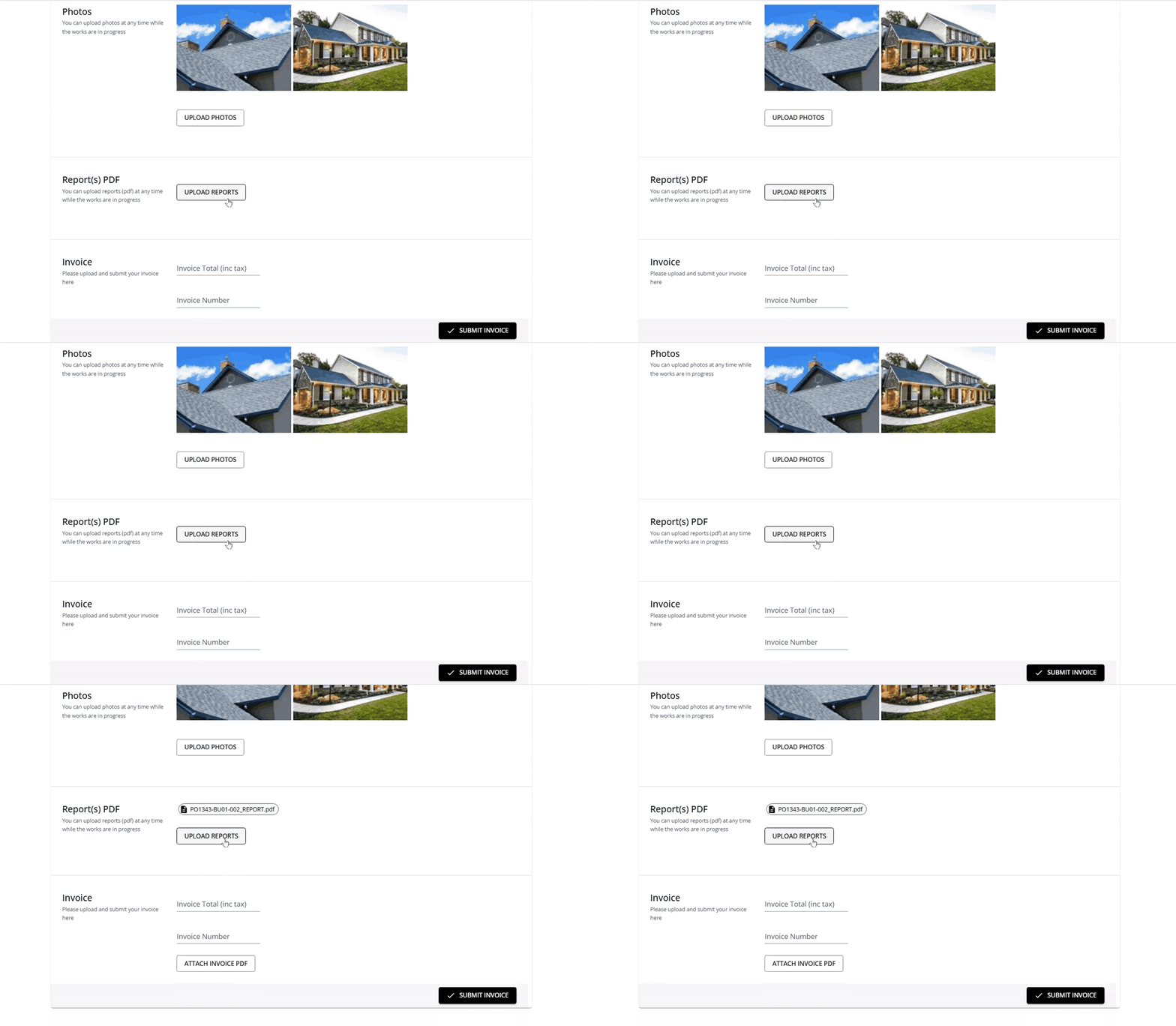
- Enter your invoice total (inc tax) and invoice number, then select Attach Invoice PDF to attach your invoice.
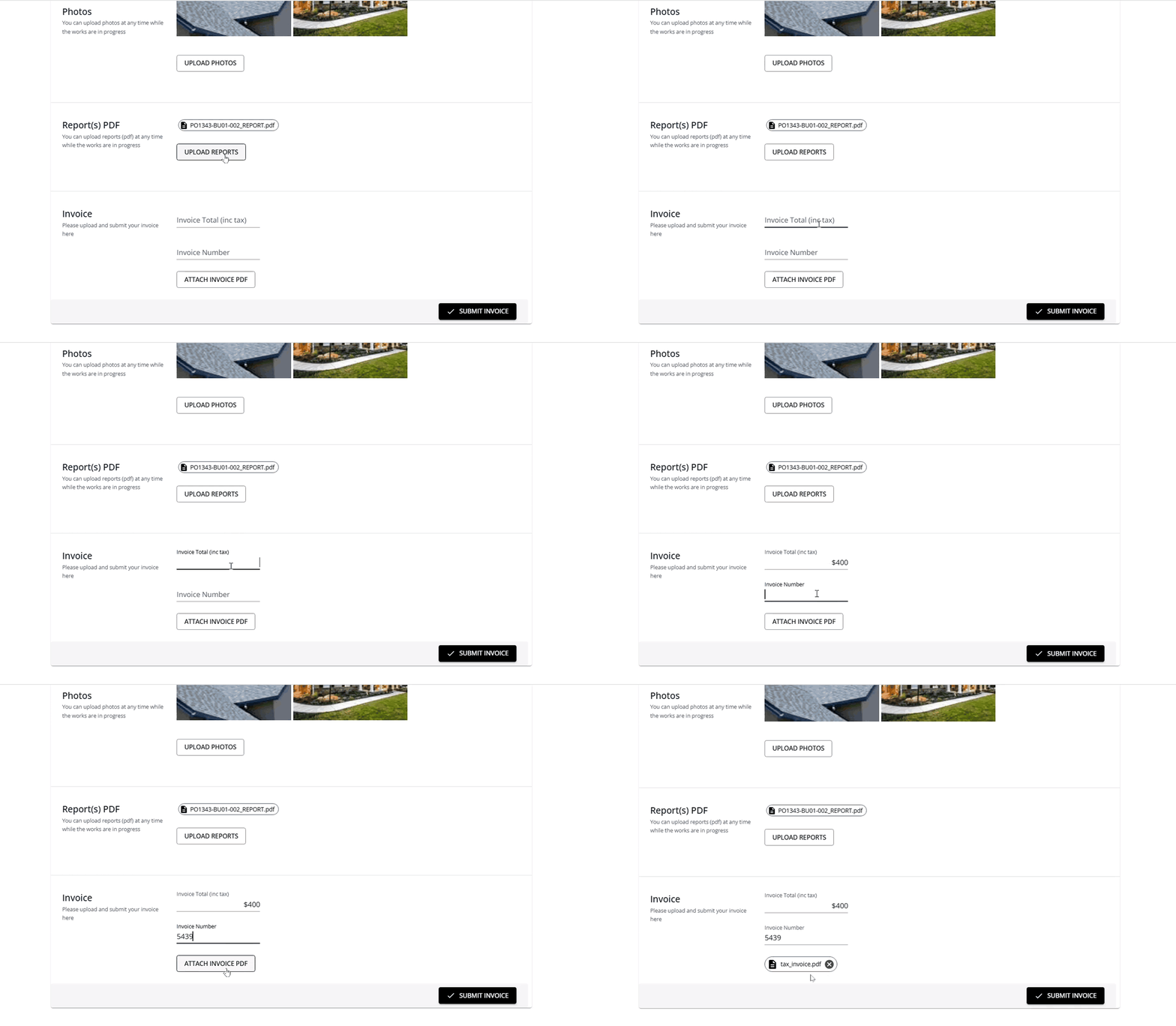
- Once all the information has been entered, select Submit Invoice.
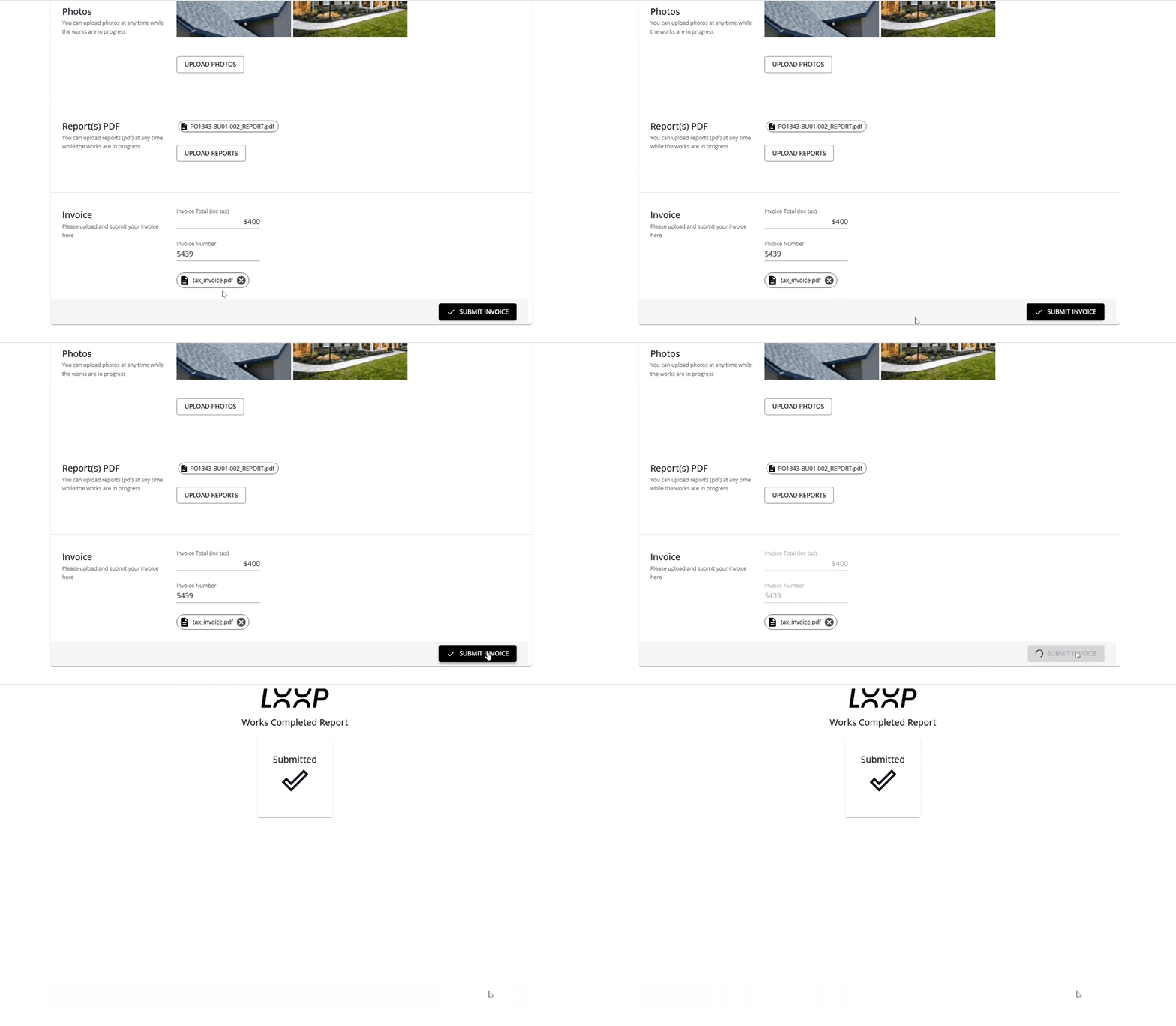
✅ Your work is now complete.
FAQ
What file format should my invoice and report be in? Both should be uploaded as PDF files.
Can I upload my photos and report before I'm ready to submit my invoice? Yes, photos and reports can be uploaded at any time while the works are in progress, ahead of submitting your invoice.
How many photos or reports can I upload? You can upload as many photos and reports as necessary to support your submission.
❓ Need Help
If you have questions or need assistance, use the chat box in the bottom-right corner to contact the Loop Logics support team or email support@looplogics.com