.png)
How to Send a PO from a Authorised Quote
💡Once you've received a subcontractor's quote, you can approve it and generate a purchase order straight from that quote. There's no need to create a separate purchase order from scratch. This sends the work order to the trade so they can complete the works.
Steps:
Sending a purchase order from an authorised quote
- Navigate to the relevant quote request.
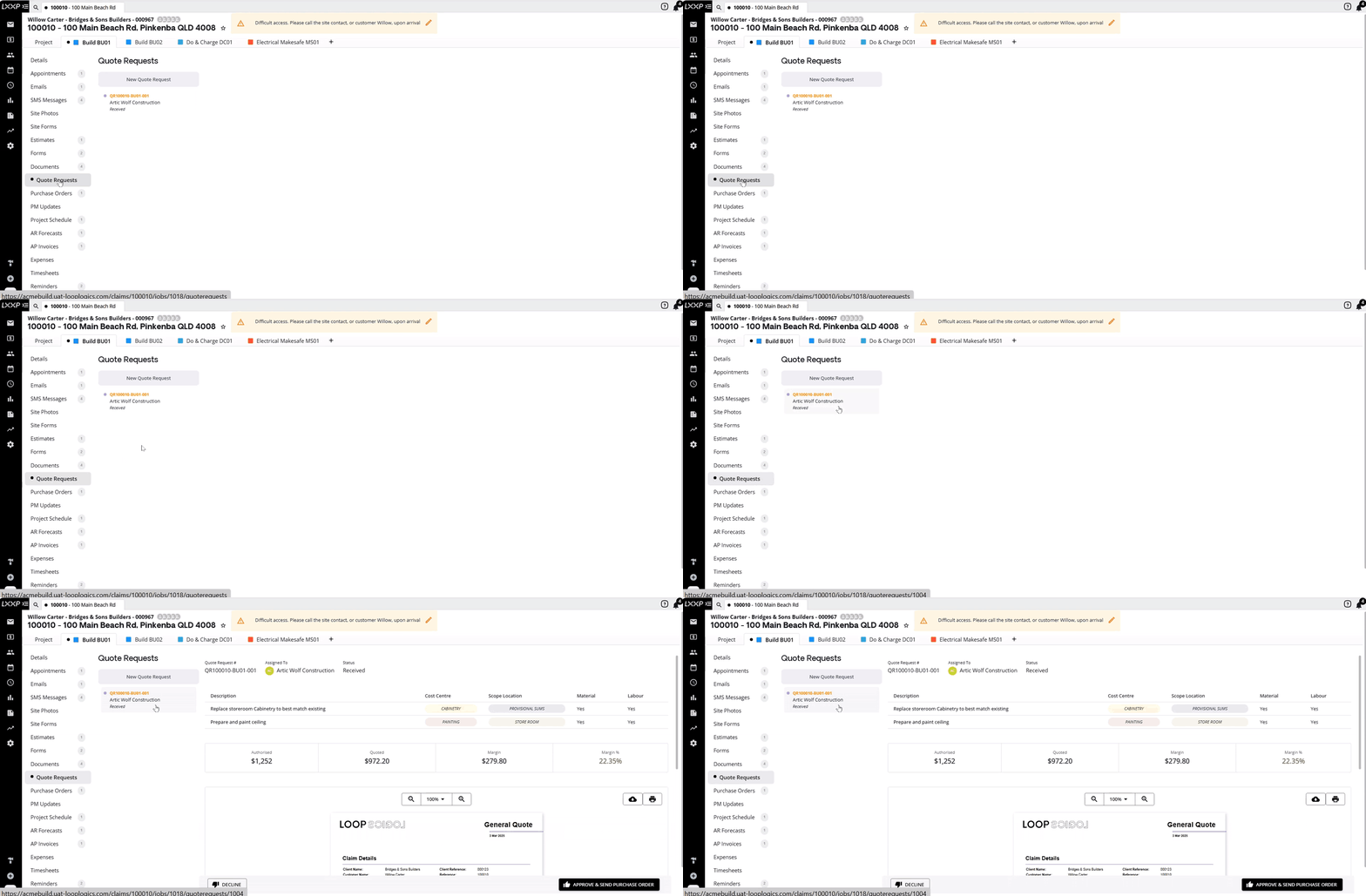
- In the bottom right corner, select Approve & Send Purchase Order.
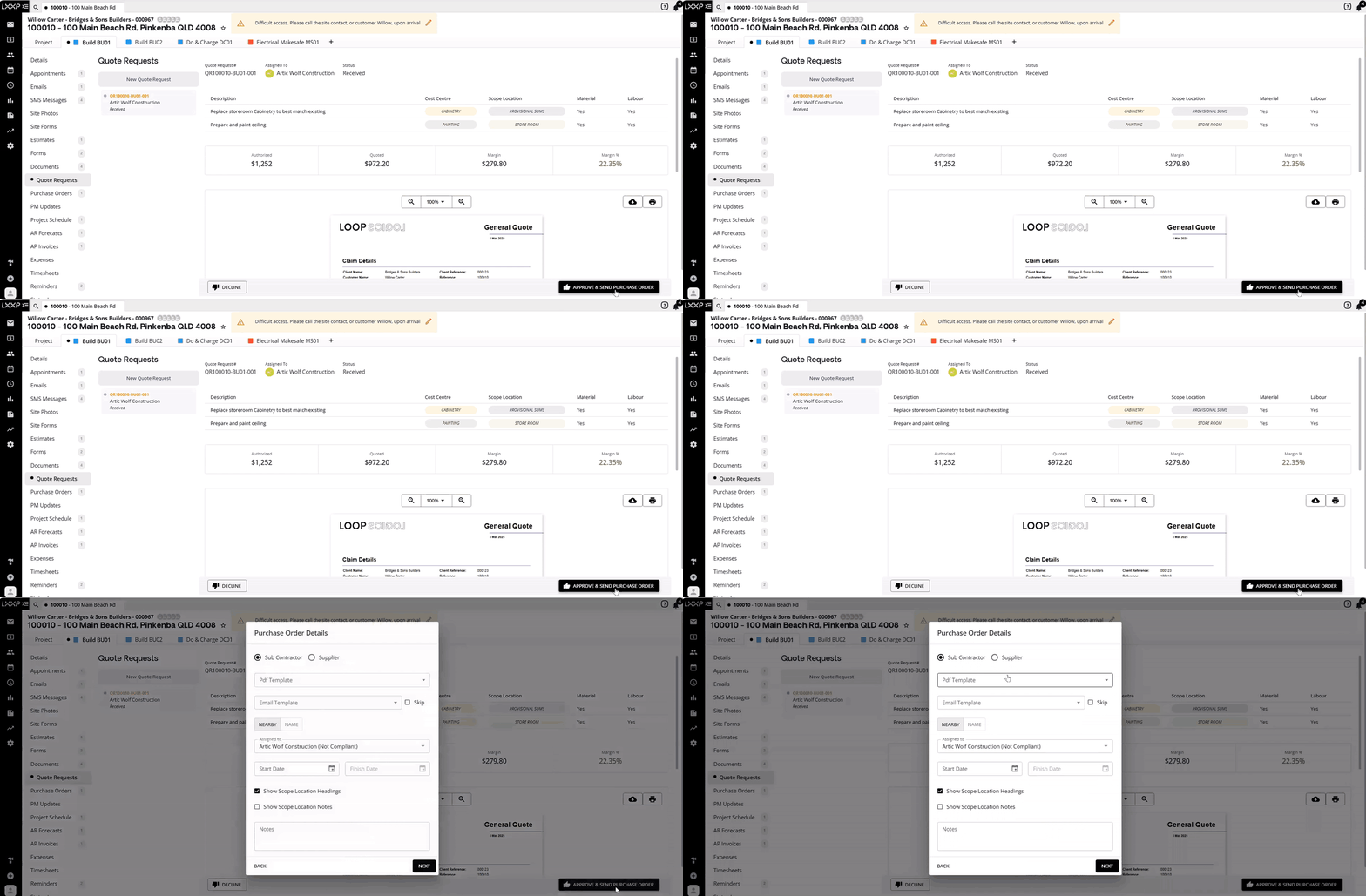
- Fill out the required details as you would for any standard purchase order, choose Subcontractor or Supplier, the PDF template, the email template, confirm who it's assigned to, and set the start and finish dates.
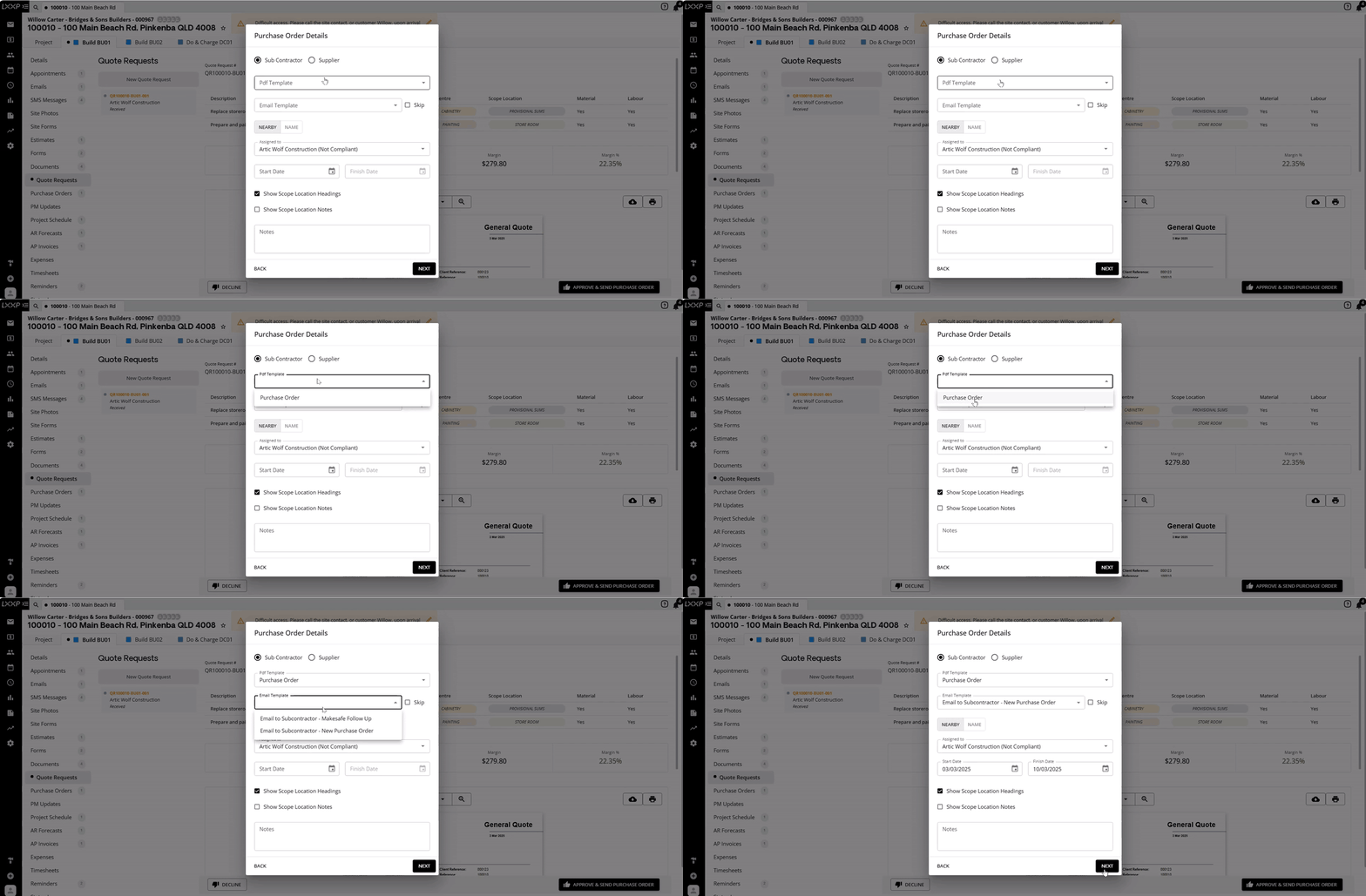
- Select Next.
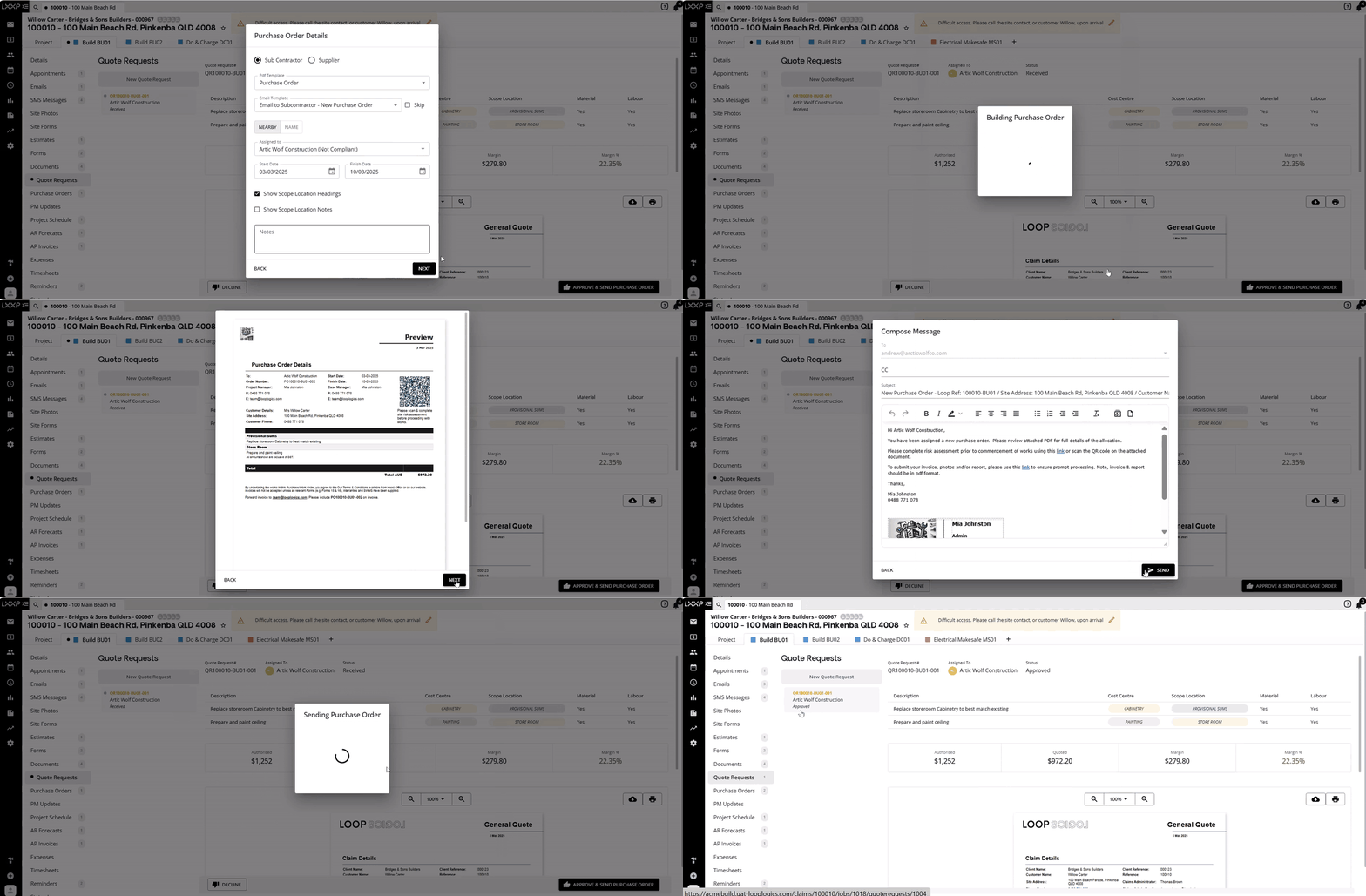
✅ The quote will now show as Approved, and a new purchase order is created and sent, the subcontractor will receive an email with the purchase order details.
FAQ
Do I need to create a new purchase order manually after a quote is approved? No. Approving the quote automatically creates the purchase order, using the same amounts that were quoted, and sends it to the subcontractor.
What happens to the quote request after I approve it? Its status changes to Approved, and it remains linked to the purchase order that was generated from it.
Will the purchase order amount match the quote? Yes, the purchase order is created using the quoted amount, so the totals carry straight across without needing to be re-entered.
❓ Need Help
If you have questions or need assistance, use the chat box in the bottom-right corner to contact the Loop Logics support team or email support@looplogics.com