.png)
How to Send a Purchase Order
💡A purchase order lets you formally allocate scope to a subcontractor or supplier, so they know exactly what work to complete and can submit their invoice back through Loop Logics once it's done.
Steps:
Sending a Purchase Order
- Navigate to Purchase Orders on the left-hand side menu and select New Purchase Order.

- Choose between From Scope or Custom. A custom purchase order is used for do and charge items not associated with an authorised estimate.

- You'll be presented with all authorised scope items, grouped together by cost centre. Expand a cost centre to view its associated line items and select the ones you want via the tick box.

-
Choose how to price the purchase order — Do & Charge, Price By Cost Centre, or Price By Line Item.
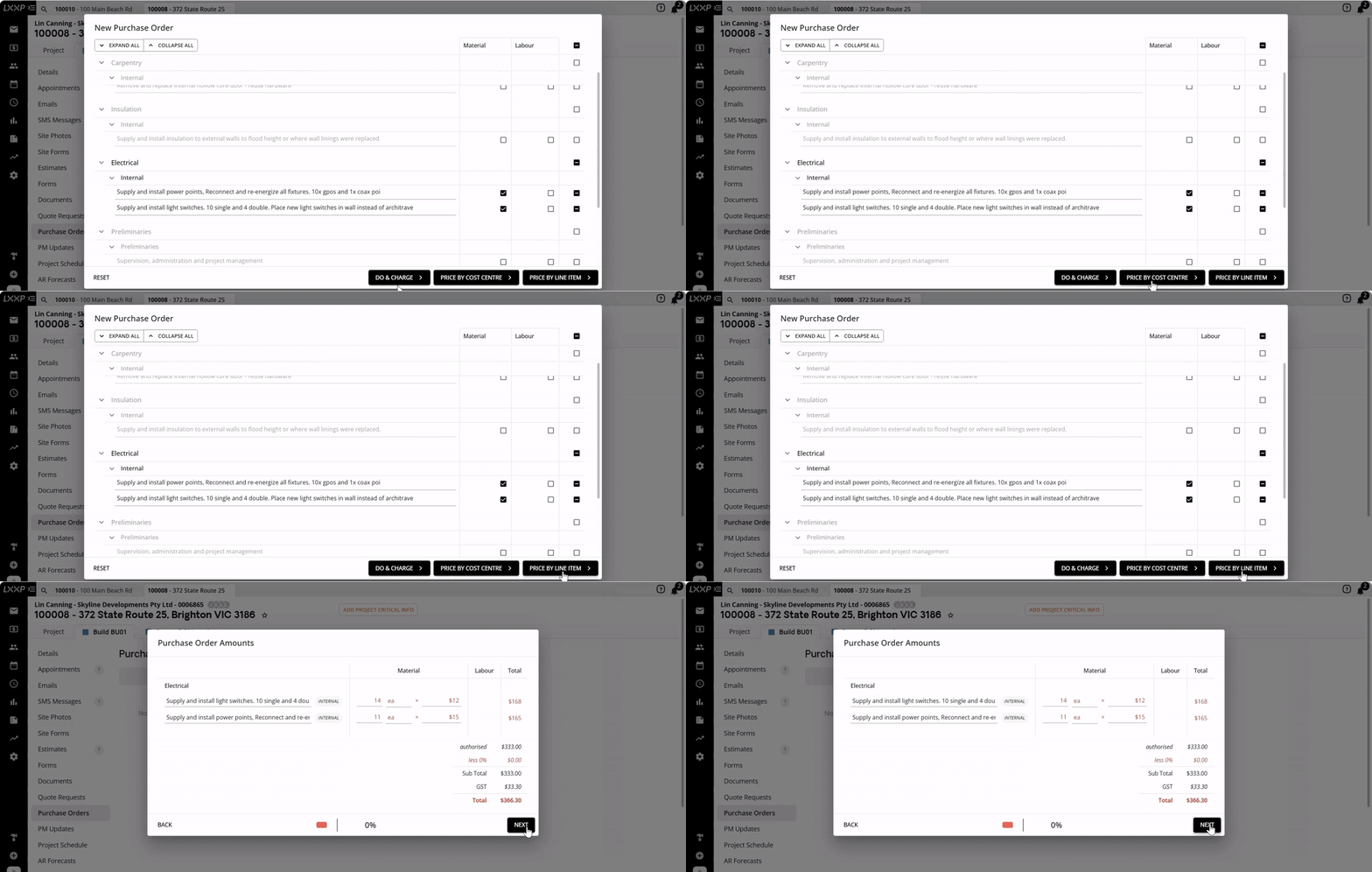
- On the next screen, fill out the purchase order details: select the PDF template, the email template, and the subcontractor or supplier who should receive the purchase order. Select a start and finish date, and add any additional notes.

- Select Next. A preview of the purchase order is generated for your review.

-
Select Next again to bring up the compose email screen, which attaches the purchase order document. You can also attach photos to this email to ensure the trade has a clear understanding of the scope of works. The email includes a link for the subcontractor to upload their invoice back into Loop for your review and payment once works have been completed.
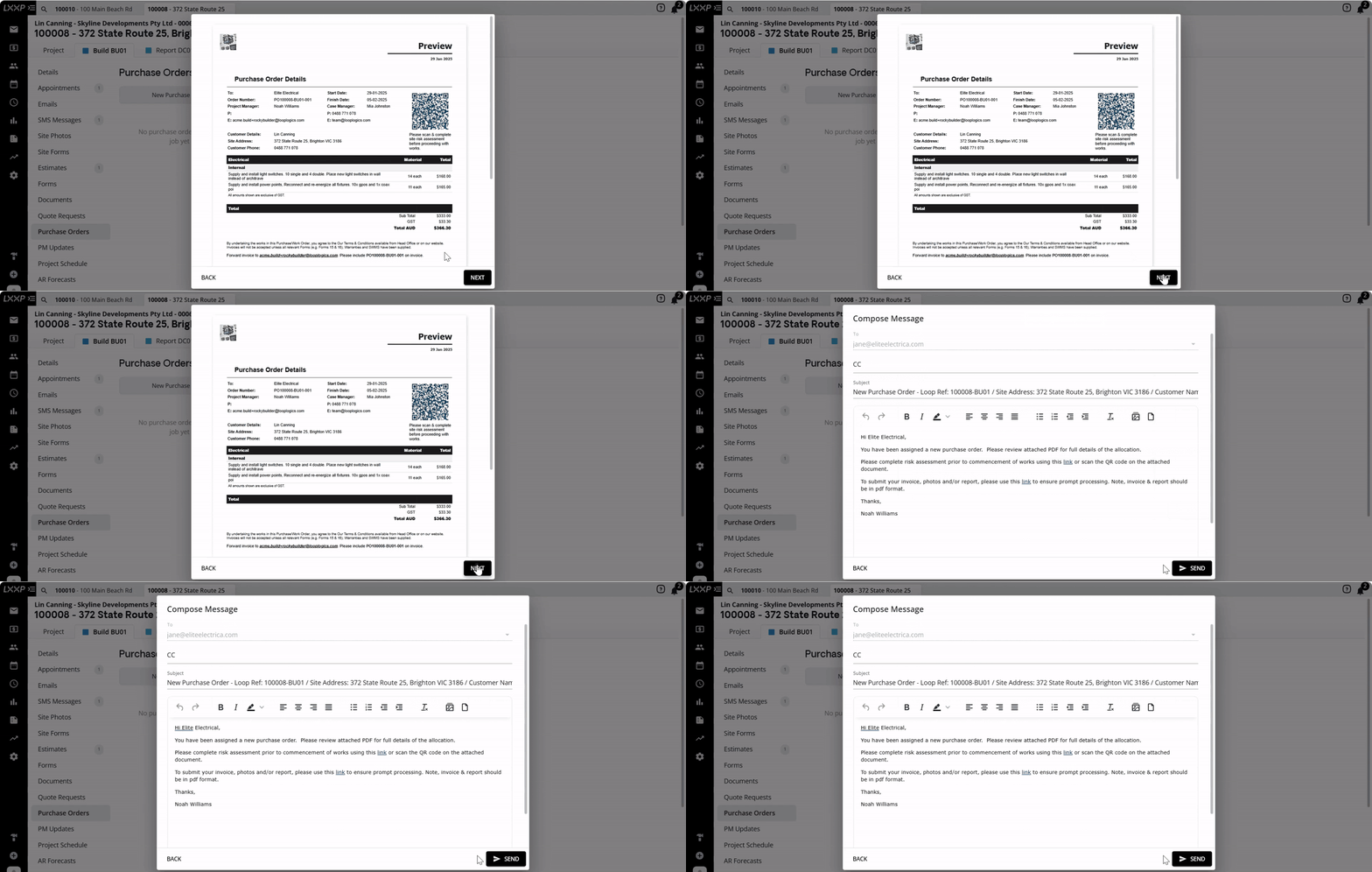
- Select Send.

👉 Your sent purchase order will now be displayed under Purchase Orders.
FAQ
When should I use Custom instead of From Scope? Use Custom for do and charge items that aren't associated with an authorised estimate. Use From Scope when you want to allocate specific line items from an already authorised estimate to a subcontractor or supplier.
What's the difference between pricing by cost centre and pricing by line item? Pricing by cost centre groups the selected items' values at the cost centre level, while pricing by line item lets you review and adjust the quantity and rate for each individual line item before the purchase order total is calculated.
How does the subcontractor submit their invoice? The email sent with the purchase order includes a link the subcontractor can use to upload their invoice, photos, and/or report directly back into Loop for your review and payment.
❓ Need Help
If you have questions or need assistance, use the chat box in the bottom-right corner to contact the Loop Logics support team or email support@looplogics.com