.png)
How to Upload a Document
💡Within each job, Loop Logics provides an efficient way to store and manage job-specific documents, keeping everything organised and easily accessible.
Steps:
-
Navigate to the relevant job and select Documents from the left-hand side menu.
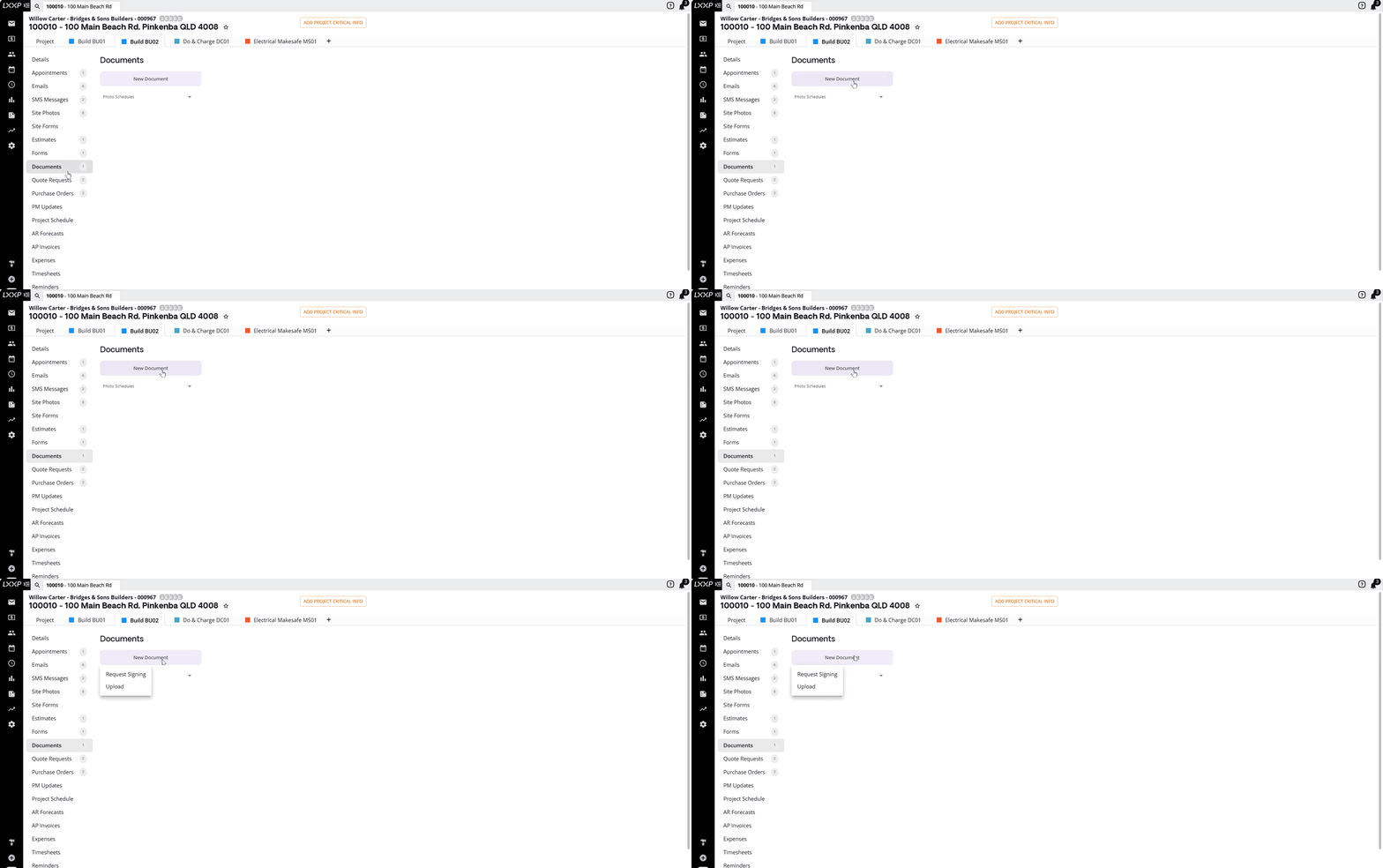
- Select New Document.

- Choose Upload.

- Choose the appropriate document category from the dropdown menu.

- Drag and drop the file into the upload area, or click to browse and select it.

💡Once uploaded, your document will populate under the selected category.
Editing a document's name or category
If you'd like to edit the document name or category after uploading:
- Select the document.

- At the top of the screen, choose a different document category, or rename the document, as needed.

FAQ
Can I upload more than one document at a time? The upload area accepts drag-and-drop or a browse-to-select action for adding a document to a category.
Can I change a document's category after uploading it? Yes, Select the document, and at the top of the screen you can choose a different category from the dropdown.
What other ways can documents be added to a job besides Upload? The New Document menu also offers Request Signing, alongside Upload, for adding documents that need a signature.
❓ Need Help
If you have questions or need assistance, use the chat box in the bottom-right corner to contact the Loop Logics support team or email support@looplogics.com