.png)
How to Add Hourly Rates for a User's Timesheet
💡You can assign an hourly rate to a user for their timesheets in Loop Logics. This rate is used to automatically calculate the total cost when generating an invoice from timesheets.
Steps:
Set the user's standard rates
- Go to Admin, then under Company select Users.
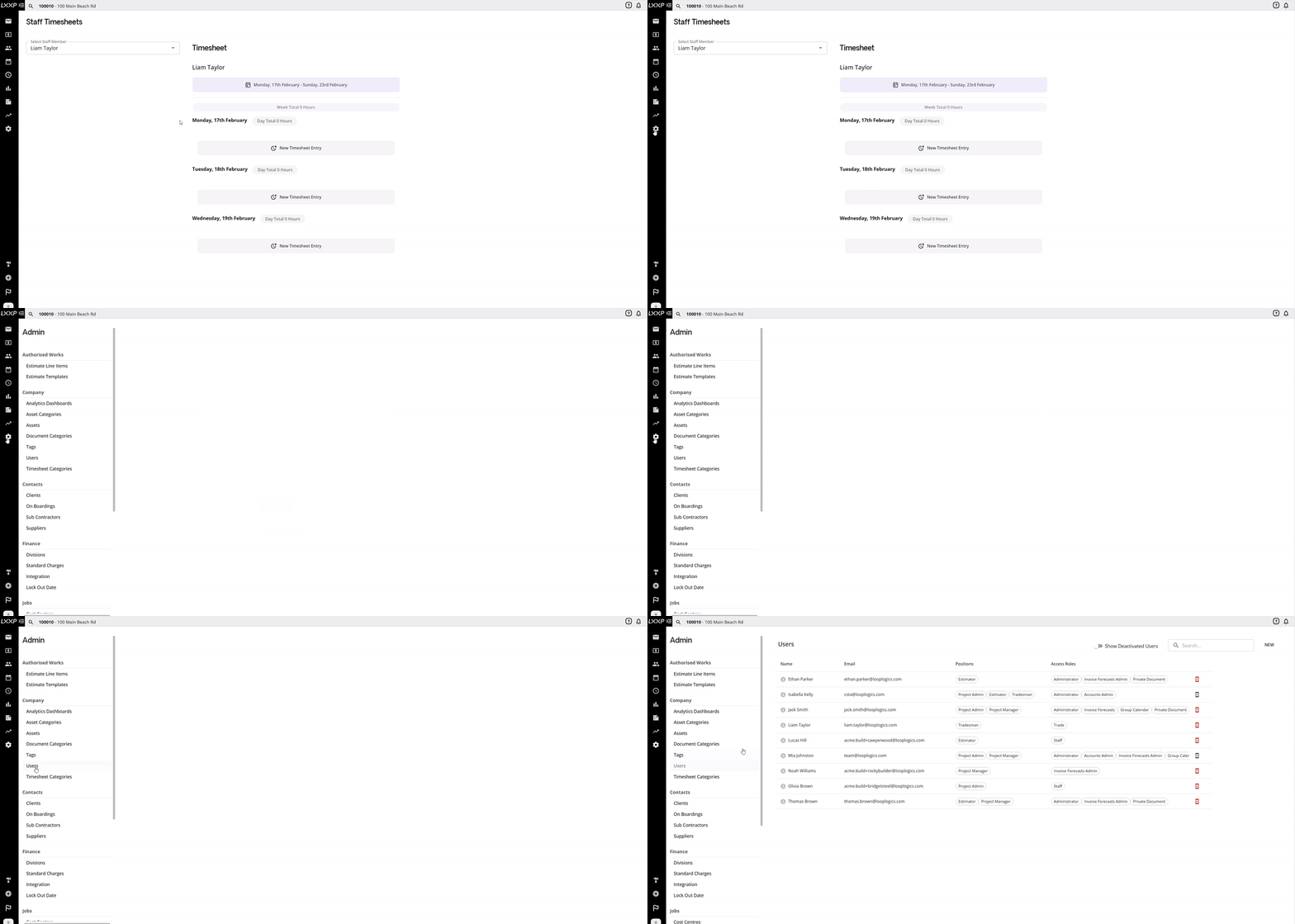
- Select the desired user.
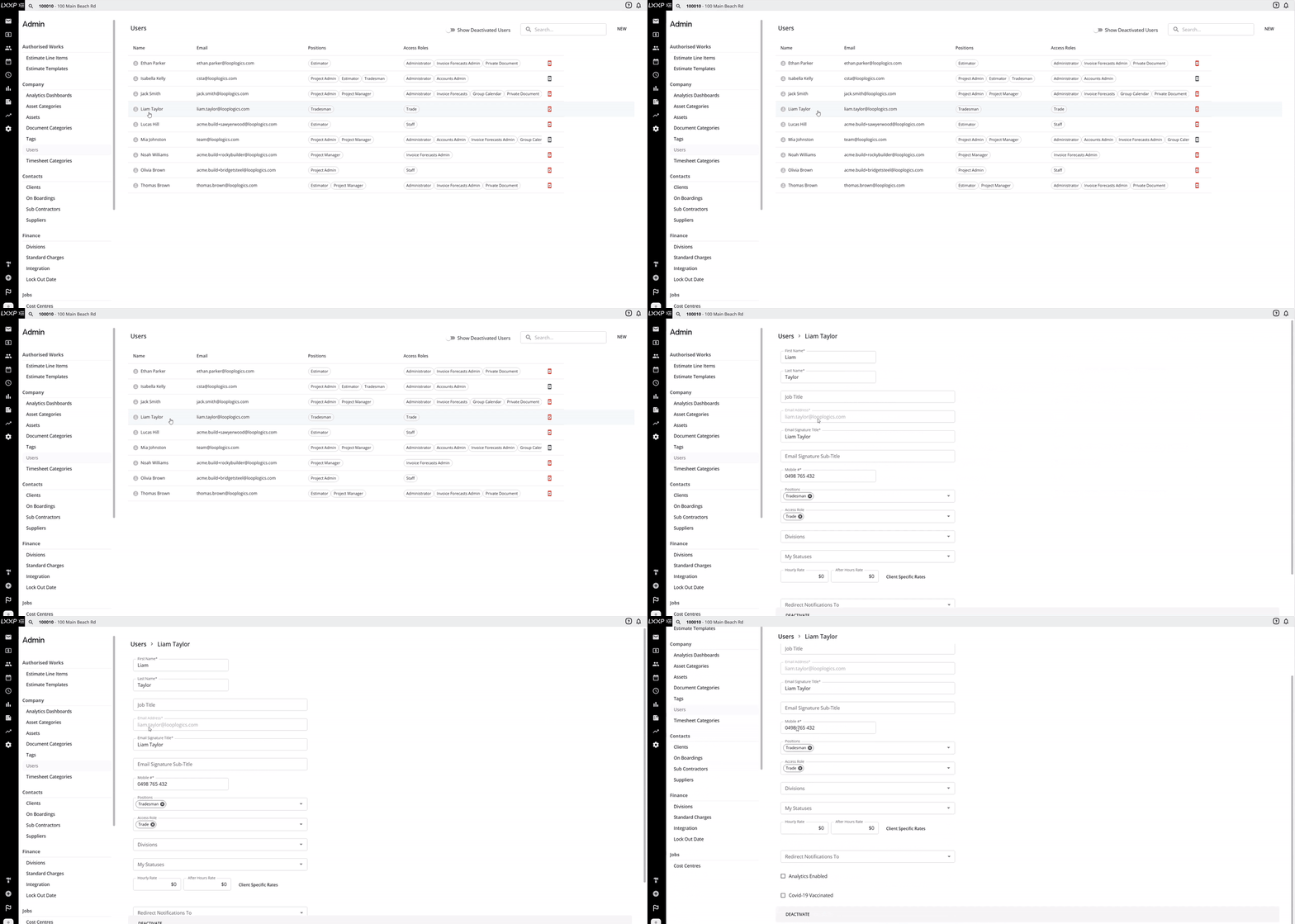
- Scroll to the bottom of the screen and enter their Hourly Rate, and an After Hours Rate if necessary.
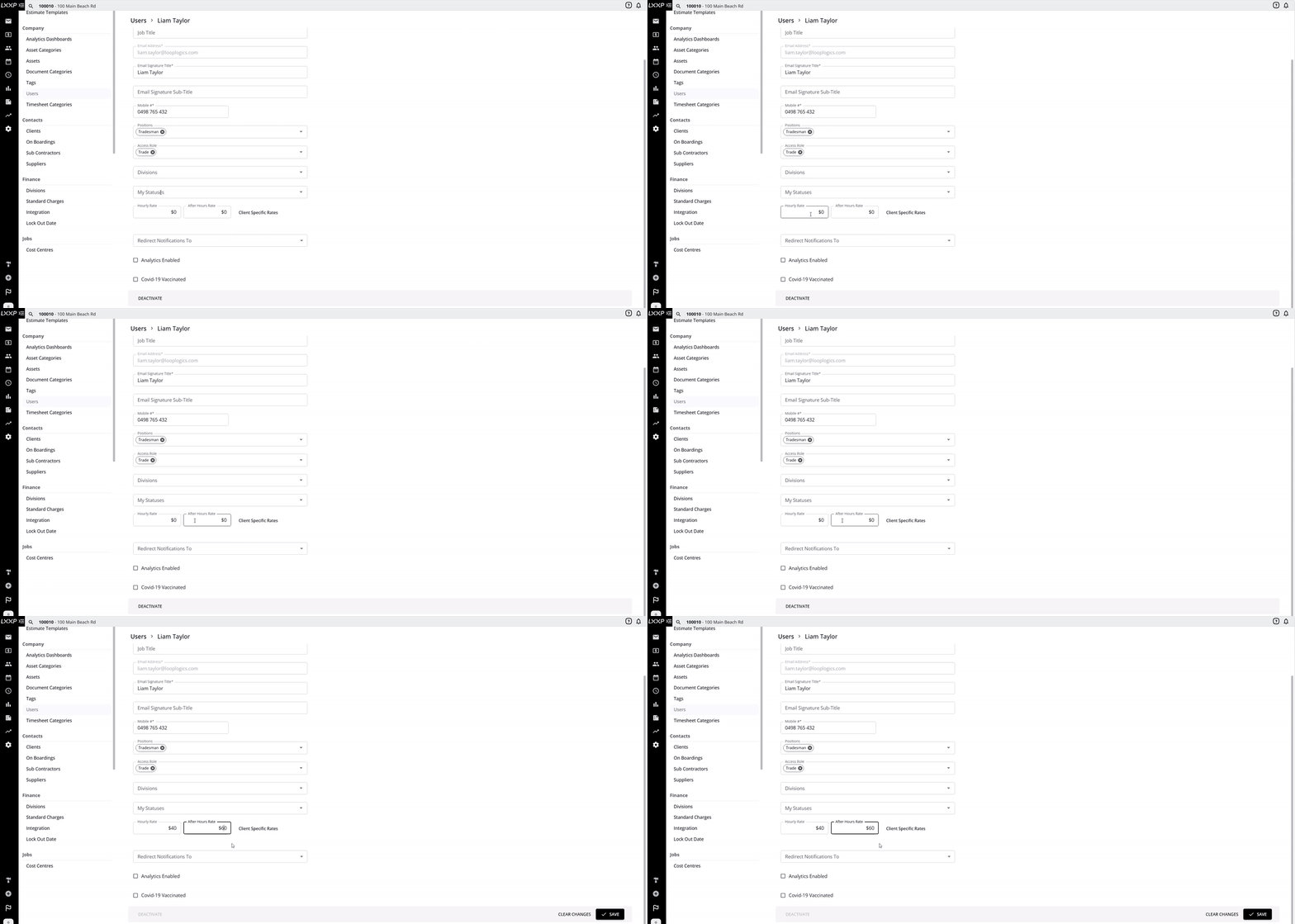
- Select Save.
Set client-specific rates (optional)
- If the user's rates vary by client, you can set a client-specific rate:
- Select Client Specific Rates.
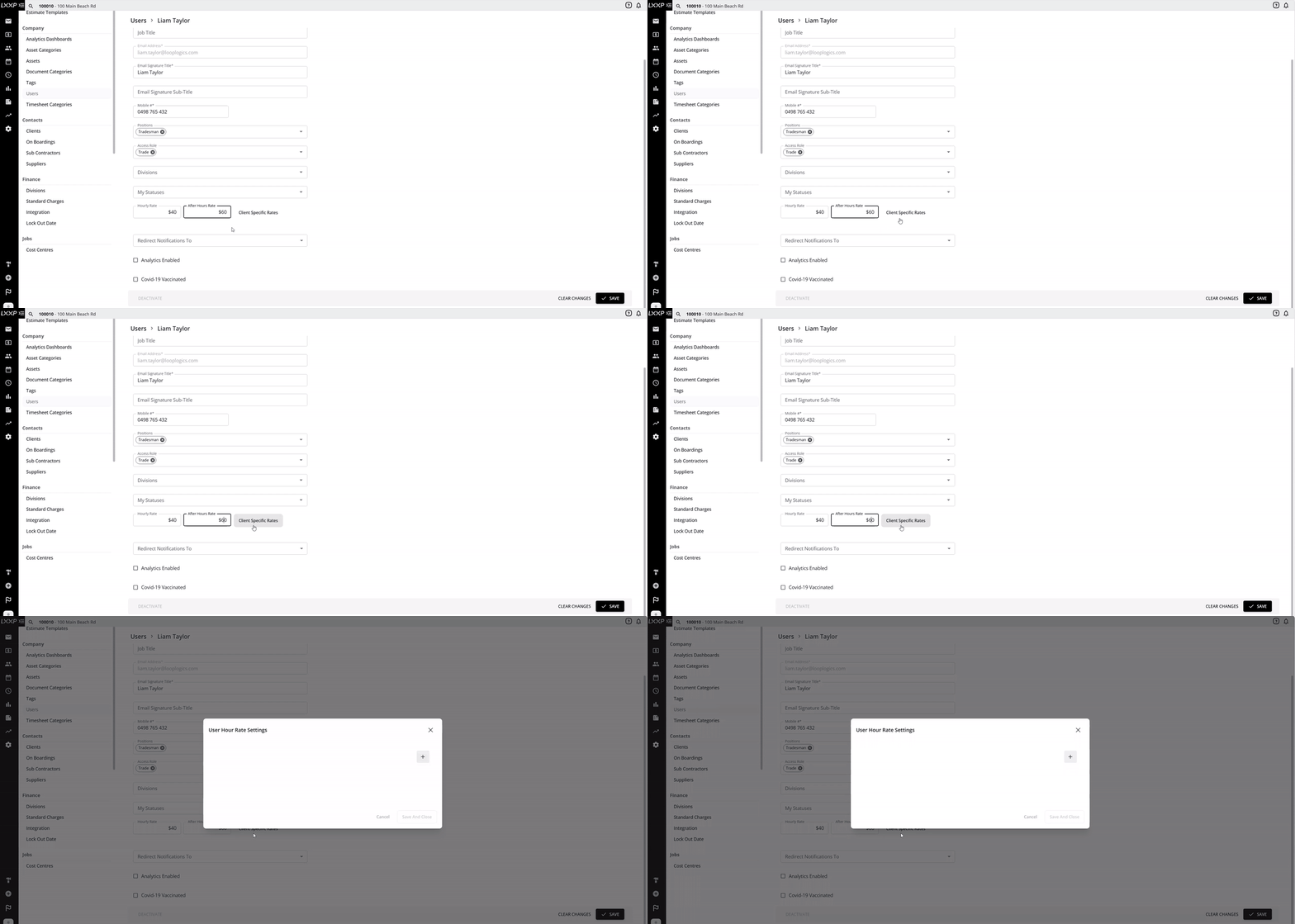
- Click the + button.
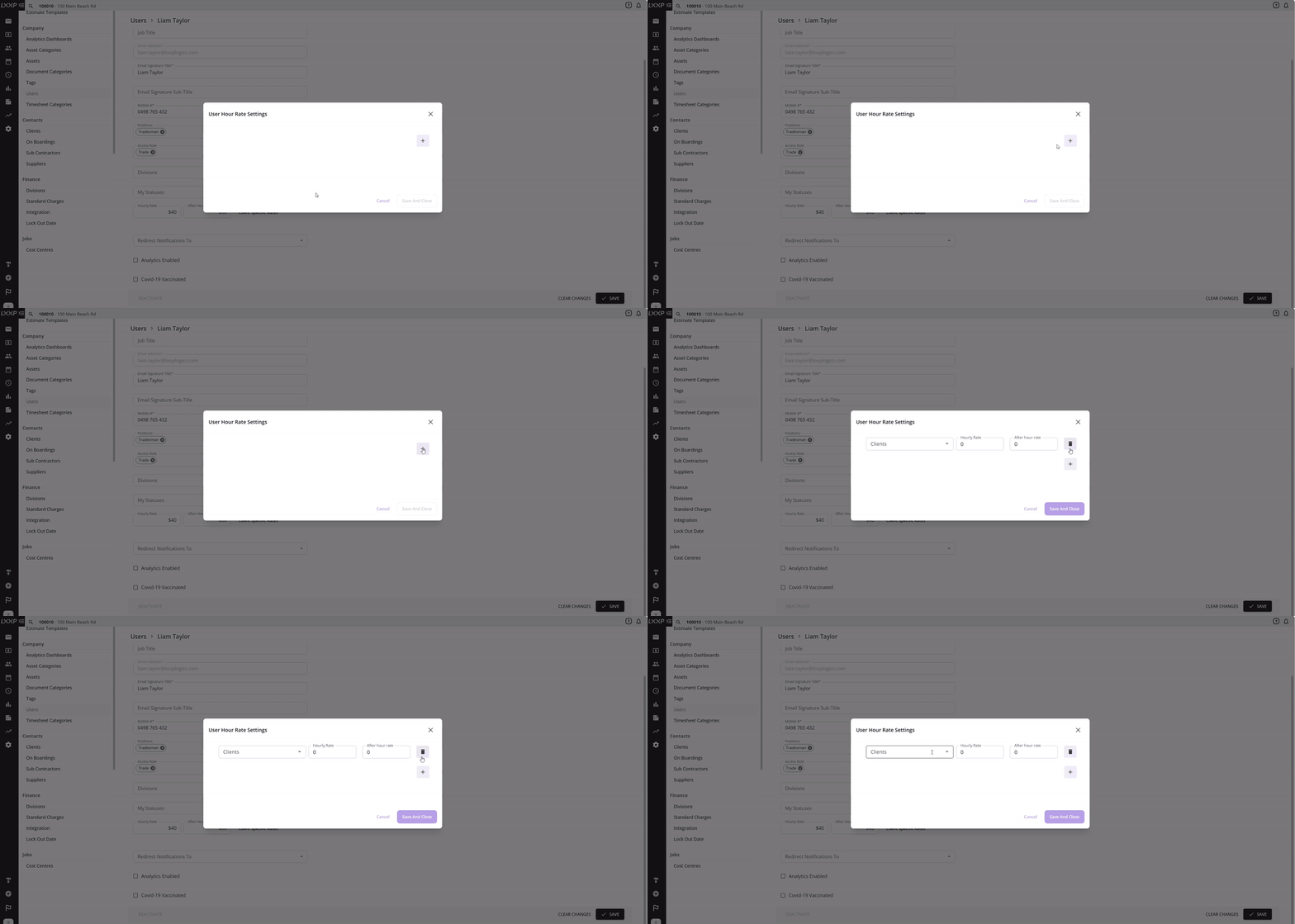
- Select the client, then enter their hourly rate and after hours rate for that client.
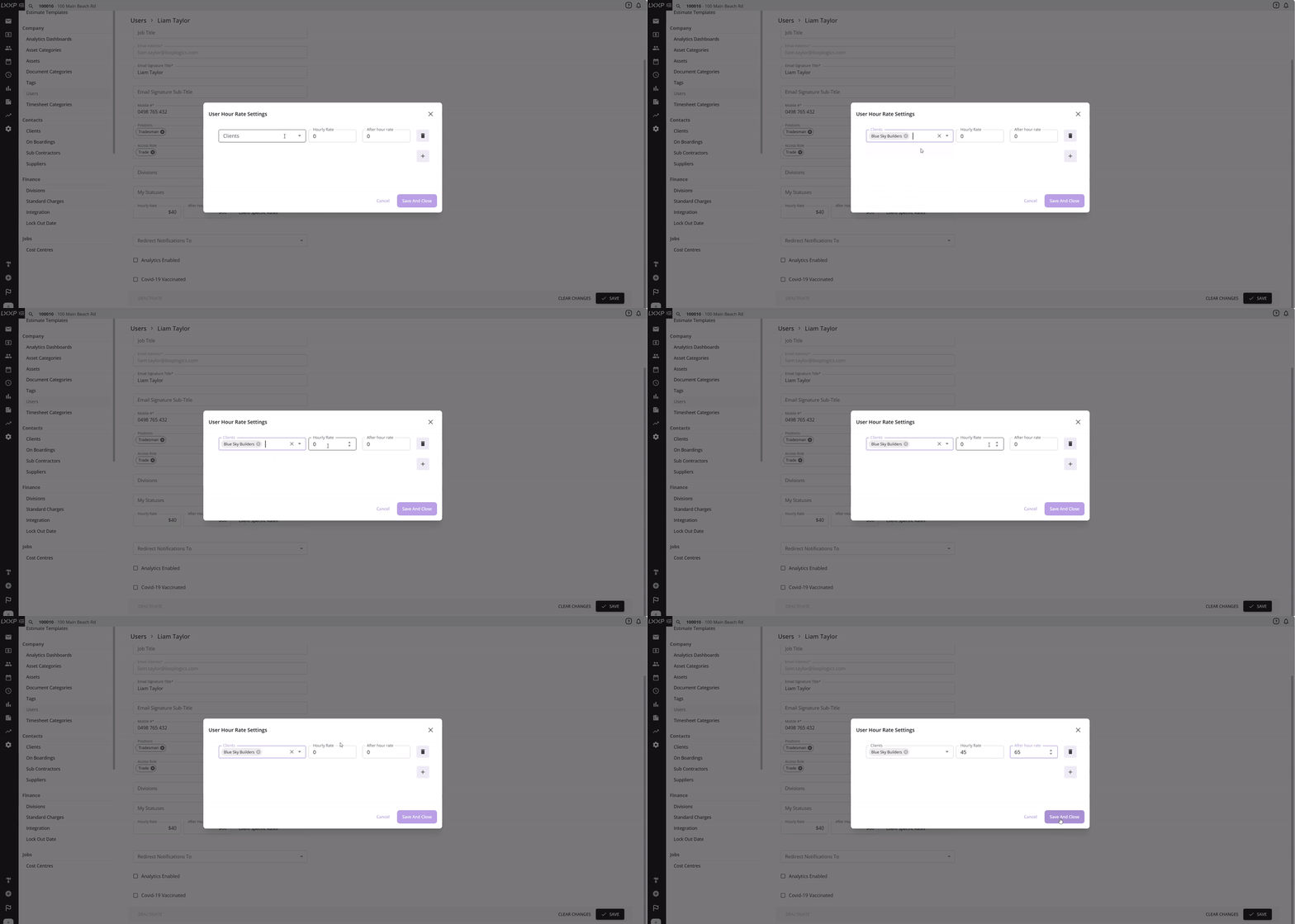
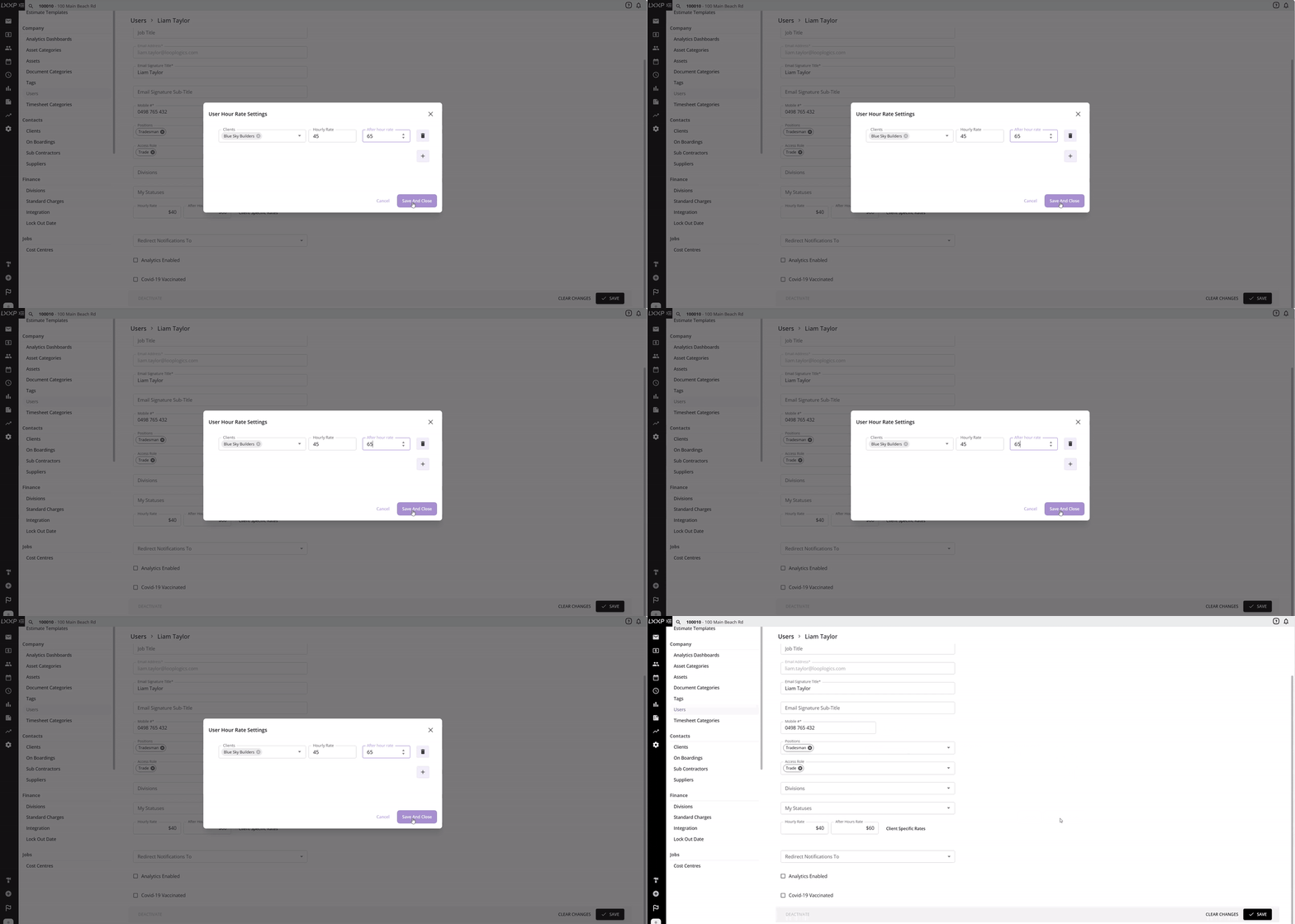
- Click Save and Close to apply the changes.
FAQ
How is the hourly rate used? When generating an invoice from timesheets, Loop automatically calculates the total based on the specified hourly rate and the number of hours worked.
What's the difference between the Hourly Rate and the After Hours Rate? The Hourly Rate applies to a user's standard hours, while the After Hours Rate applies when they work outside normal hours.
Can a user have different rates for different clients? Yes, use Client Specific Rates to set a unique hourly rate and after hours rate for individual clients, which will override the user's standard rate for that client's jobs.
Where do I find a user's hourly rate settings? Go to Admin, then under Company select Users, and open the relevant user, their rates are near the bottom of the page.
❓ Need Help
If you have questions or need assistance, use the chat box in the bottom-right corner to contact the Loop Logics support team or email support@looplogics.com