
Module 8: Supervisor - How to use the Delivery Budget
💡This article covers how to use the Delivery Budget on a job to set the approved spend for each part of the works, then raise a purchase order from scope within that budget. It gives you clear control over how the job is delivered against the way it was originally estimated and costed.
Step 1: Open the Job Module
Open the job module where you want to use the Delivery Budget, then click Estimates in the sidebar.
Details:
- Access to Delivery Budget is controlled by user access roles and permissions, set by management.
- Delivery Budget can be activated within each job module, or set as a default workflow setting in the admin settings, depending on how your business manages budget controls.
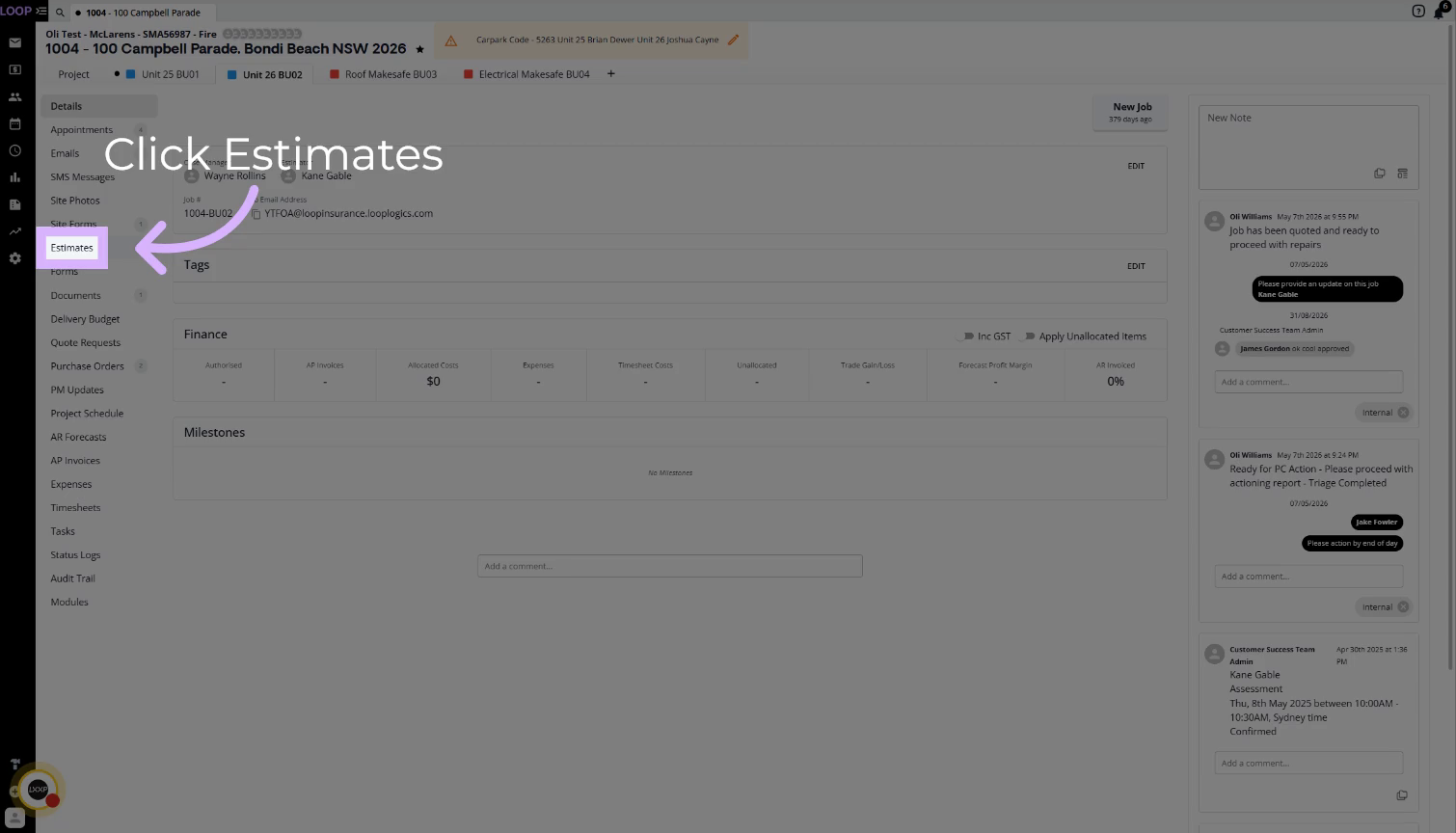
Step 2: Check for an Authorised Estimate
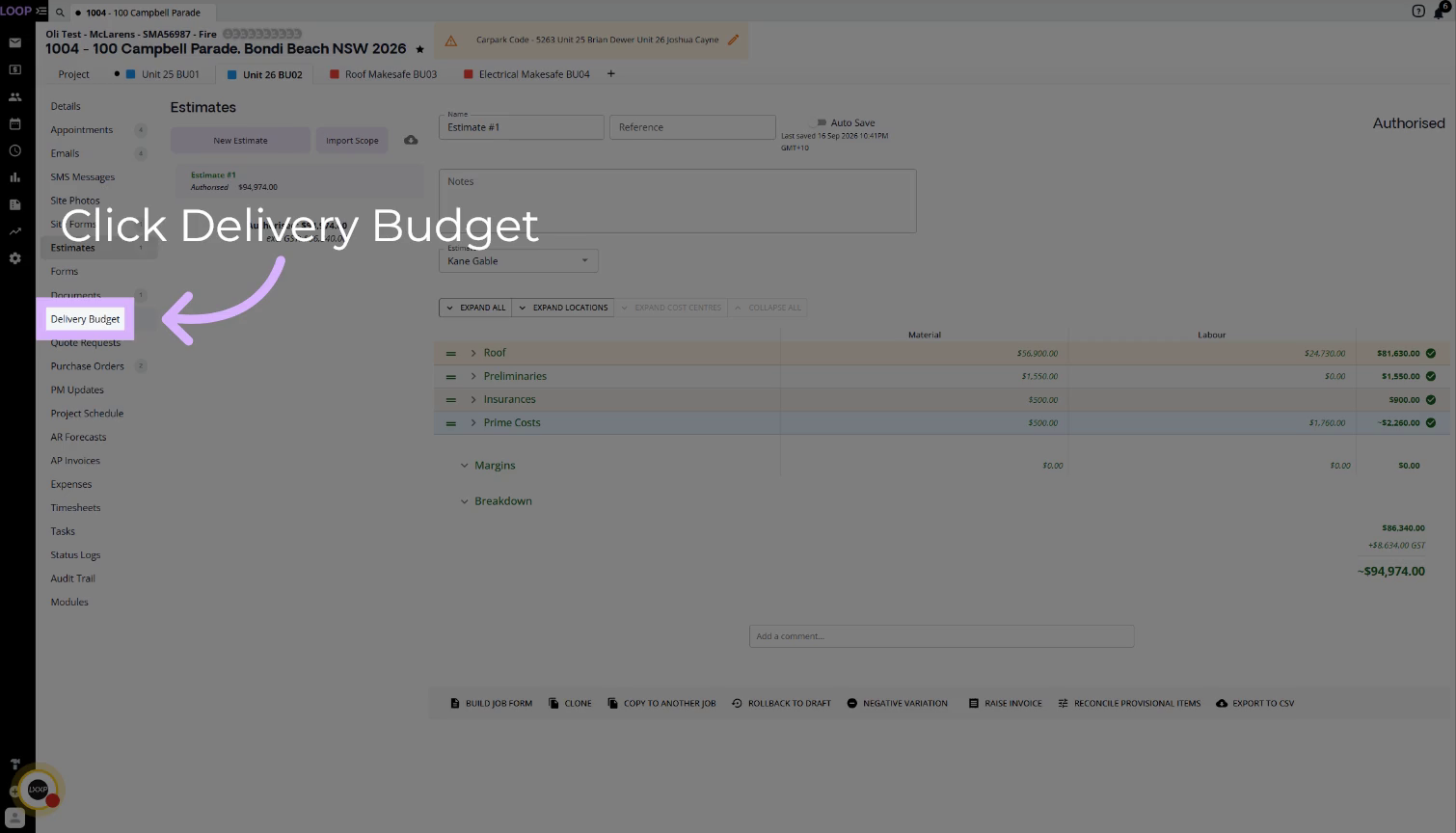
On the Estimates screen, confirm the estimate shows as Authorised.
Details:
- A Delivery Budget can only be created from an Authorised Estimate.
- Once the estimate is Authorised, click Delivery Budget in the sidebar.
Step 3: Check the Draft Status
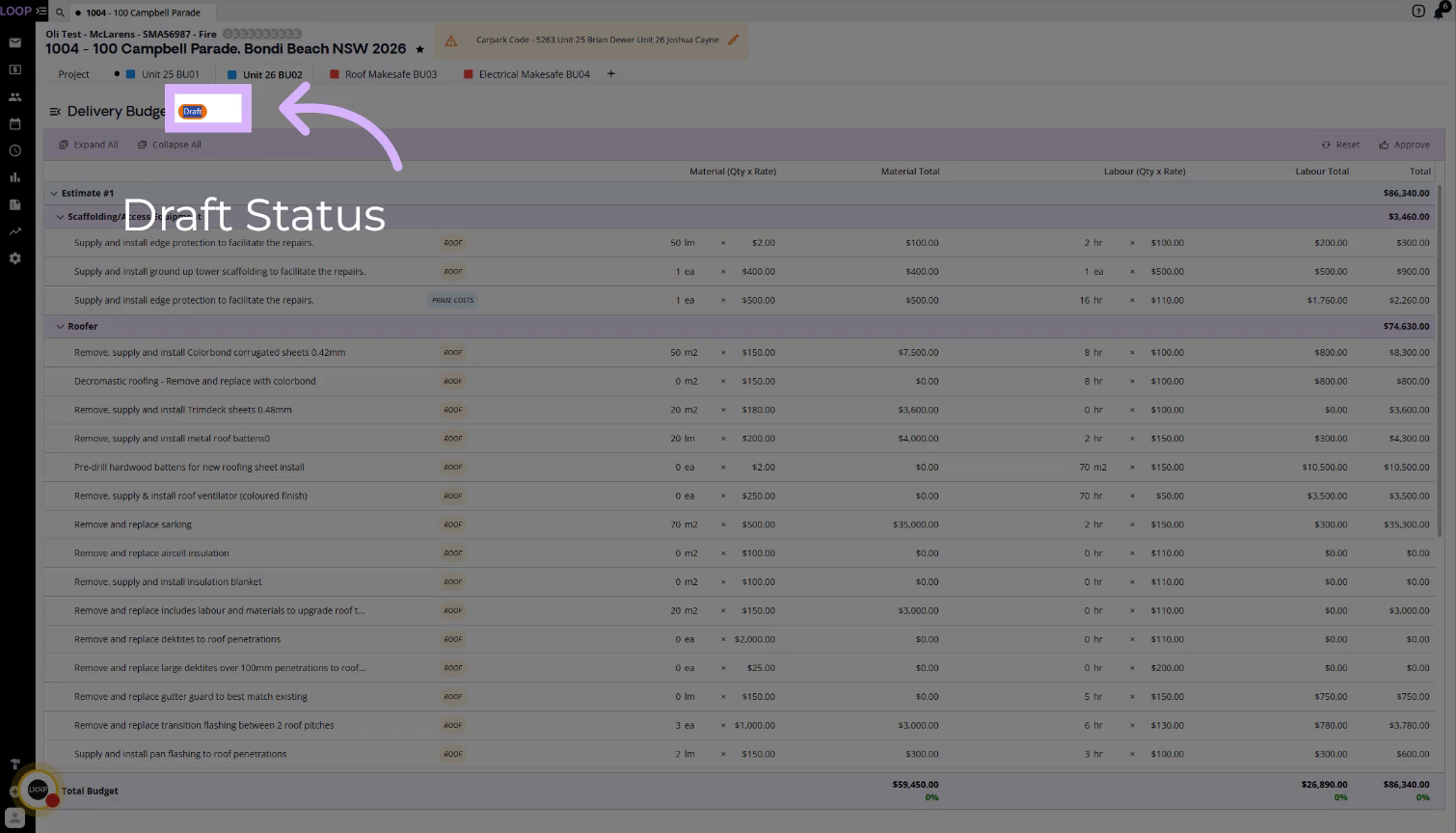
When the Delivery Budget opens, check the status beside the heading.
Details:
- A new Delivery Budget is in Draft, shown in orange.
- While it is in Draft, no quote requests or purchase orders can be approved or sent, and no scope line items can be attached.
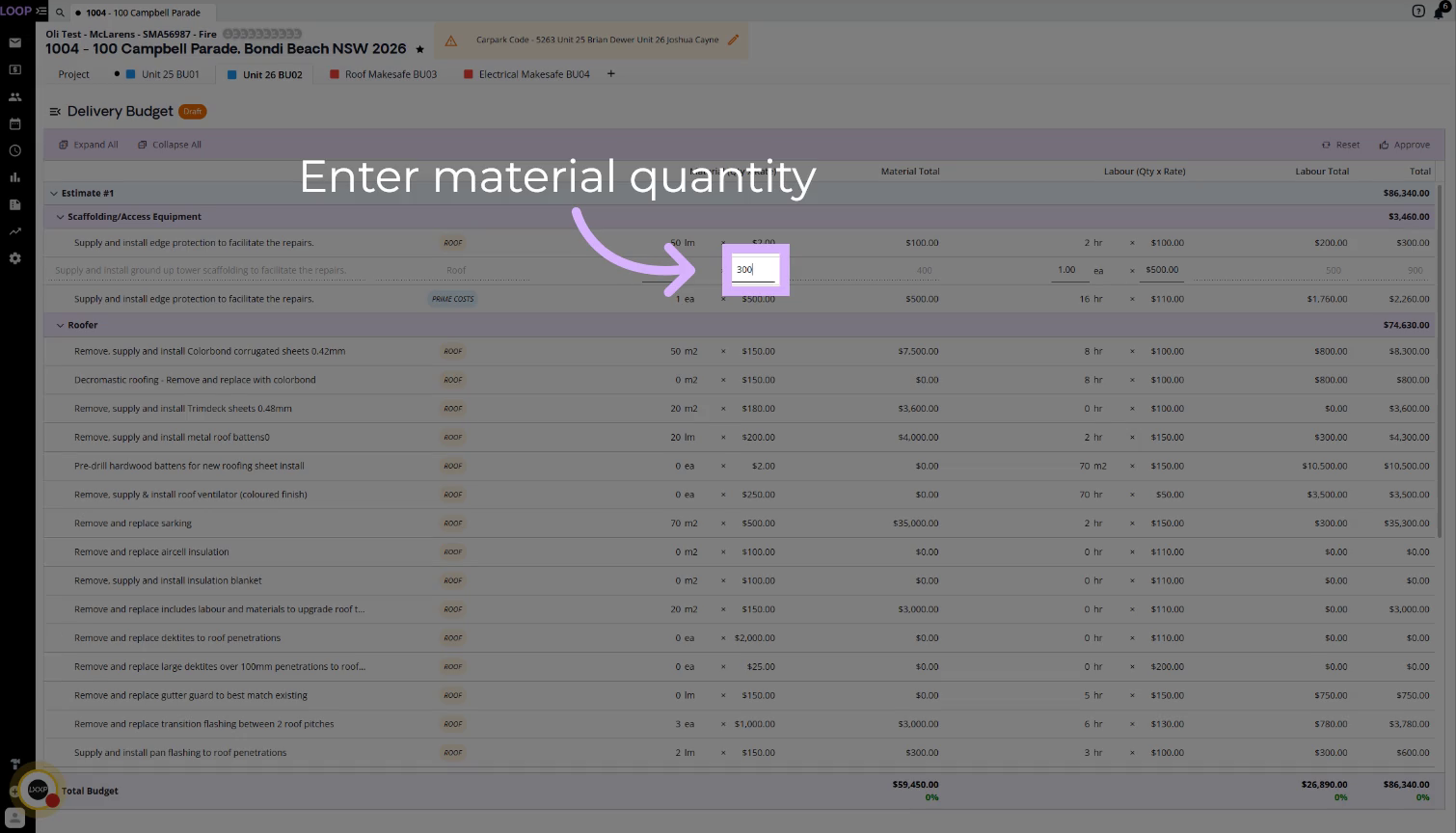
Step 4: Adjust Quantities and Rates
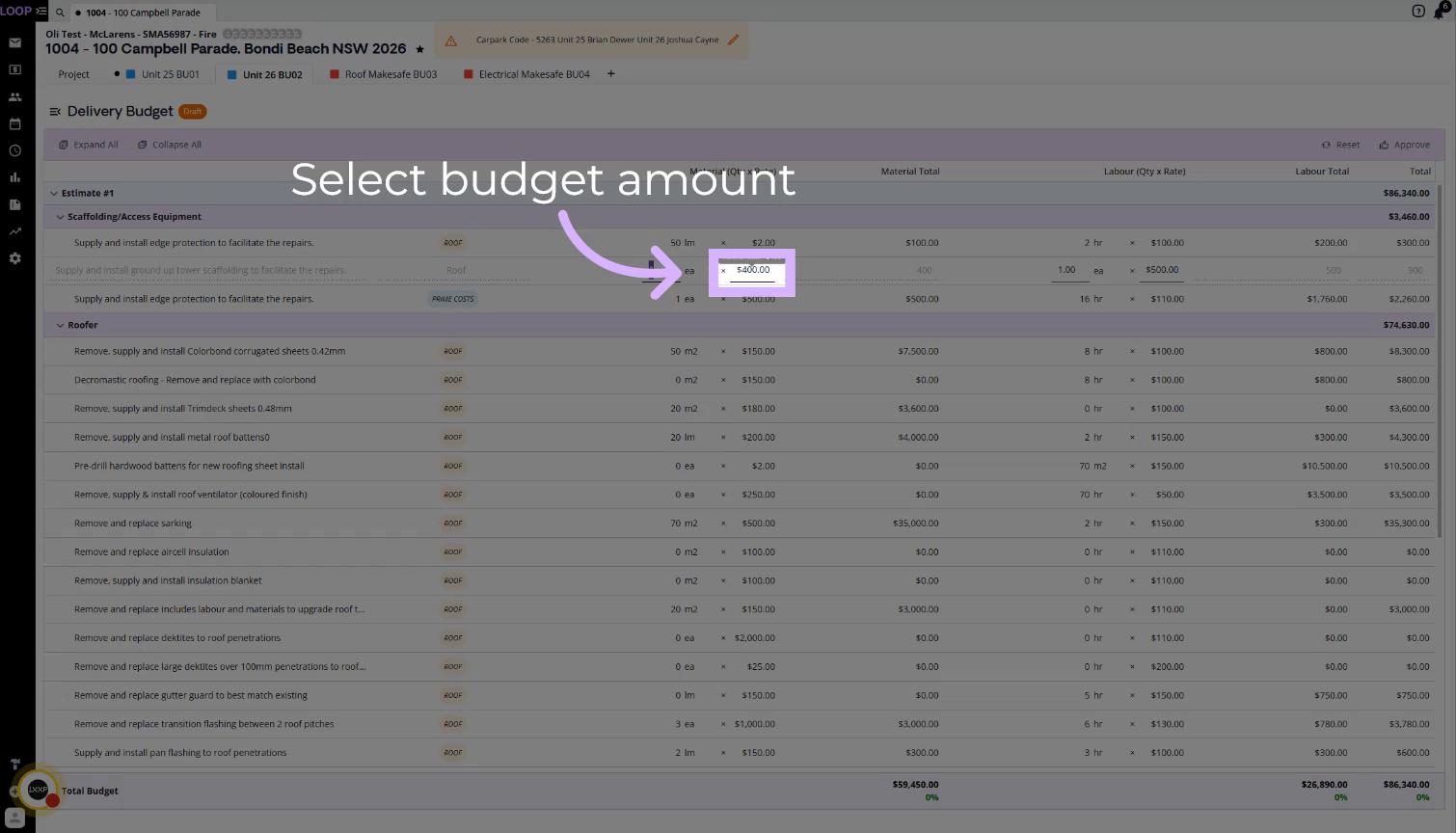
Click a quantity or rate and edit it to adjust the cost as needed.
Details:
- Material and labour are shown as quantity x rate for each line item.
- When you reduce a cost to create extra margin, the value shows in blue so the adjustment is easy to spot.
- Raising a cost turns the value red, which indicates a loss.
Step 5: Review the Total Budget and Margin
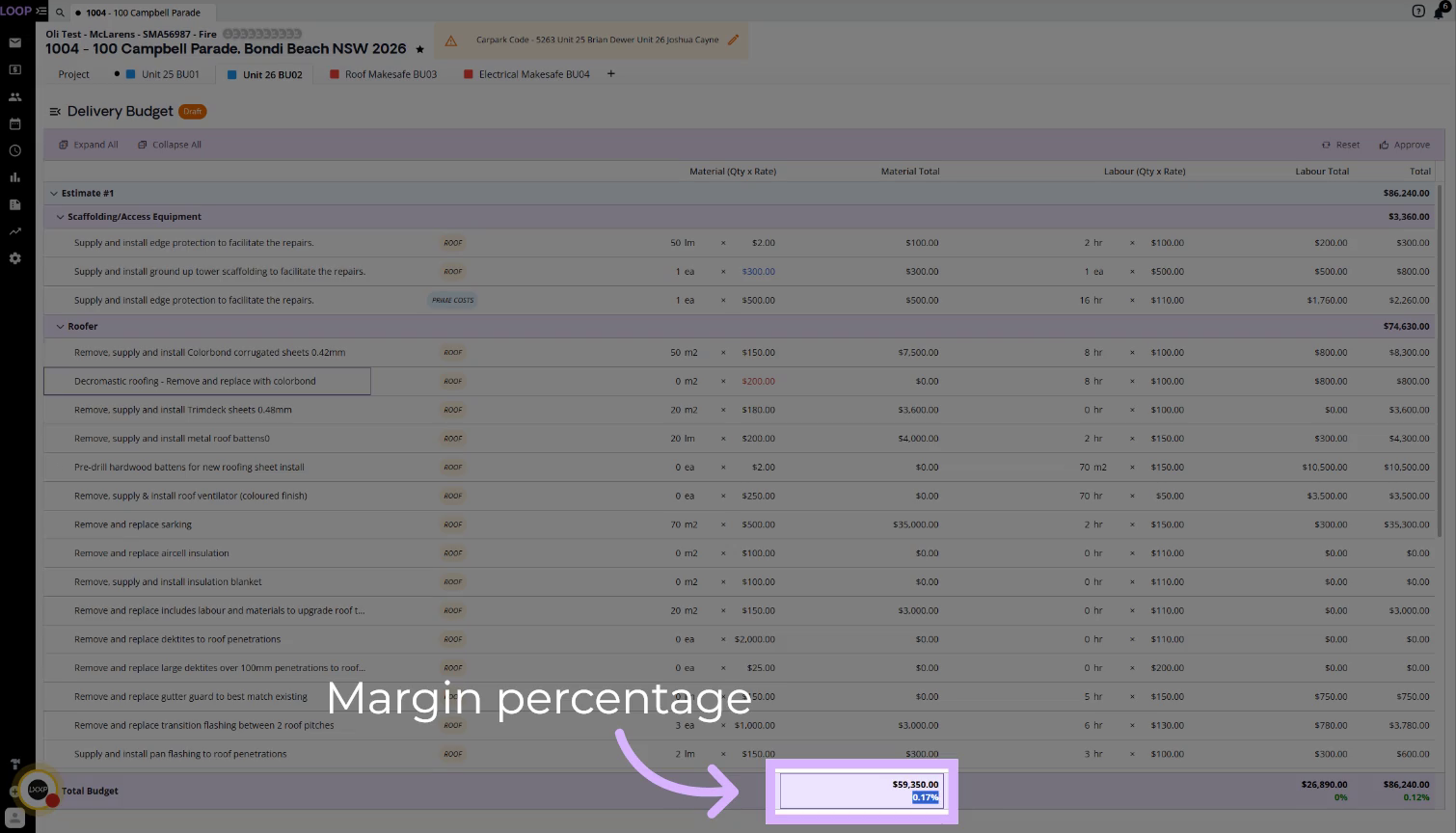
Check the Total Budget row at the bottom of the screen.
Details:
- Additional margin achieved above the original estimated margin is shown in green.
- Review the margin percentage values to make sure they are accurate before you approve.
Step 6: Approve the Delivery Budget
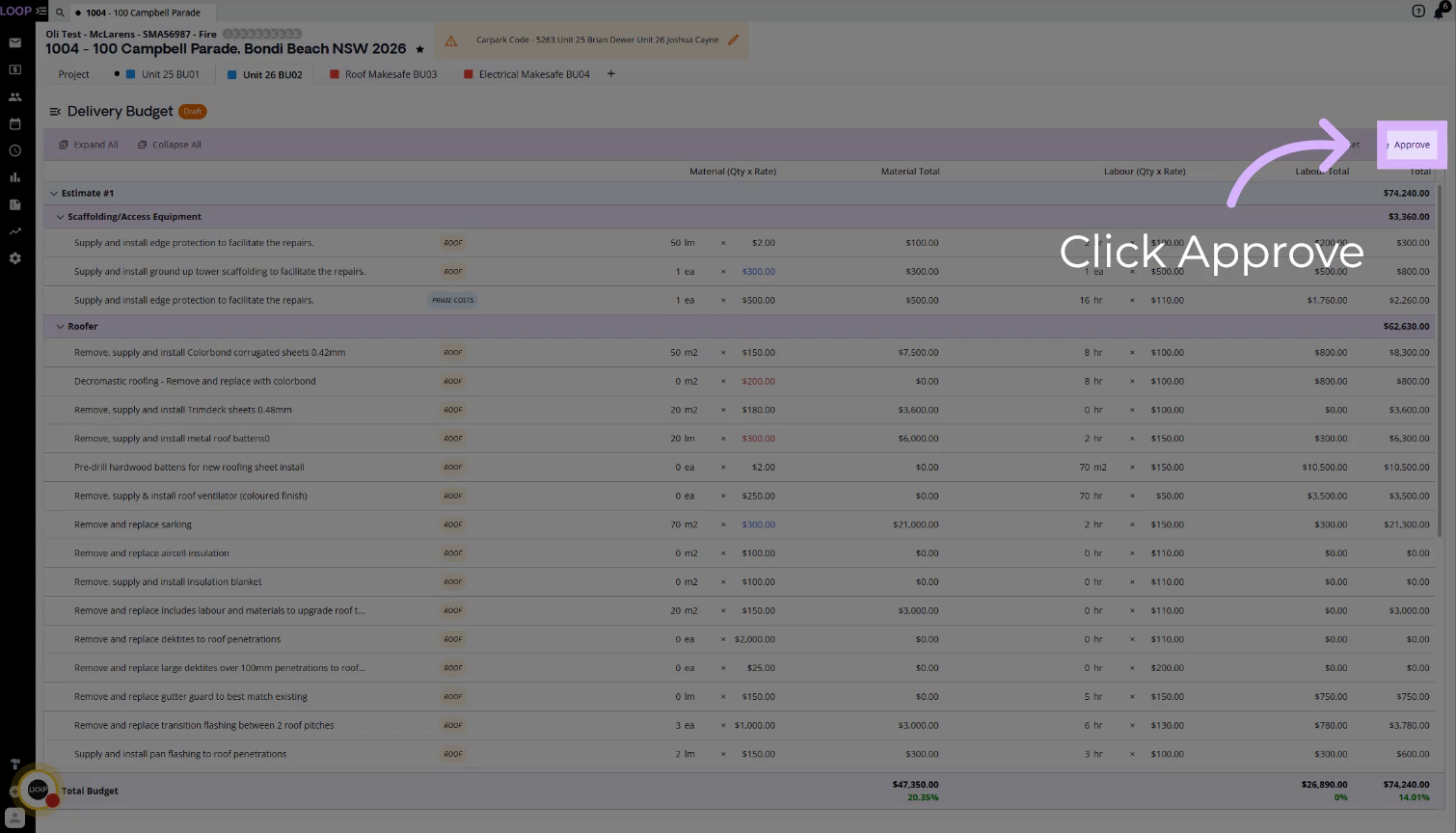
When you are satisfied with the costs, click Approve.
Details:
- The toolbar above the line items also includes Expand All, Collapse All and Reset. The recording does not demonstrate these.
Step 7: Confirm the Approved Status
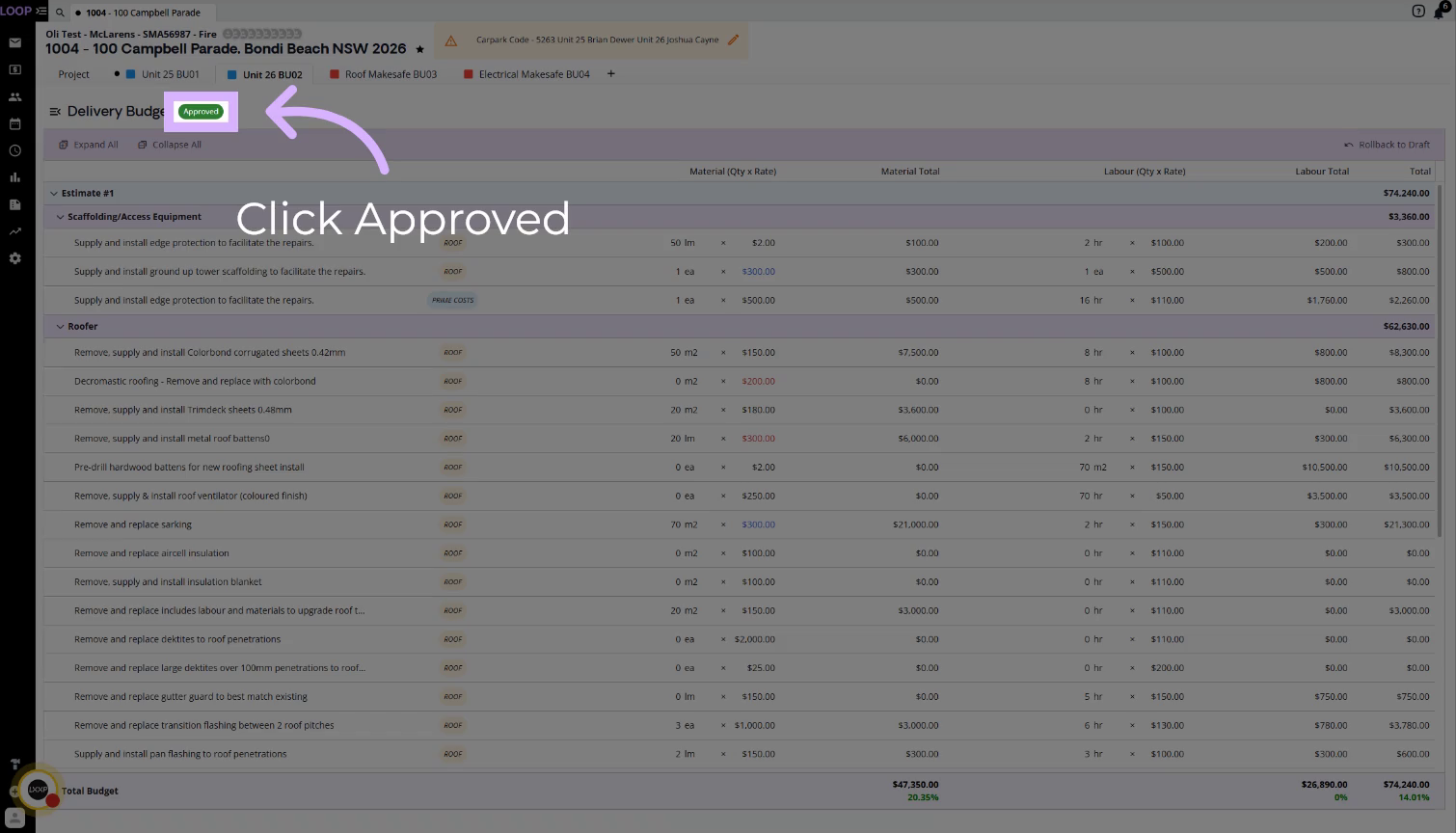
Check that the status beside the heading now shows Approved.
Details:
- Once approved, you can send quote requests and purchase orders without restrictions.
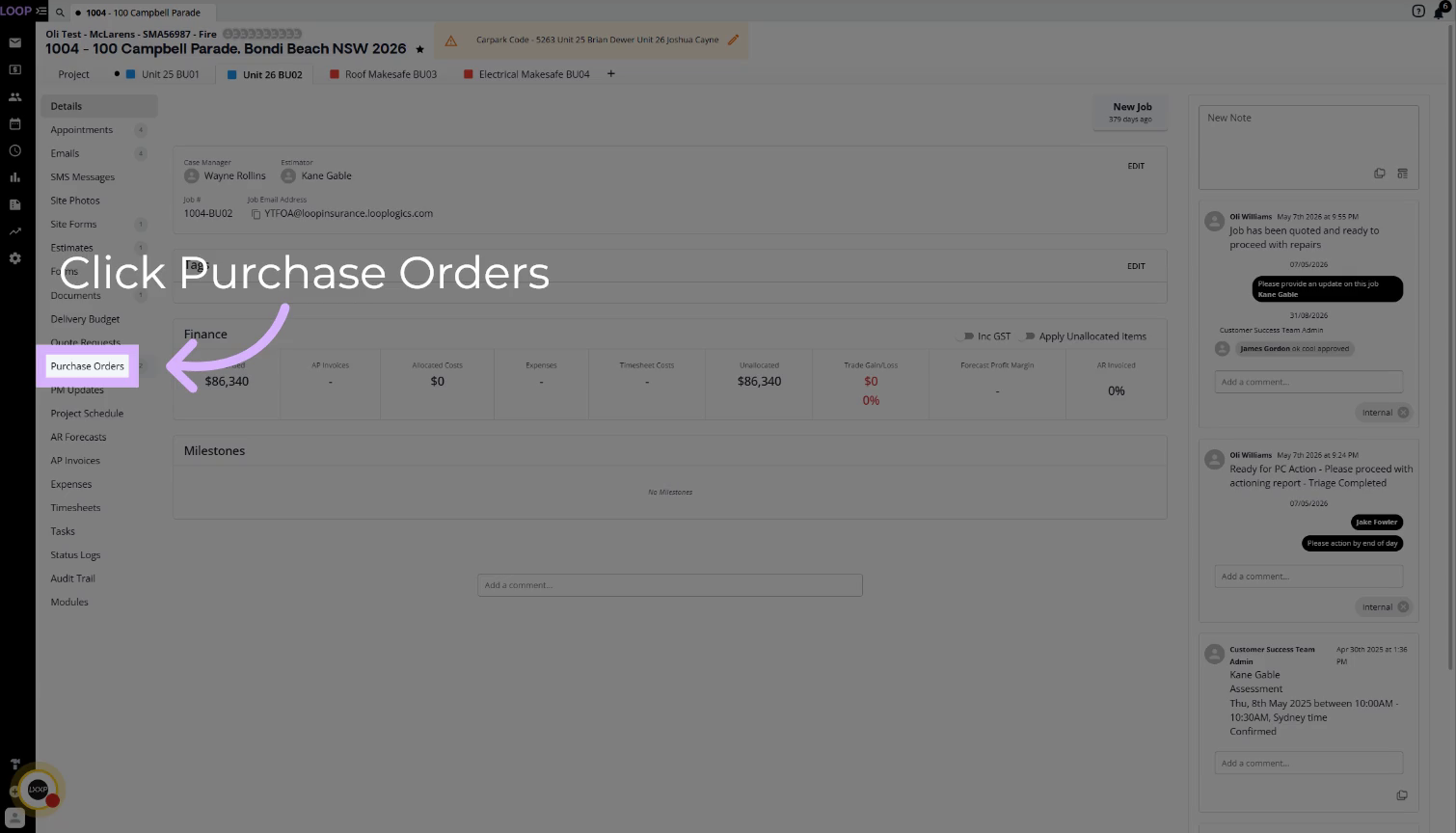
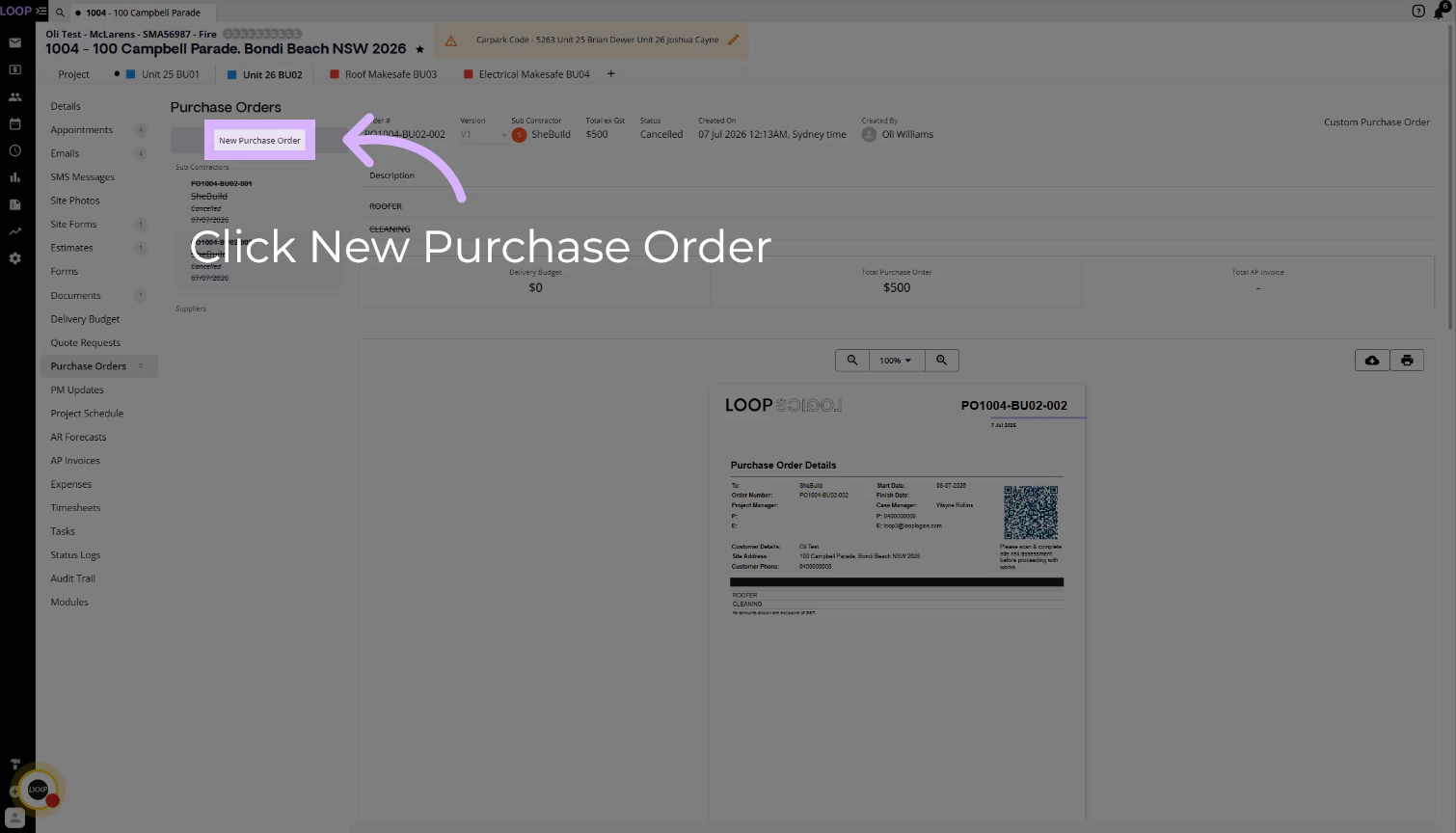
Step 8: Open Purchase Orders
Click Purchase Orders in the sidebar, then click New Purchase Order.
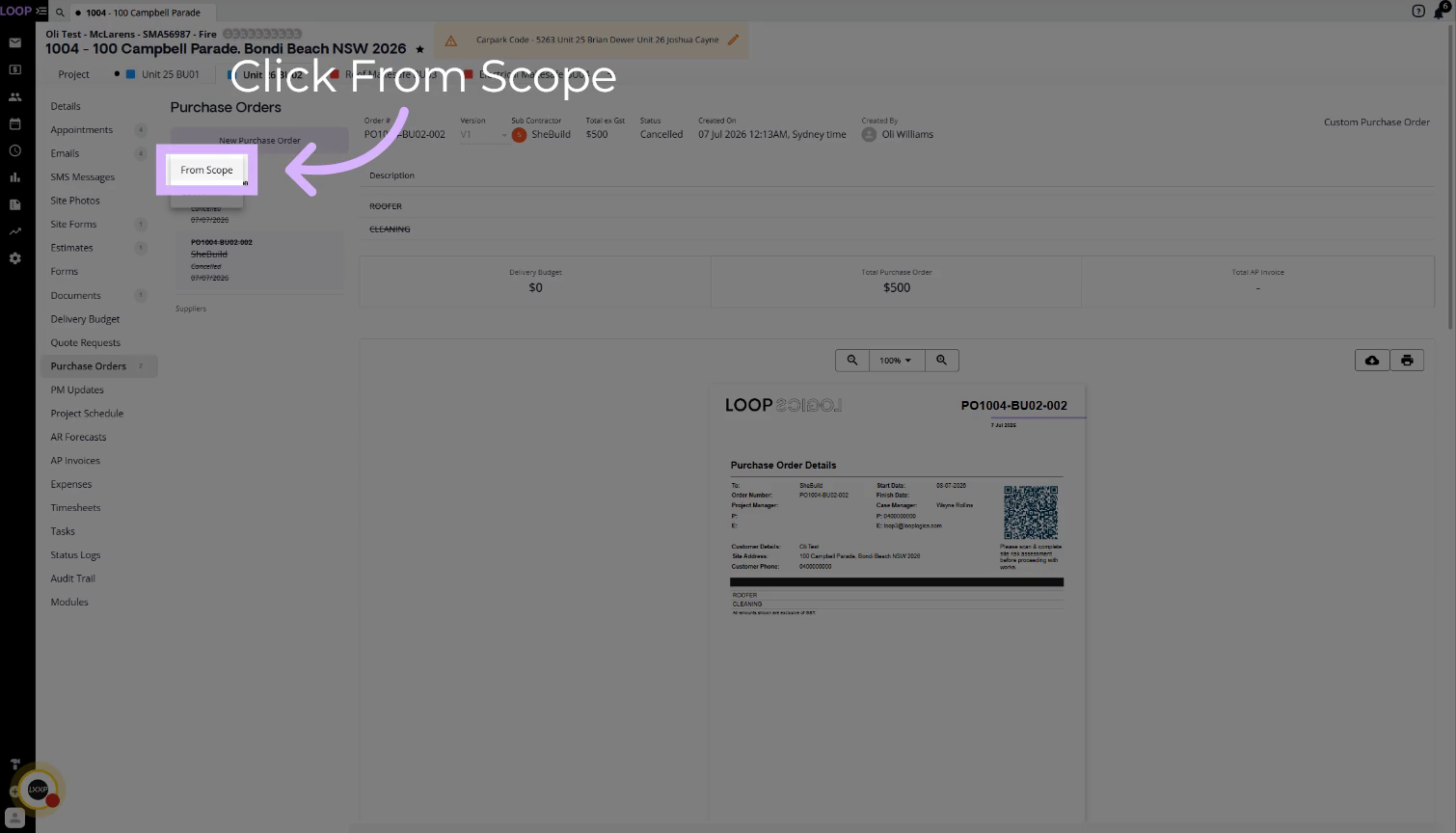
Step 9: Start the Order From Scope
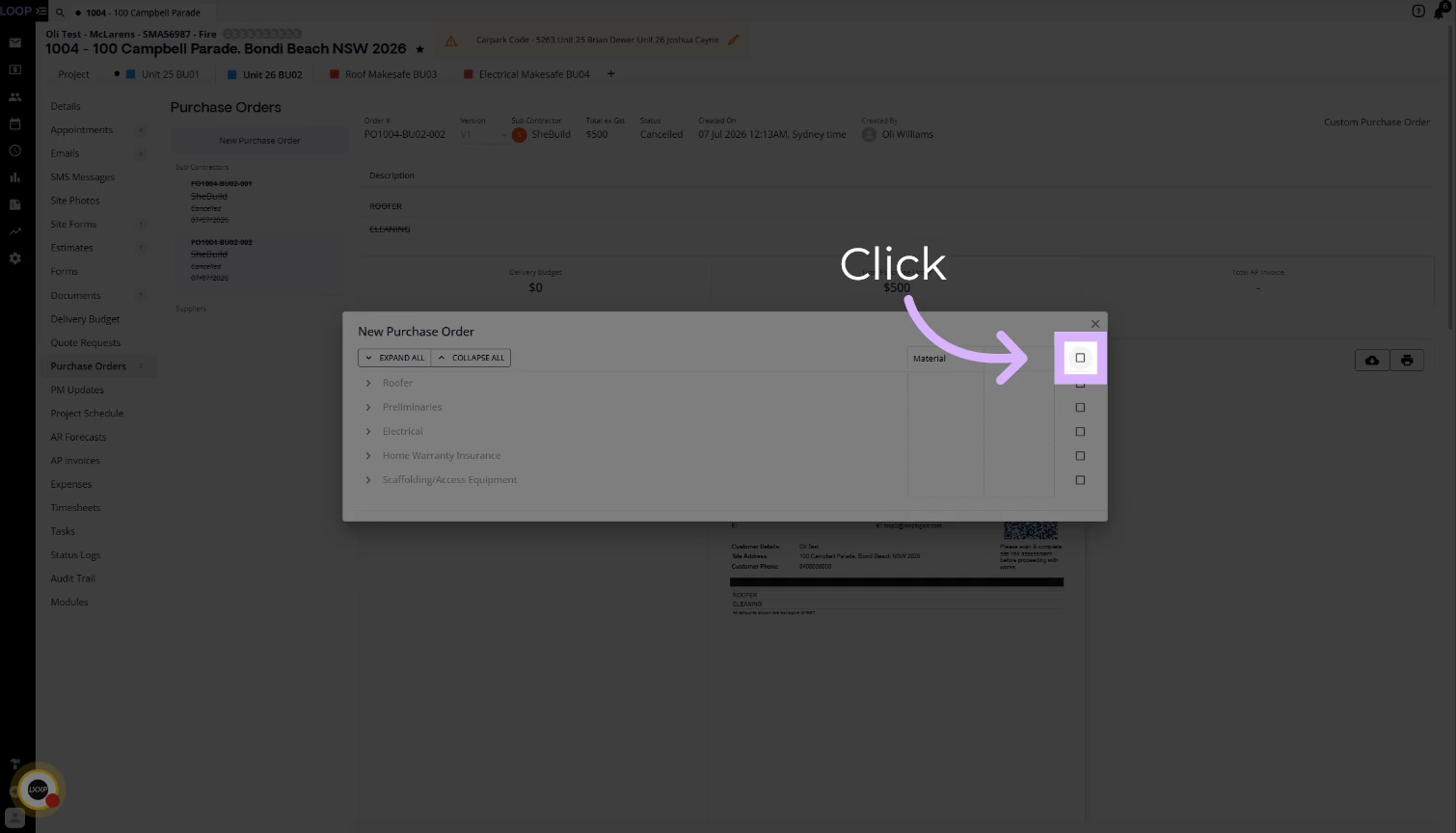
Click From Scope, then tick the scope line items to include in the purchase order.
Details:
- Choose all the line items relevant to the order. The costs reflect the Delivery Budget.
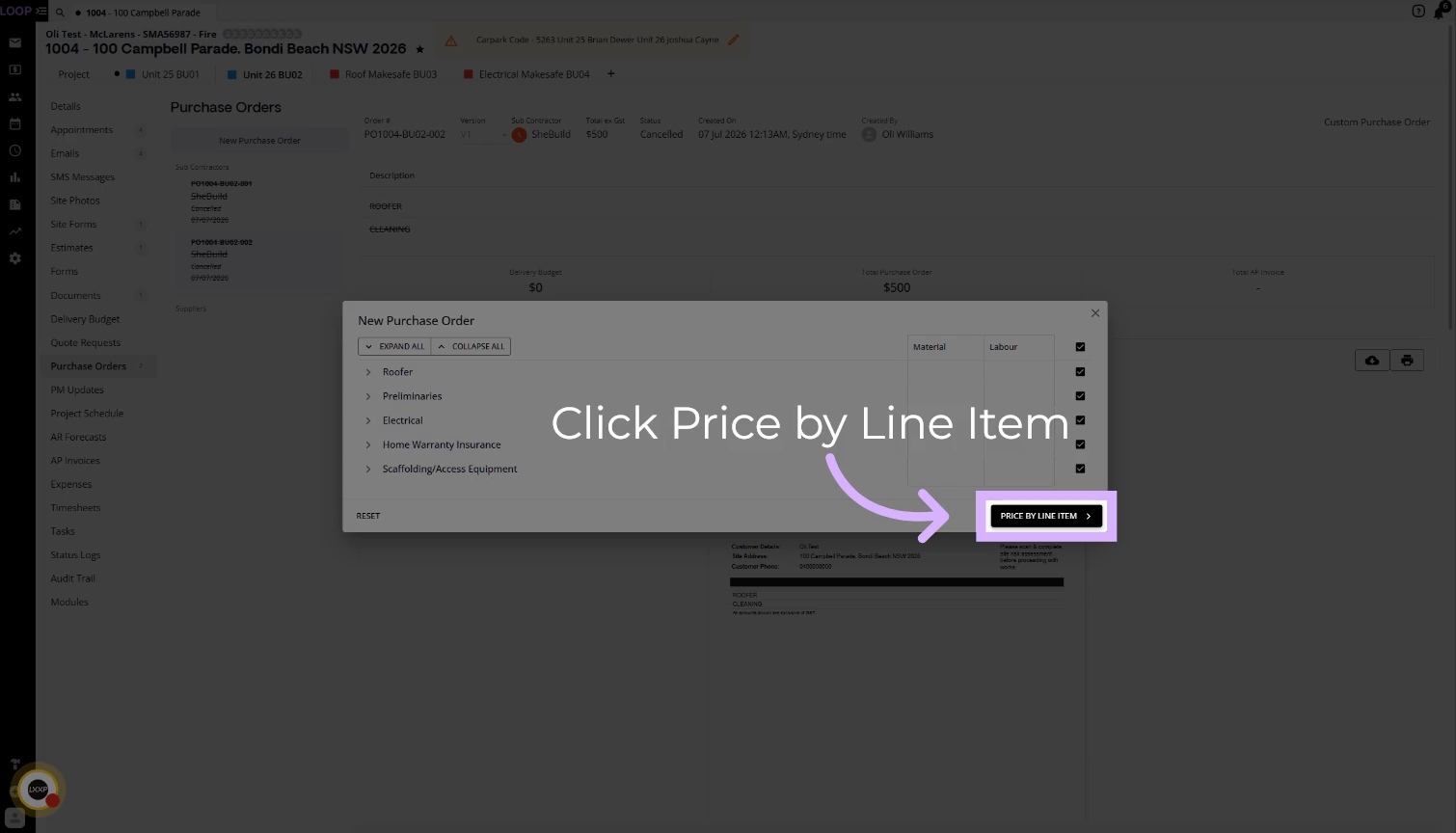
Step 10: Price by Line Item
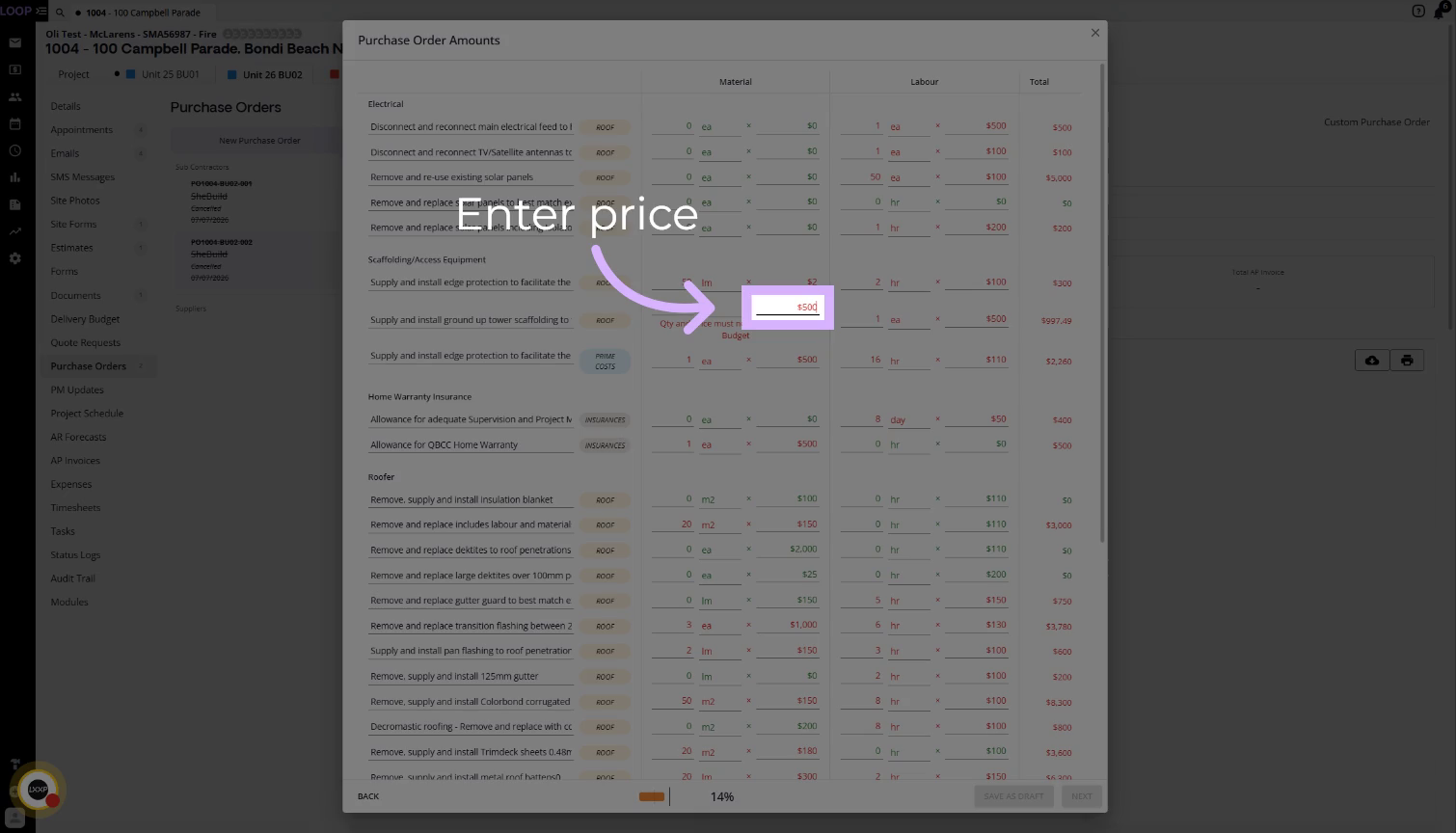
Click Price by Line Item to set the pricing for the purchase order, then enter the price against each line.
Details:
- If you try to raise the quantity or price beyond the Delivery Budget, a message appears saying the quantity and price must not exceed the Delivery Budget.
Step 11: Click Next and Continue the Order
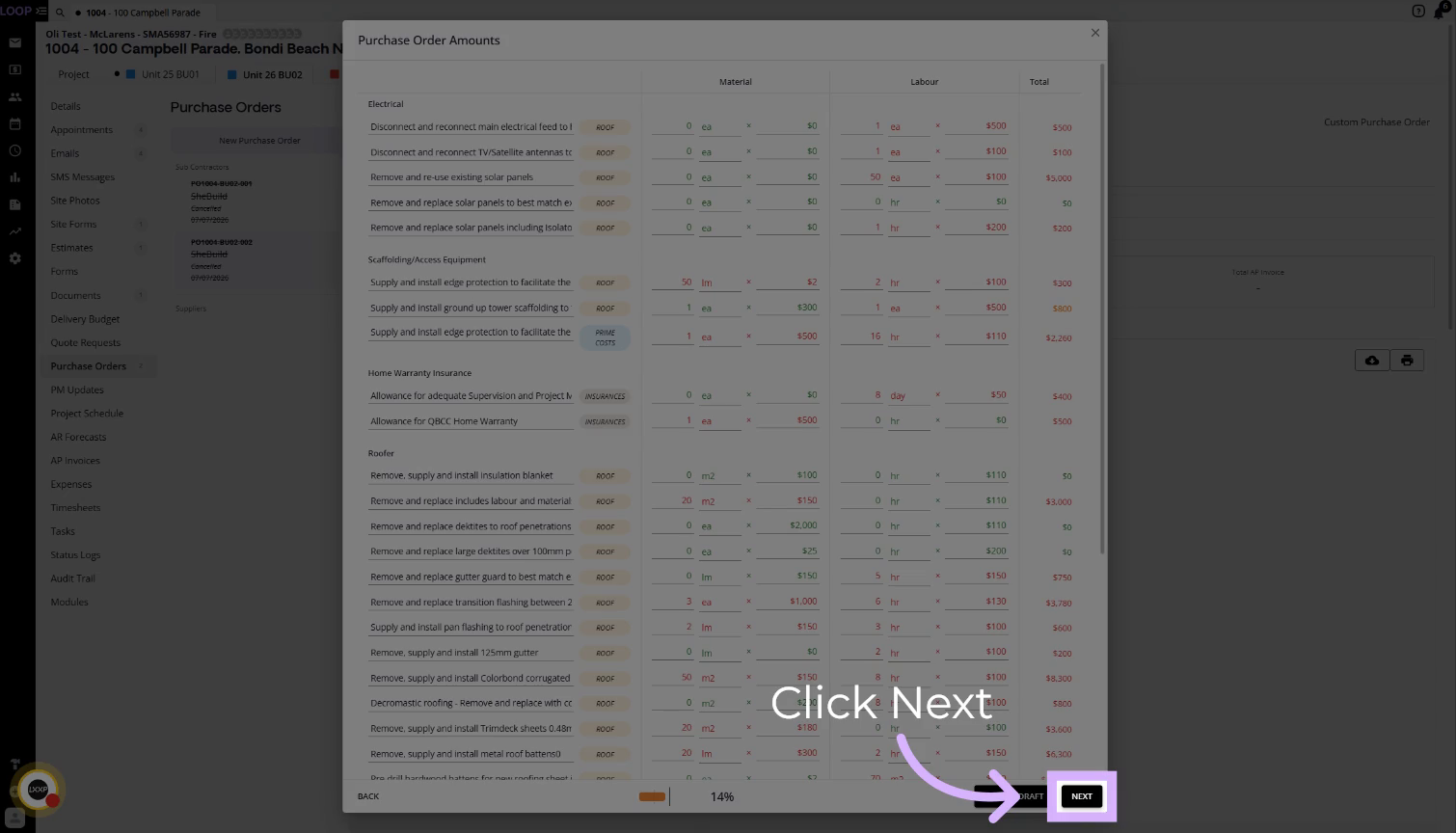
When the amounts sit within the Delivery Budget, click Next.
Details:
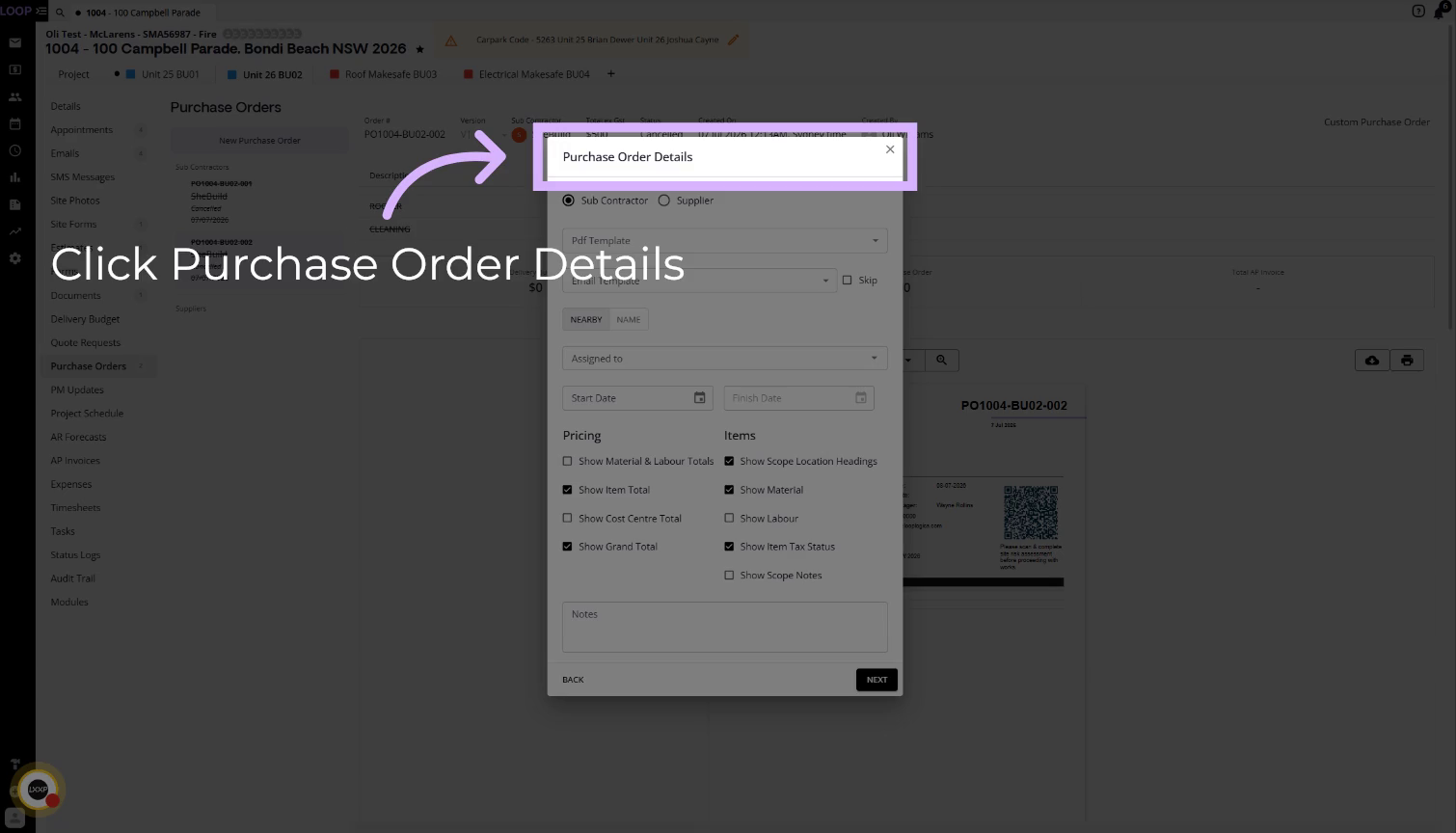
- The Purchase Order Details screen opens. Continue creating and issuing the purchase order as normal.
- All movements and adjustments made to the Delivery Budget are recorded in the order trail, so you can review any change and who made it at any time.
Summary
Key Delivery Budget Steps:
Getting to the Budget:
- Open the job module and confirm the estimate is Authorised
- Click Delivery Budget in the sidebar
Setting the Budget:
- A new budget is in Draft (orange)
- Edit quantities and rates; reduced costs show blue, extra margin shows green, raised costs show red
- Review the margin percentage, then click Approve
Raising a Purchase Order:
- Click New Purchase Order, then From Scope
- Tick the line items and click Price by Line Item
- Prices cannot exceed the Delivery Budget
- Click Next and continue as normal
Key Points to Remember:
- Quote requests and purchase orders cannot be approved or sent while the budget is in Draft
- Changes are tracked in the order trail
👇Recap
- You've learned how the Delivery Budget controls spend when purchase orders are issued.
- You've adjusted costs, reviewed the margin and approved the budget.
- You've raised a purchase order from scope within the approved budget.
🙅♂️Common mistakes to avoid: Trying to send quote requests or purchase orders while the budget is still in Draft, or entering a price above the Delivery Budget.
🥇What good looks like: An approved Delivery Budget with accurate margins, and purchase orders priced within it.
FAQ
Why can't I create a Delivery Budget? The job needs an Authorised Estimate first. Check the Estimates tab.
Why can't I send a purchase order? The Delivery Budget is likely still in Draft. It must be approved before quote requests and purchase orders can be approved or sent.
Can I see who changed the budget? Yes. All movements and adjustments are recorded in the order trail.
Why don't I see Delivery Budget on my job? Access depends on your user role and permissions, and it can be activated per job module or as a default in admin settings. Check with your administrator.
❓ Need Help?
If you have questions or need assistance, use the chat box in the bottom-right corner to contact the Loop Logics support team or email support@looplogics.com
👏Congratulations! You have reached the final Module in our Role Based Training - Supervisor, Continue your learning with other Role Based Training Modules here.