
Module 3: Supervisor - SMS Communication
💡This article covers how to send and receive SMS messages with contacts on a job, using a template or your own wording. It keeps every text and reply tied to the job so the conversation history stays in Loop.
Step 1: Open the Job Module
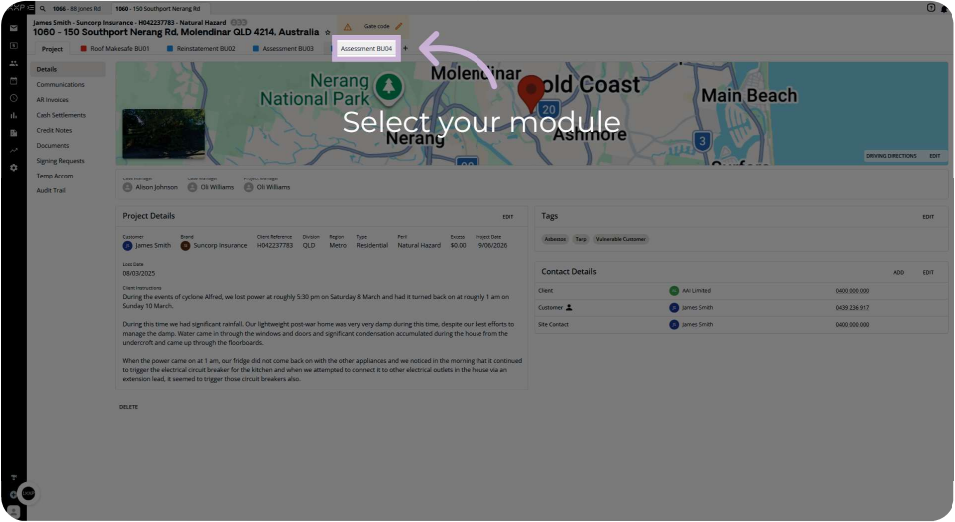
From the job, click the module tab you want to work in, for example the Assessment module.
Details:
- The job opens with its map, Project Details, Tags and Contact Details on screen
- The side bar on the left lists the sections available for that module
Step 2: Open SMS Messages
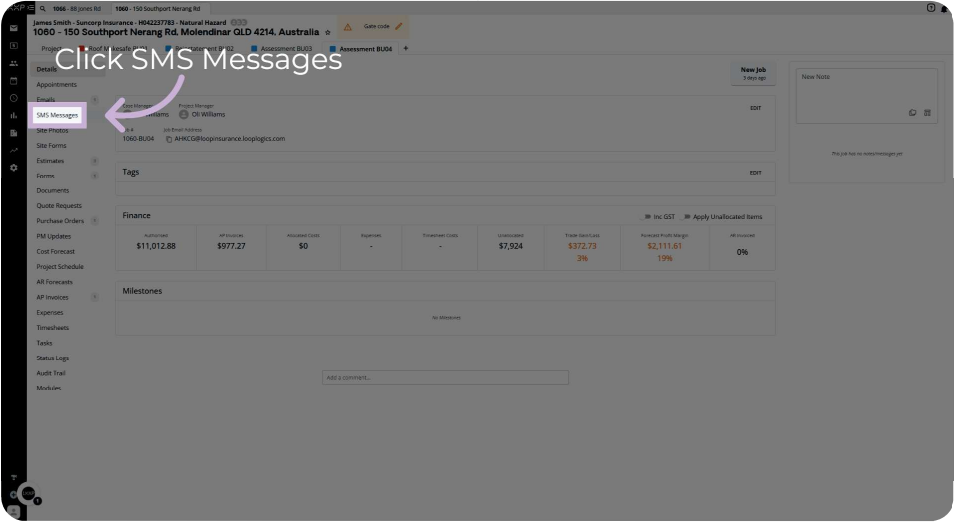
Click SMS Messages in the side bar to open the messaging section for the job.
Details:
- The SMS Messages section opens for the selected job
- The job's module screen stays the same, only the side bar selection changes
Step 3: Select a Contact
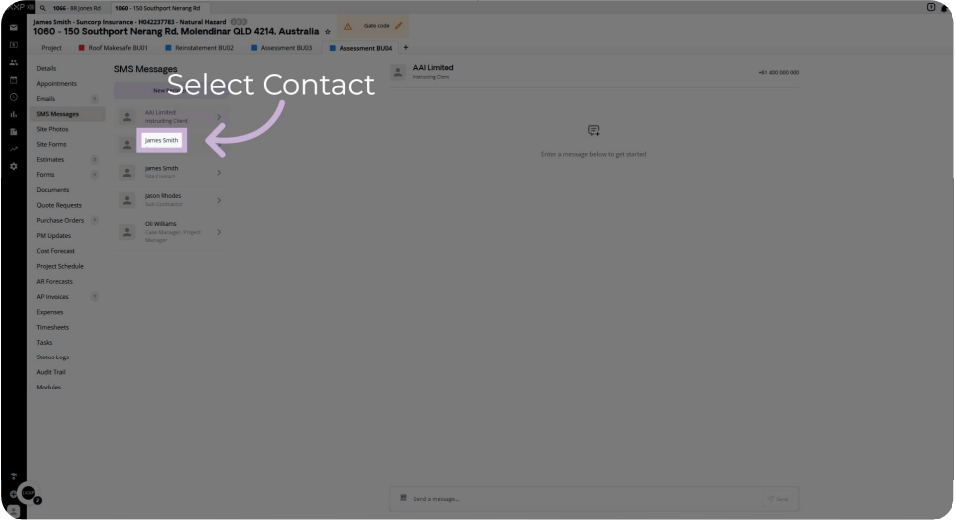
Click the contact you want to message.
Details:
- All contacts on the job are listed down the left of the SMS Messages screen
- The conversation with the selected contact opens on the right, showing "No messages" if you have not texted them before
- To text a mobile number that is not listed, you can select to send to that number, but listing the mobile as a contact on the job is recommended
Step 4: Click Send Message
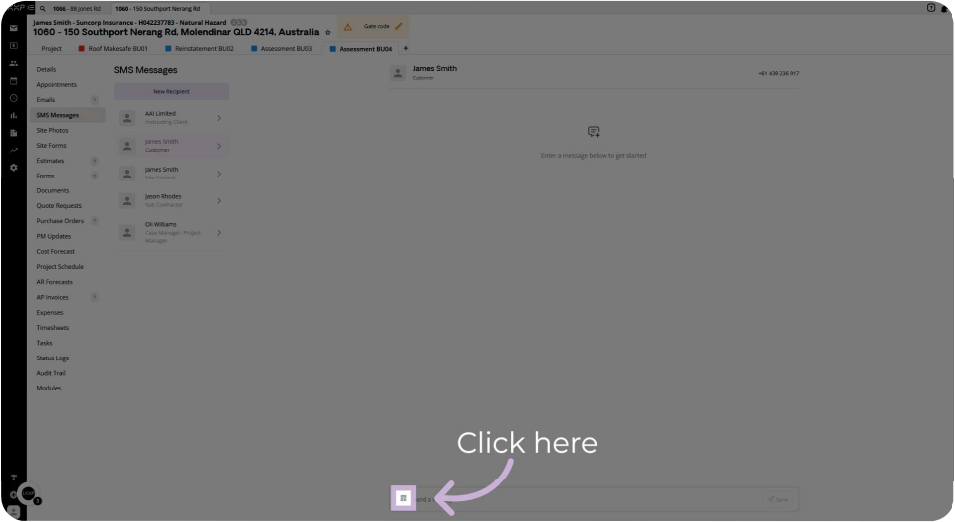
Click the message icon at the bottom of the conversation to type a message or use the templates.
Details:
- The icon sits at the bottom of the screen, to the left of the message field
- There is no text label on the icon
Step 5: Select a Template or Compose Manually
Click a template to use a predefined message, or choose Compose Manually to write your own.
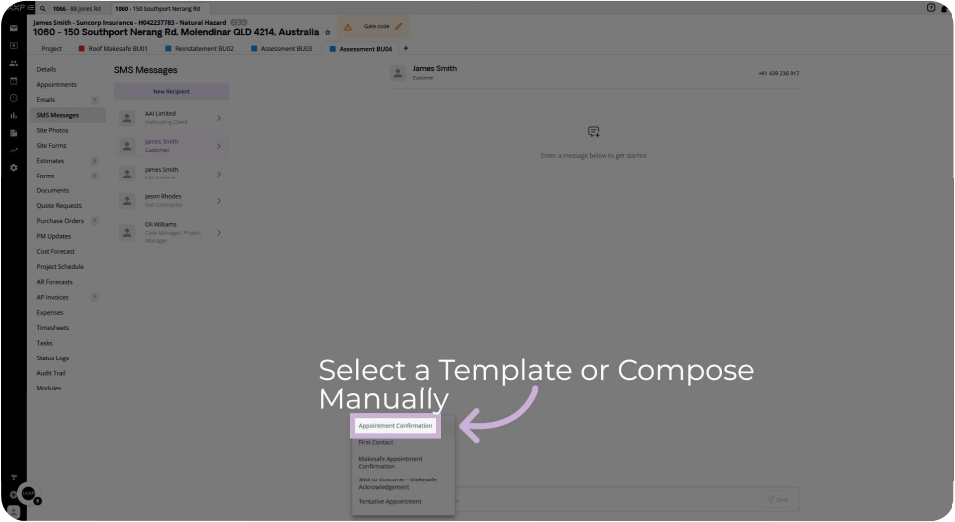
Details:
- A short menu lists the available predefined templates, with Compose Manually at the bottom
- Choosing a template fills the message field with its wording, ready to review before sending
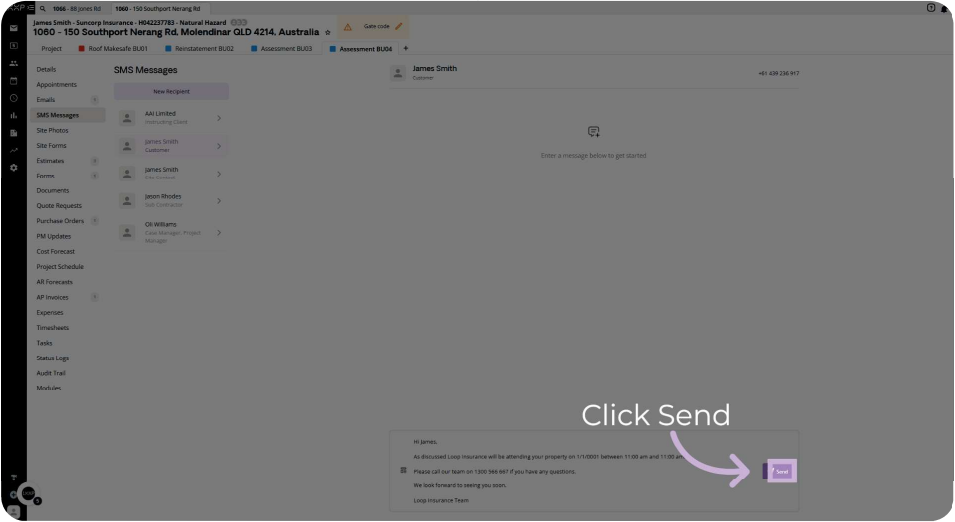
Step 6: Send the Message
Check the message, then click Send to dispatch it to the contact.
Details:
- The message text sits in the field at the bottom of the screen, with the Send button at the right
- Once sent, the message is part of the conversation history for that contact on the job
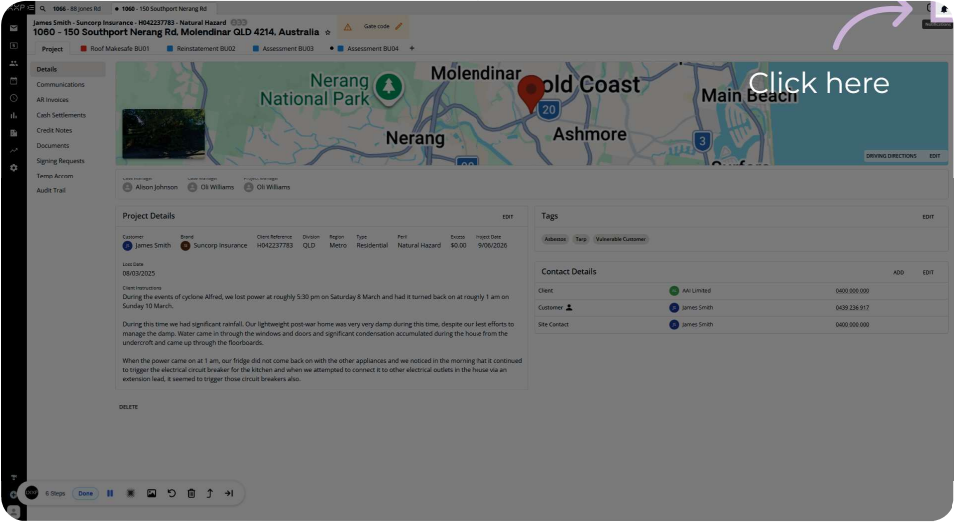
Step 7: Receive an SMS
Click the notifications icon in the top right corner to view new SMS messages.
Details:
- The notifications icon sits in the top right of the screen, available from any job screen
- All messages received display here
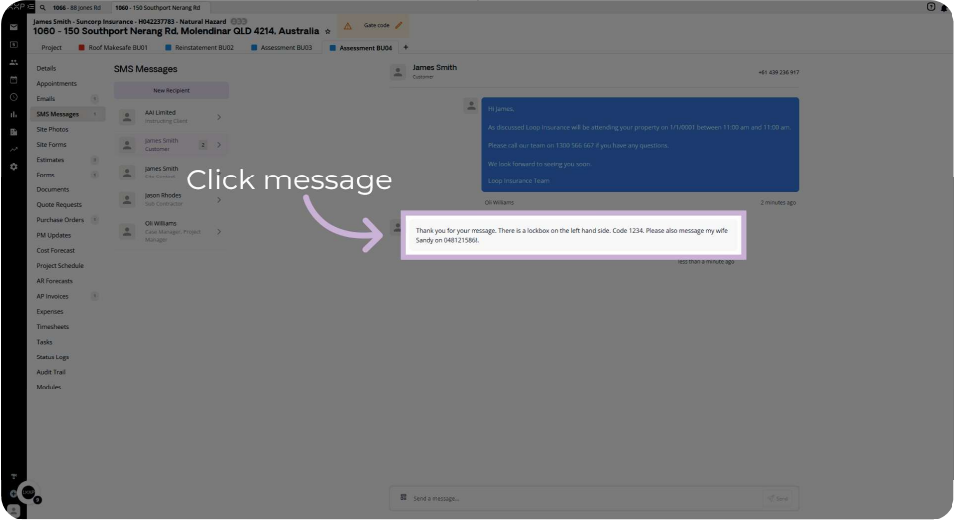
Step 8: Open and Reply to a Message
Click the message to open it, review the content, then reply from within the job.
Details:
- The conversation opens in the SMS Messages screen, with your sent messages and the contact's replies in one thread
- Replying here keeps the conversation within the job rather than in an outside source
- The full history of SMS activity is always available in the SMS Messages section where you started
Summary
Key SMS Communication Steps:
Starting the Message:
- Open the job module, then click SMS Messages in the side bar
- Select the contact you want to message
Writing and Sending:
- Click the message icon at the bottom of the screen
- Select a template or choose Compose Manually
- Click Send
Receiving and Replying:
- Click the notifications icon in the top right corner to see new SMS messages
- Open the message and reply within the job
Key Points to Remember:
- Contacts on the job are listed in SMS Messages
- List a mobile number as a contact on the job instead of texting an unlisted number
- The full SMS history stays in the SMS Messages section of the job
👇Recap
- You've learned how to open SMS Messages and select a contact on a job
- You've learned how to send a message using a template or Compose Manually
- You've learned how to find received messages and reply within the job
🙅♂️Common mistakes to avoid: Texting a mobile number that is not listed on the job instead of adding it as a contact first.
🏆What good looks like: Every text and reply to a contact sits in the job's SMS Messages history.
FAQ
Can I text a number that is not a contact on the job? The recording shows you can select to send to a mobile number that is not listed, but it recommends listing the mobile as a contact on the job.
Where do I see messages I have received? Click the notifications icon in the top right corner to view new SMS messages. The full history is in the SMS Messages section of the job.
Can I write my own message instead of using a template? Yes, the template menu includes a Compose Manually option.
What are the available templates? This recording didn't show the template names clearly, so check the menu in your own job.
❓ Need Help?
If you have questions or need assistance, use the chat box in the bottom-right corner to contact the Loop Logics support team or email support@looplogics.com
👉 Continue your learning, next step is to move onto Module 4: Project Supervisor - Upload and Manage Site Photos to continue.