.png)
Analytics - Accounts Payable Invoices and Expenses Dashboard
💡The Accounts Payable (AP) Invoices and Expenses dashboard lists every invoice submitted on your jobs, at invoice level, in one table. When a subcontractor or supplier submits an invoice through a job in Loop Logics, it appears here. Use it to check what's been submitted, see who's managing each job, reconcile against Xero or MYOB, open an invoice on its job, export the data, and filter down to the invoices you need.
Steps:
Open the AP Invoices and Expenses dashboard
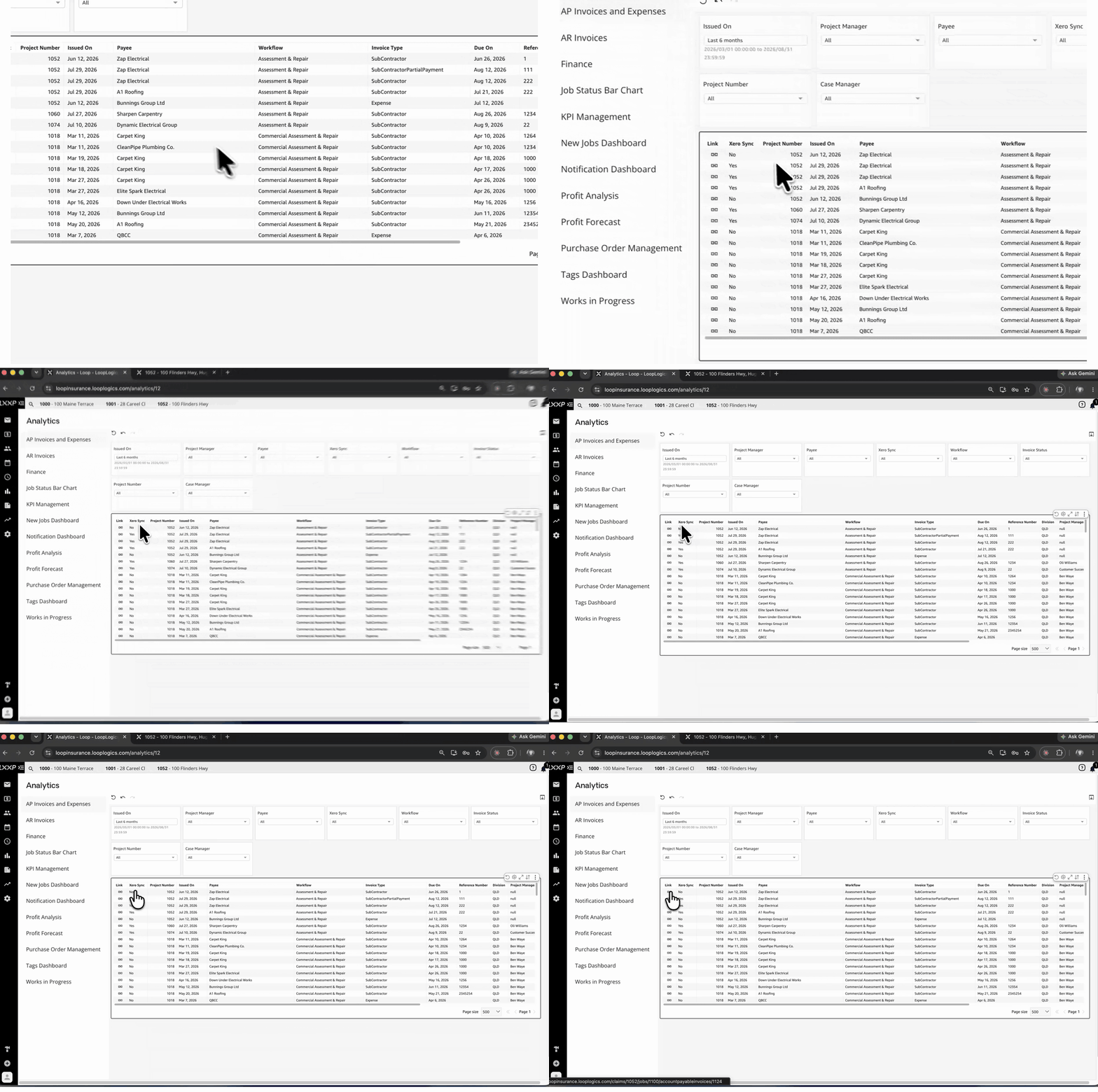
- Go to Analytics and select AP Invoices and Expenses from the dashboard list on the left.
- Filters sit across the top, with the invoices table underneath.
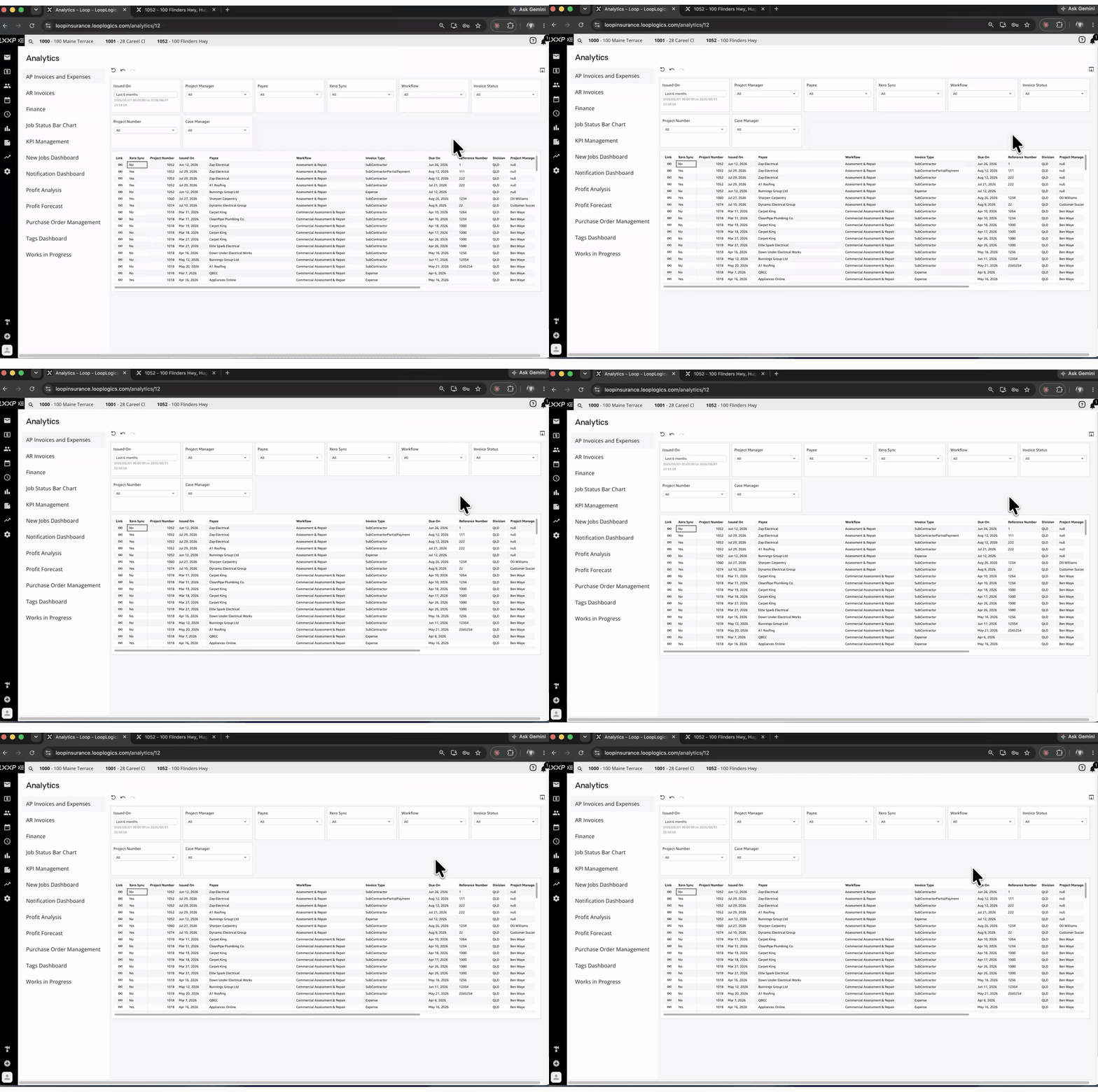
Review the invoice details in the table
- Each row is one invoice. The first columns show Link, Xero Sync, Project Number, Issued On and Payee.
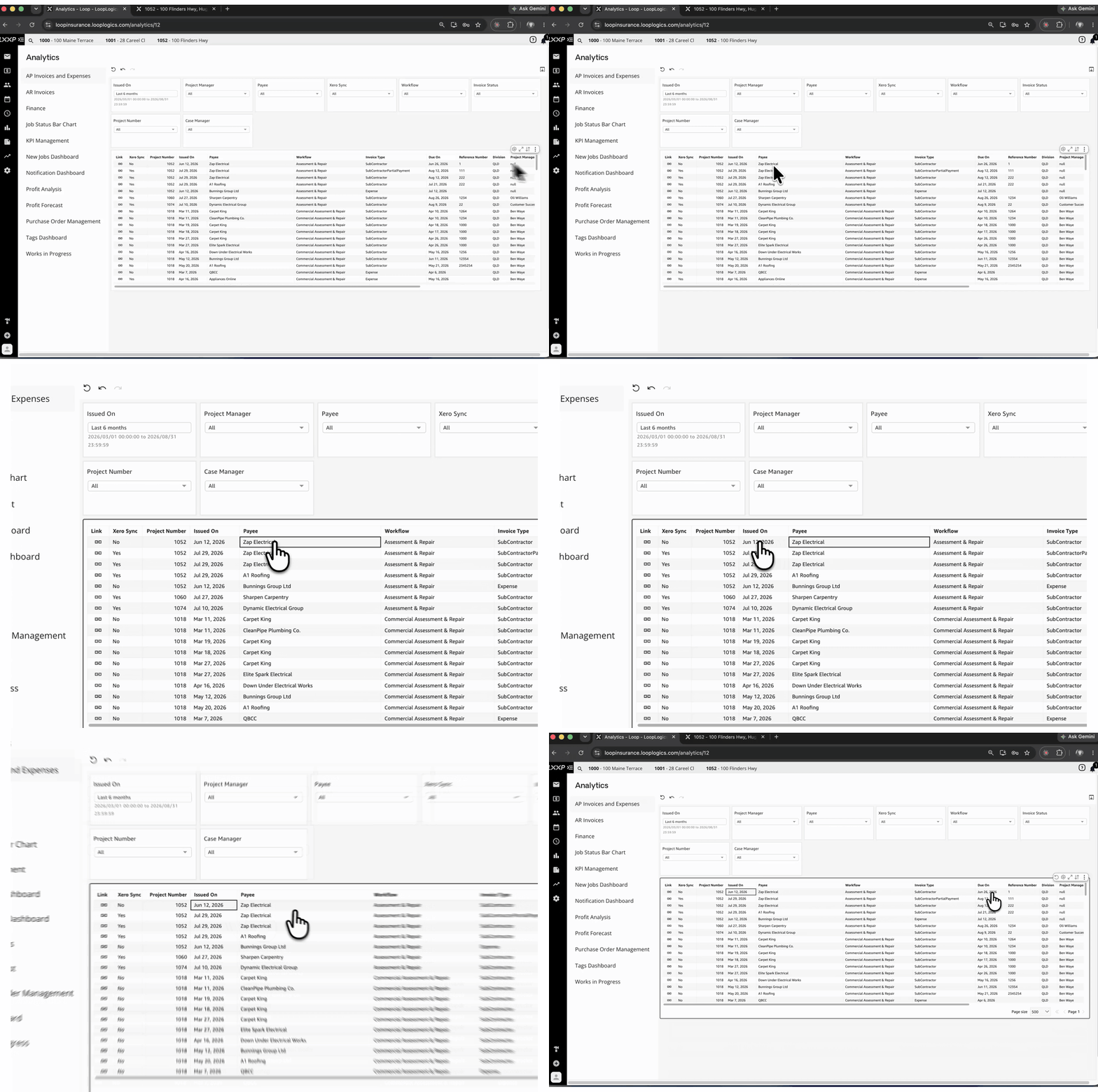
Scroll right for dates, reference and invoice type
- Scroll the table to the right to see Workflow, Invoice Type, Due On, Reference Number and Division.
- Invoice Type shows what kind of invoice it is (for example, Subcontractor, SubcontractorPartialPayment or Expense).
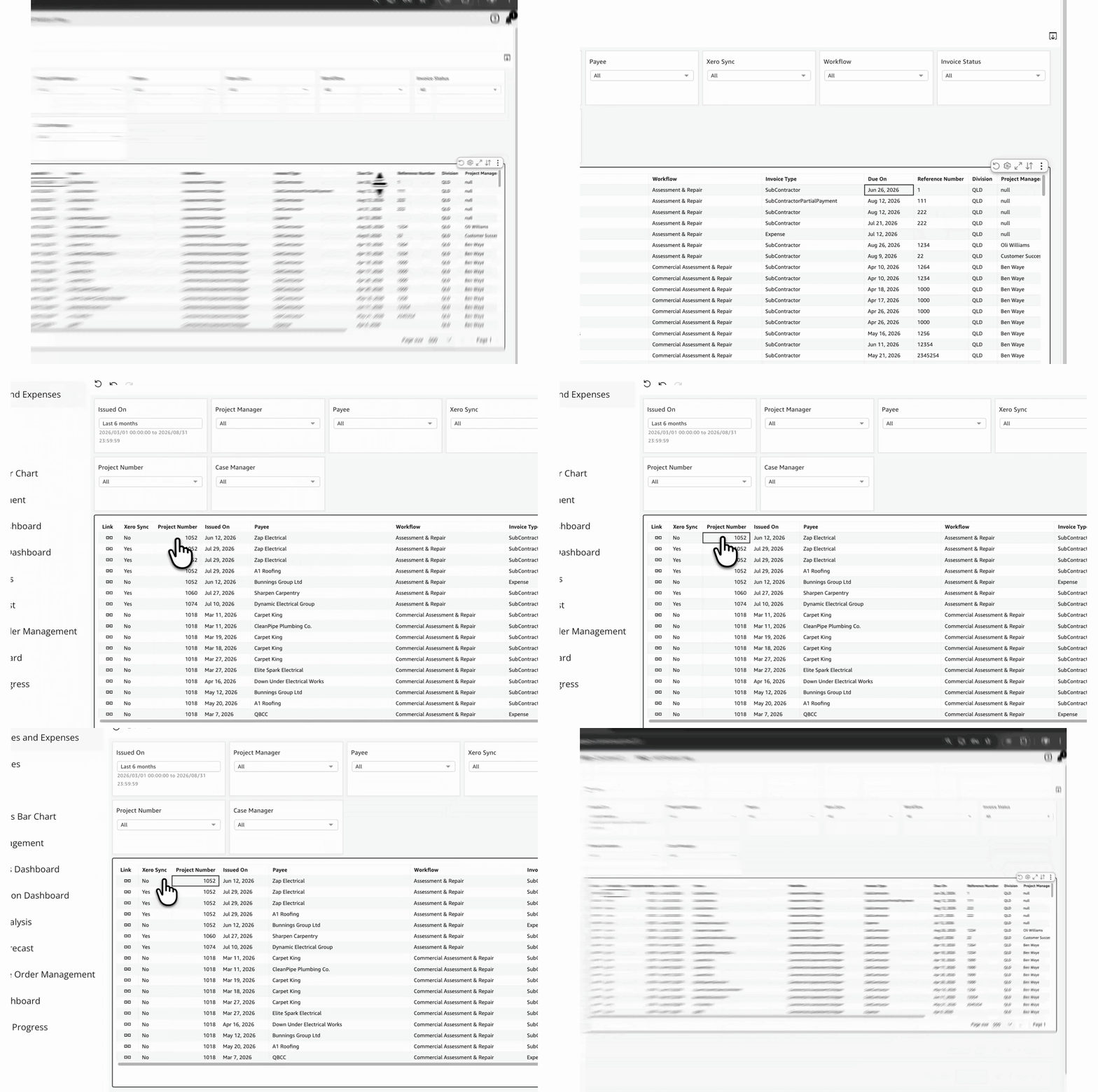
See who's managing the job and the invoice totals
- Keep scrolling right to see Project Manager, Case Manager, Total inc GST and Total ex GST.
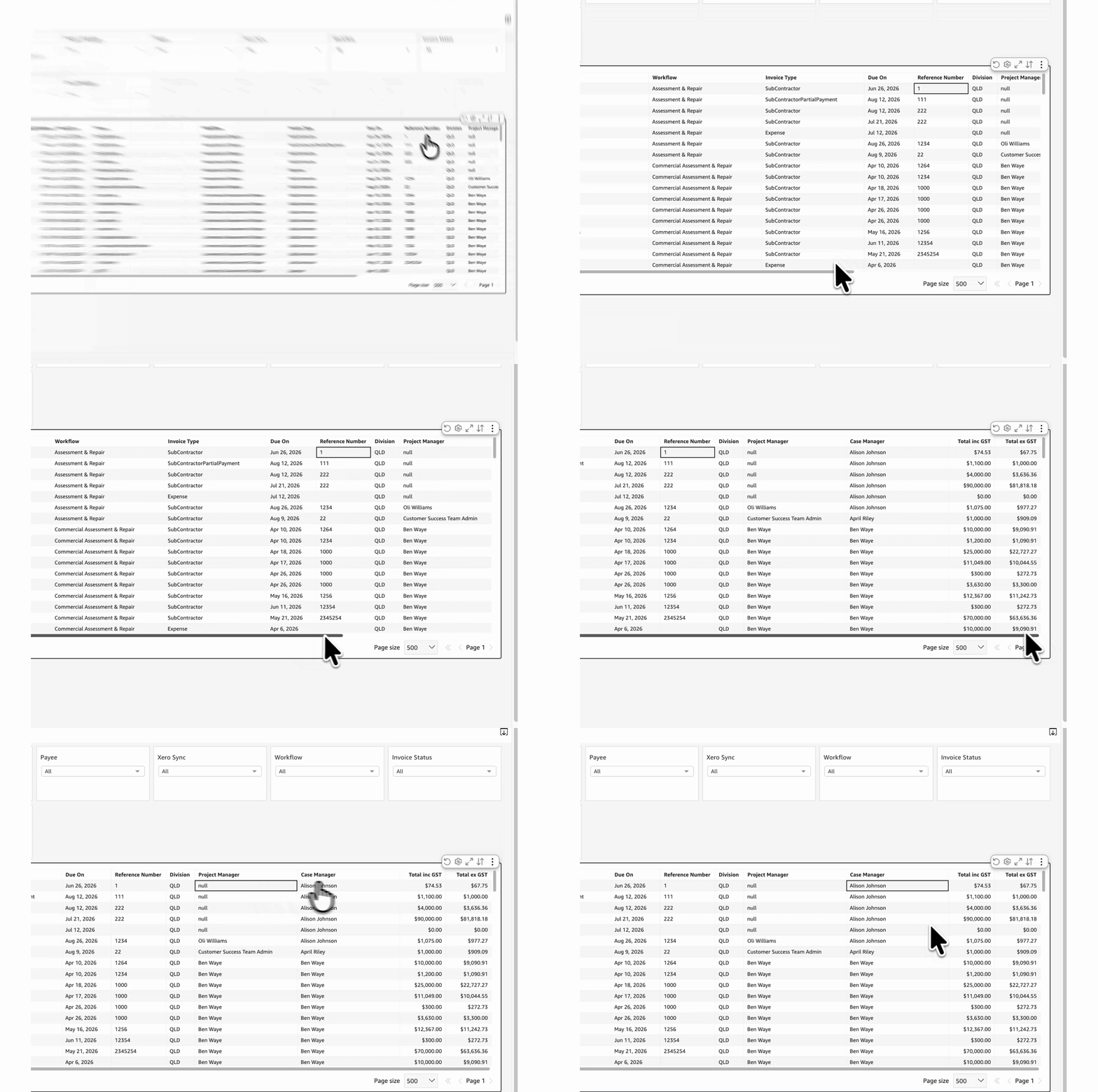
Check Xero Sync for reconciliation
- Scroll back to the start of the table and check the Xero Sync column. Yes means the invoice has been synced to your financial package (Xero or MYOB). No means it hasn't.
- Use this to see which invoices still need to be synced when you reconcile.
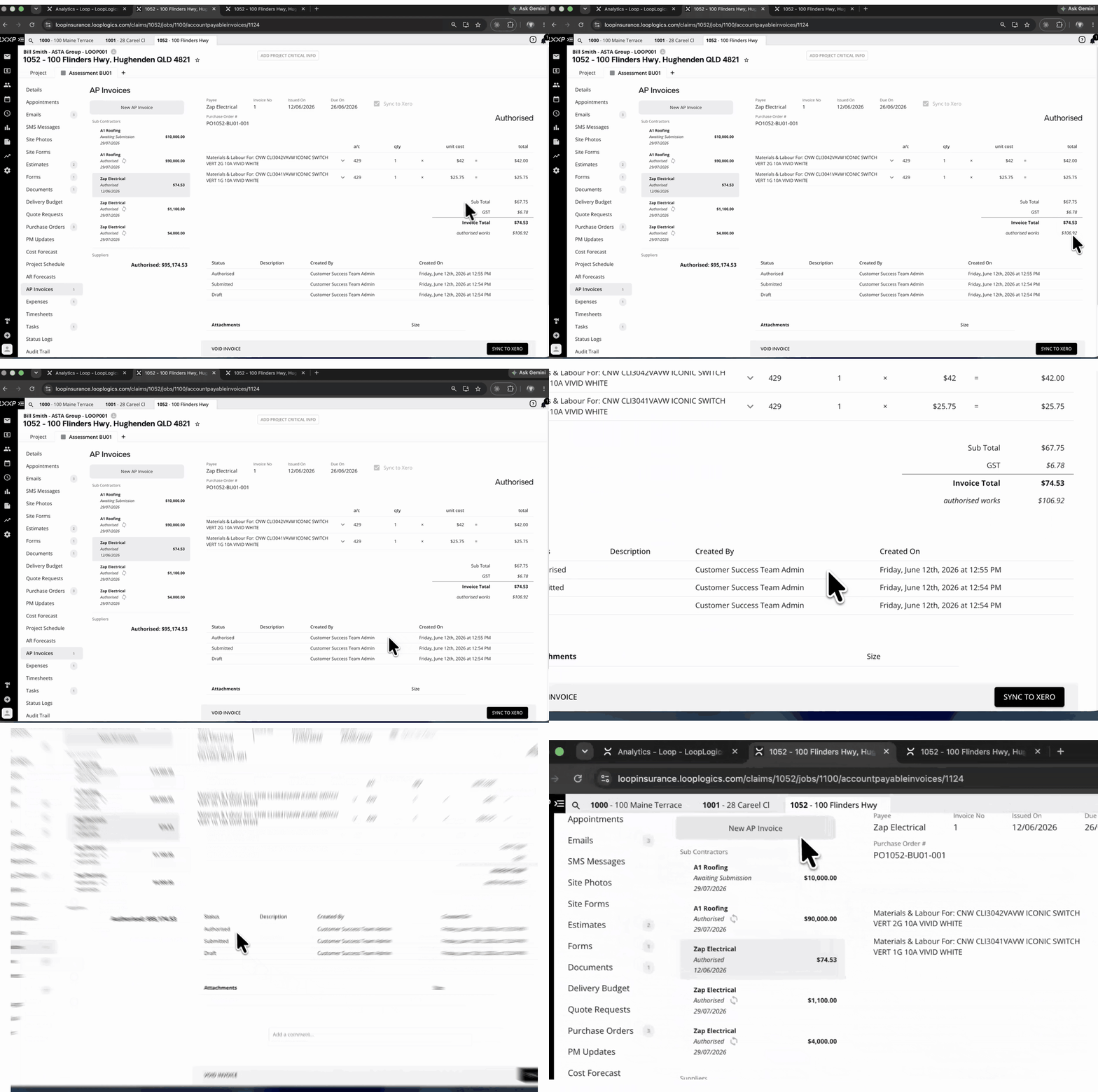
Open an invoice on its job
- Select the Link icon at the start of a row.
- The invoice opens in a new browser tab, on the job's AP Invoices tab.
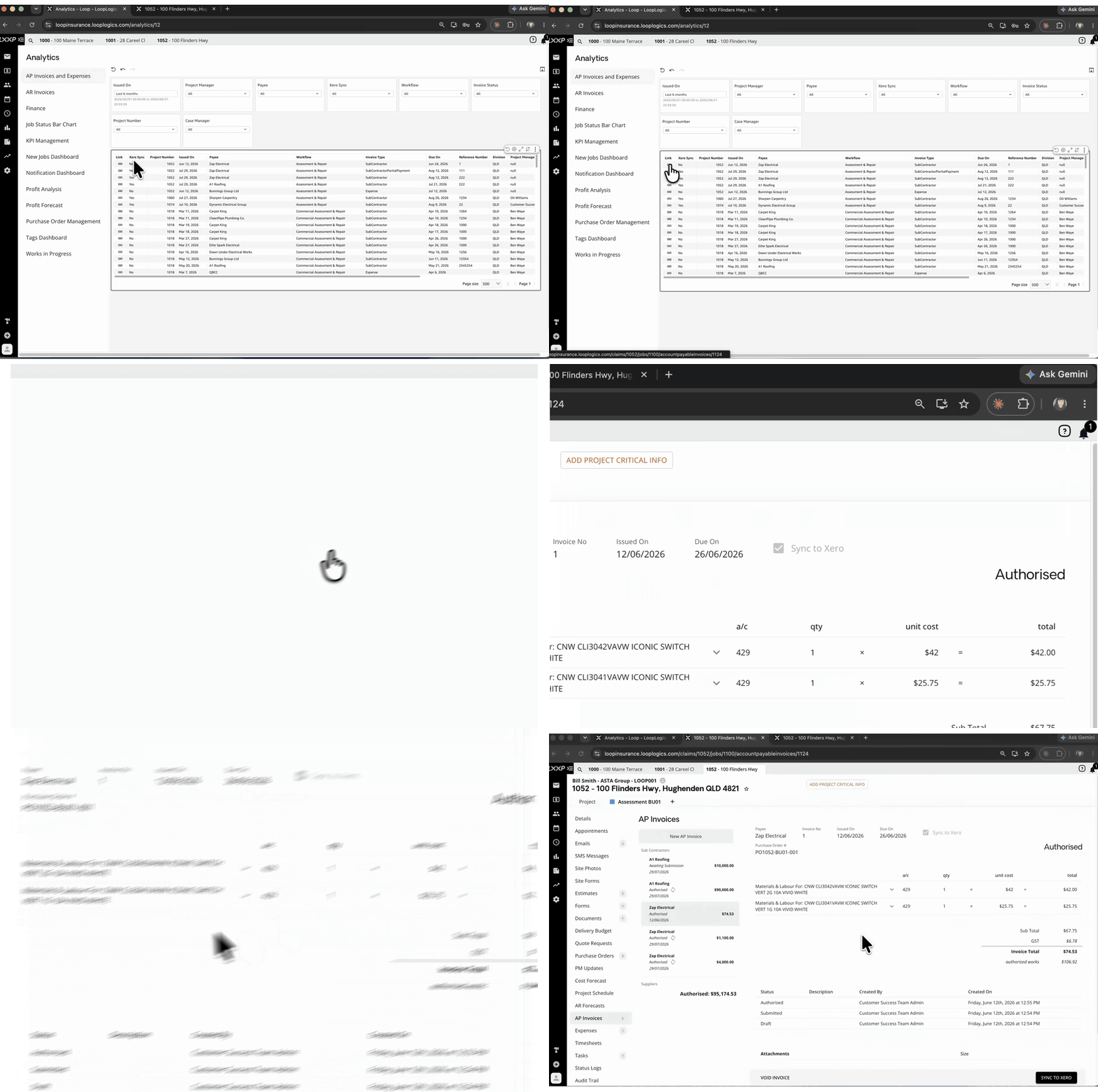
Review the AP invoice
- On the job's AP Invoices tab, the invoice shows the Payee, Invoice No, Issued On, Due On and the Authorised status, with its line items below.
- Other invoices on the same job are listed on the left. A sync icon next to an invoice shows it has synced.
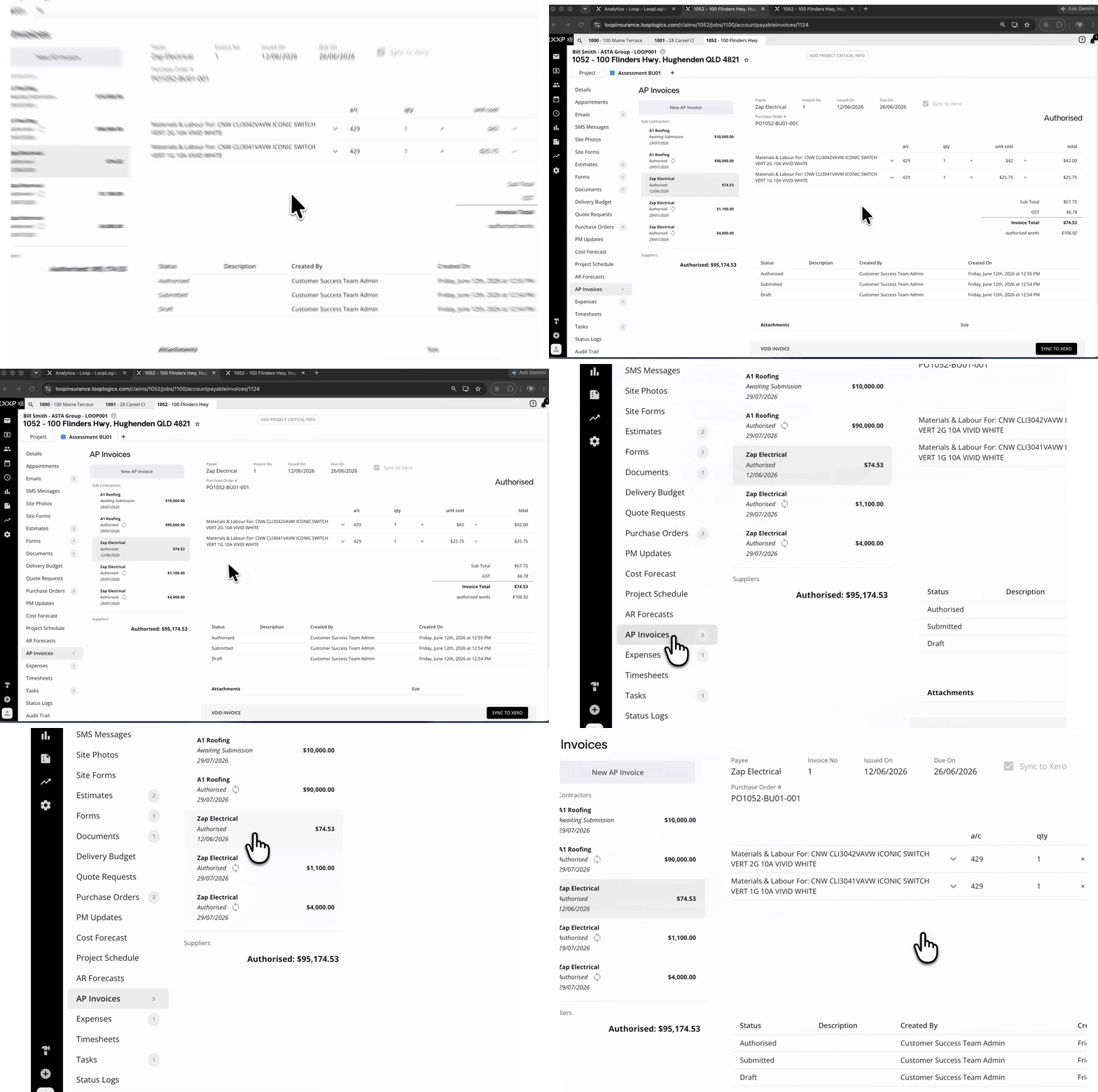
Check the GST and invoice total
- Below the line items, review the Sub Total, GST and Invoice Total.
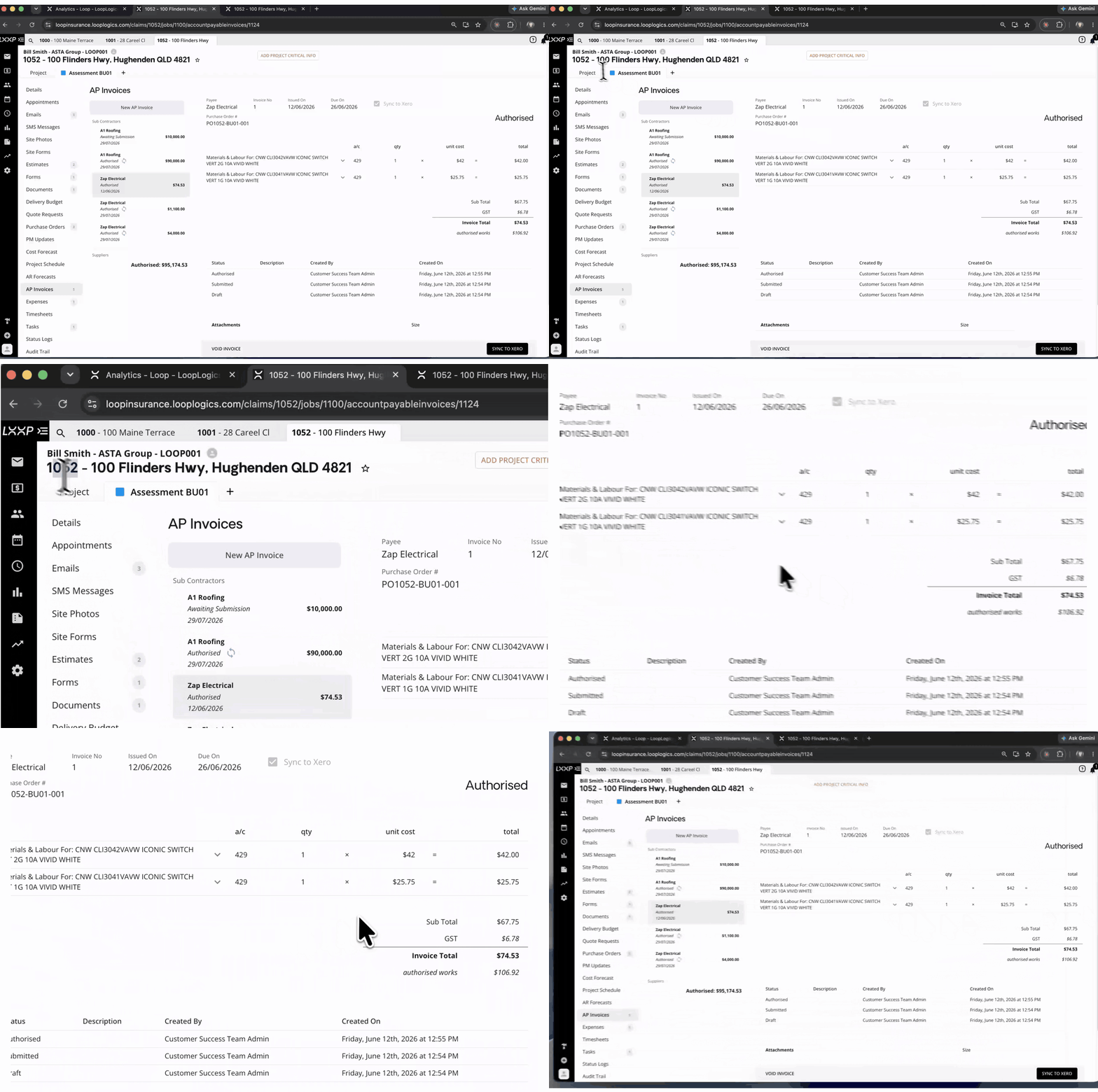
See who created the invoice and its status
- The status history lists each status (Authorised, Submitted, Draft) with who created it and when.
- Check the Authorised status to confirm the invoice has been authorised.
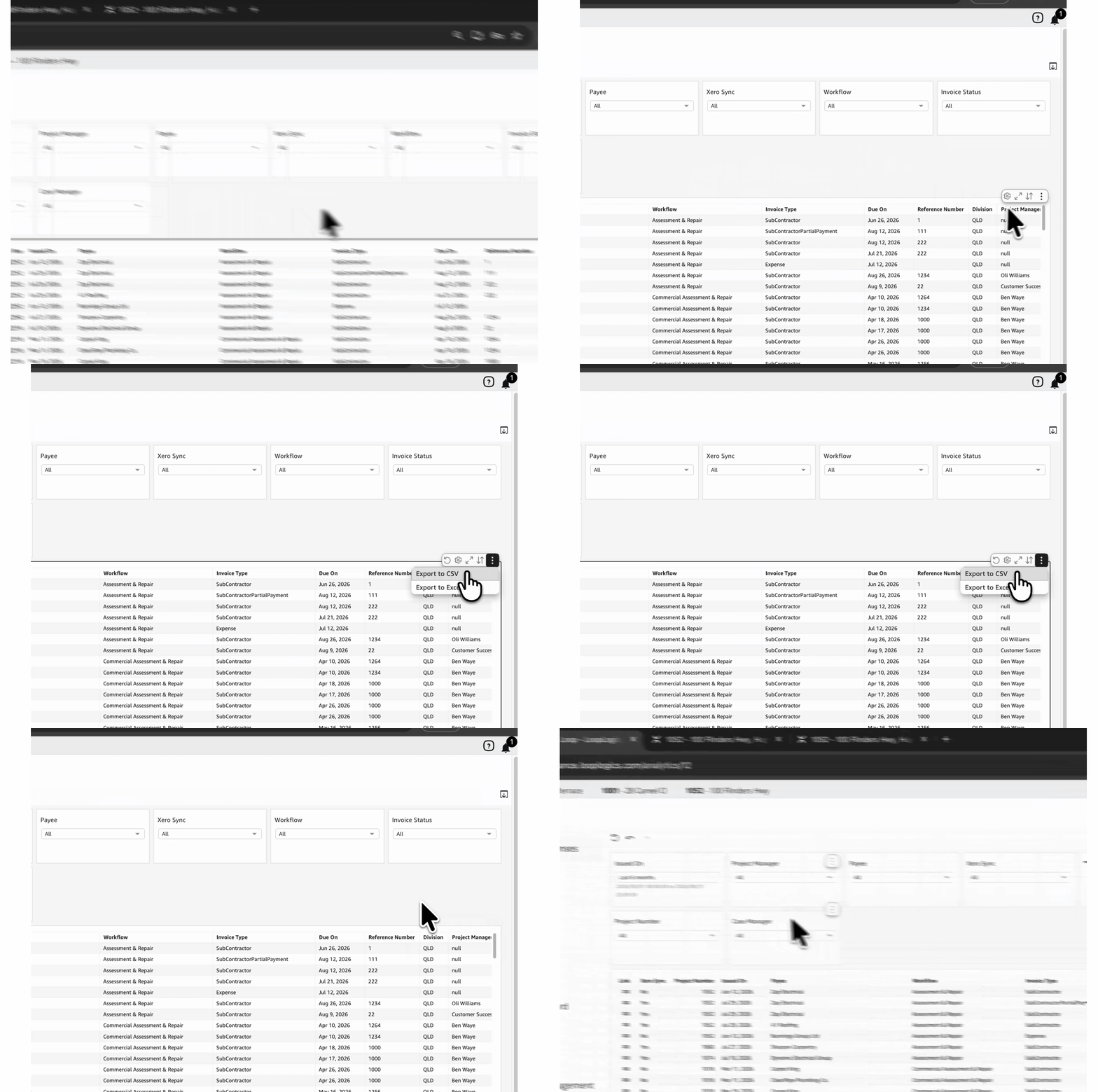
Export the dashboard data
- Back on the dashboard, select the three-dot menu (Menu options) at the top right of the table.
- Choose Export to CSV or Export to Excel.
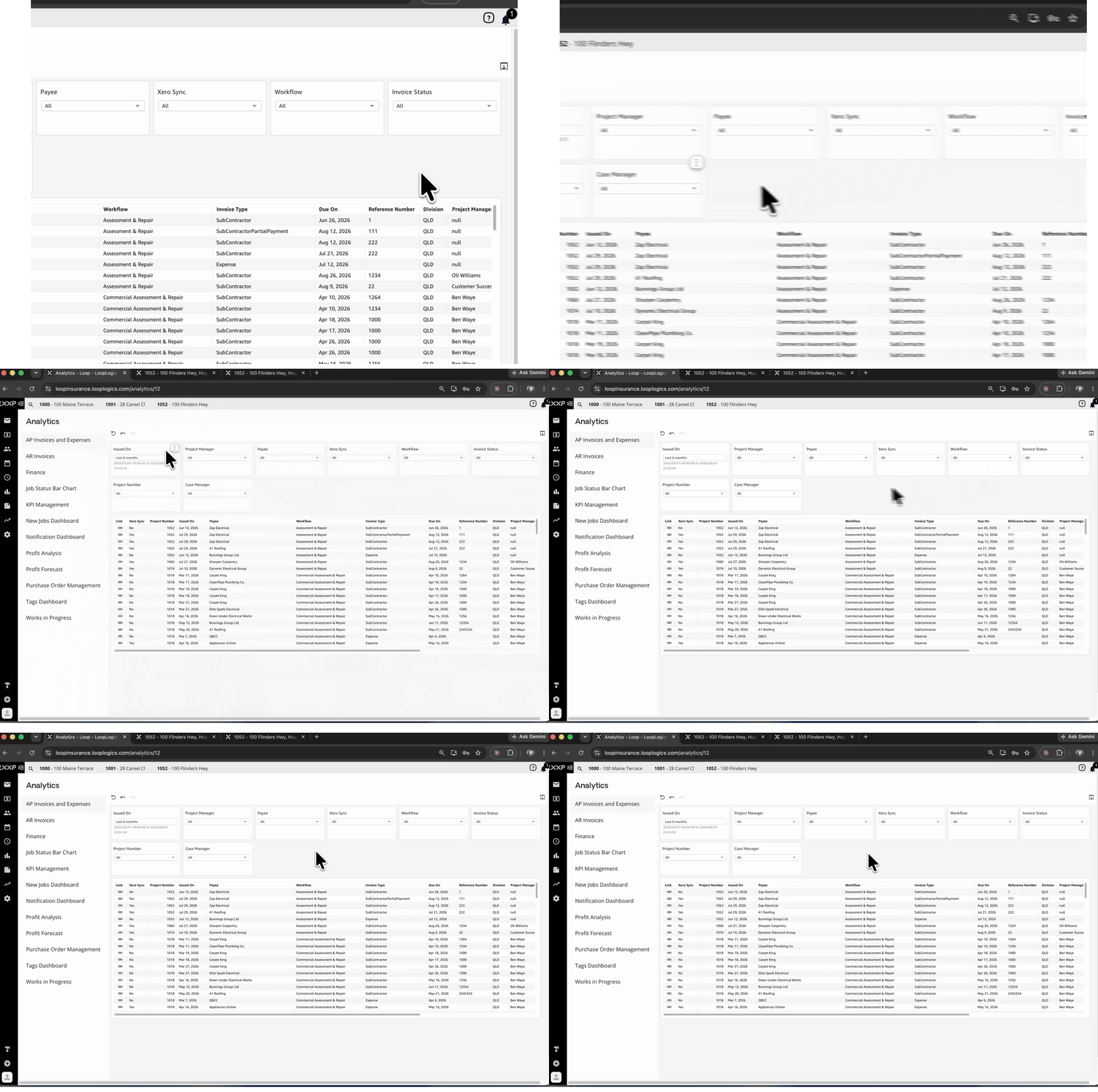
Narrow down with filters
- Use the filters across the top: Issued On, Project Manager, Payee, Xero Sync, Workflow, Invoice Status, Project Number and Case Manager.
- Issued On defaults to the last 6 months.
FAQ
Which invoices appear on this dashboard? Invoices submitted on your jobs by subcontractors and suppliers, as well as expenses, at invoice level.
How do I know if an invoice has been synced to Xero or MYOB? Check the Xero Sync column on the dashboard (Yes or No).
Can I export the data? Yes. Use the three-dot Menu options on the table and choose Export to CSV or Export to Excel.
Why can't I see older invoices? The Issued On filter defaults to the last 6 months. Widen the date range to see more.
Where do I see who created an invoice? Open the invoice from its job (use the Link icon). The status history lists who created each status.
❓ Need Help?
If you have questions or need assistance, use the chat box in the bottom-right corner to contact the Loop Logics support team or email support@looplogics.com
👉 Continue your learning, next step is to move onto Analytics - Finance Dashboard