.png)
How to use the Job Finance Box
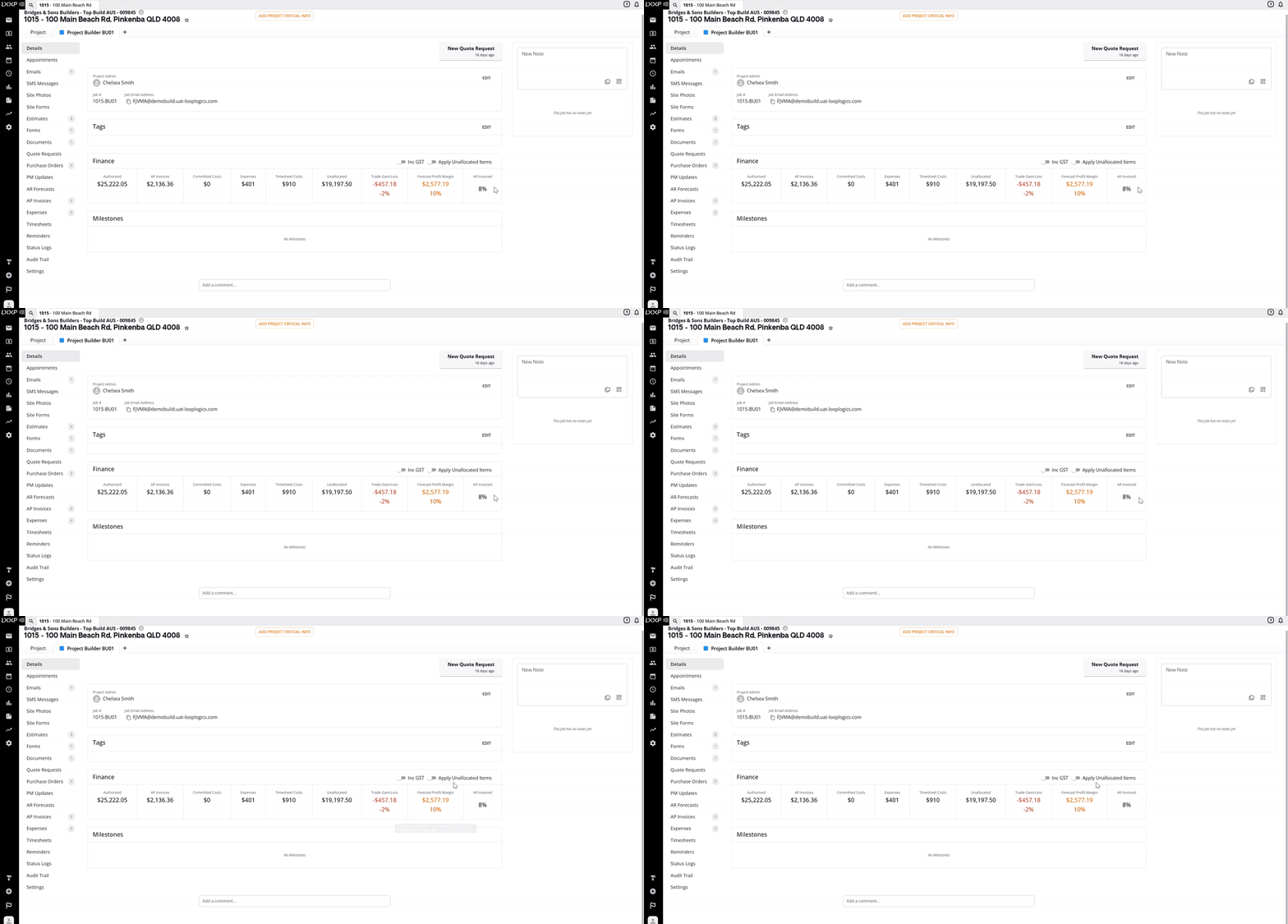
💡The Finance Box is Loop's real-time financial control panel for every job. It becomes available once a scope has been authorised on a job, and brings all the key cost and margin drivers together in one clear snapshot: authorised value, costs, invoices, and forecast profit margin, so you can track a job's financial position at any point in its lifecycle.
It connects authorised estimates and variations with committed purchase orders, AP invoices, timesheets, and expenses into a single source of truth, giving your team early visibility on cashflow, trade gain/loss, and profit outcomes before issues show up in the final numbers.
Understanding the Finance Box Fields
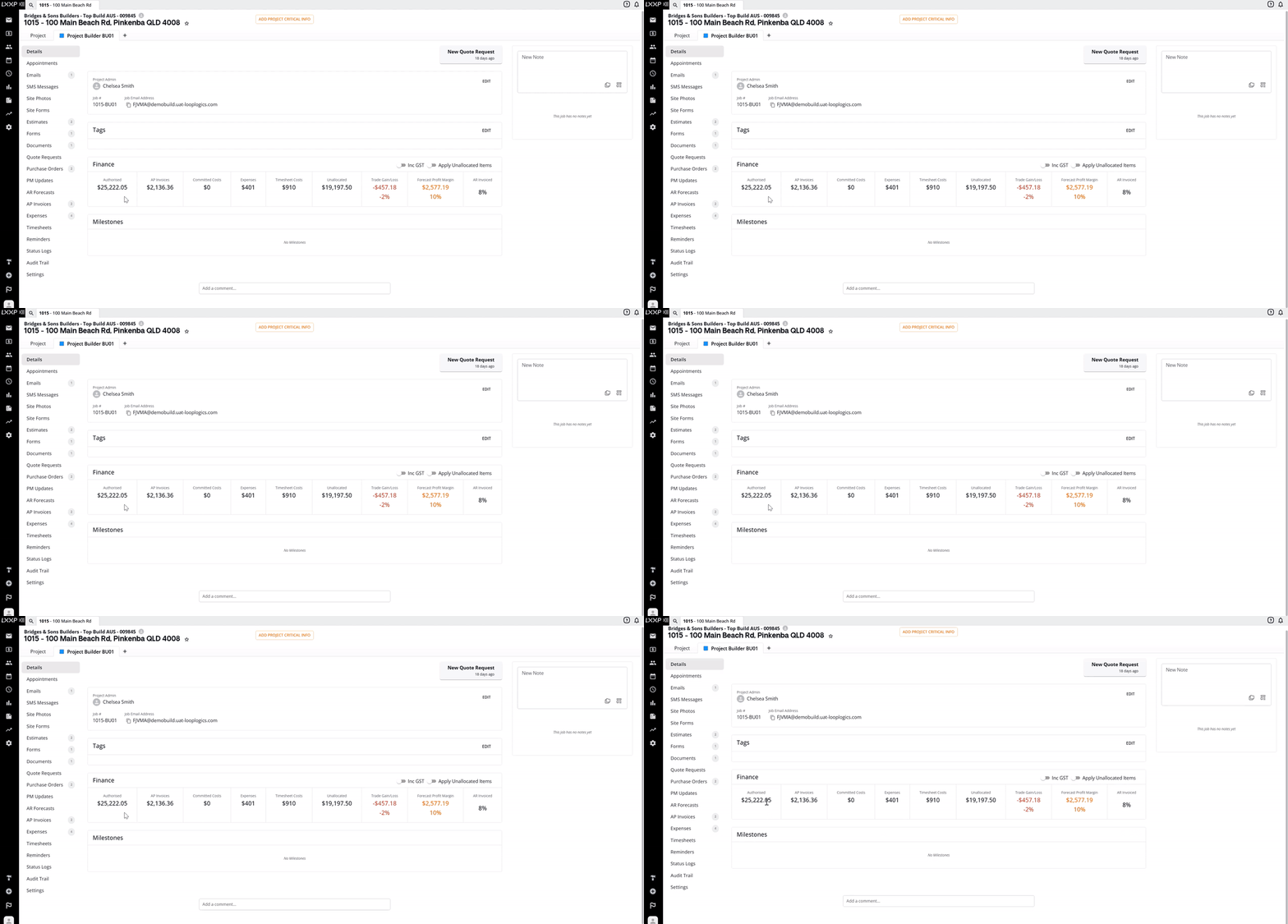
Authorised:
- The total of all authorised estimates and variations, less cash settlements and negative variations on the job.
- When a cash settlement or negative variation is authorised, this total adjusts automatically. This is calculated from the estimates in the Estimates tab, only estimates in an authorised state are included; draft estimates won't populate here.
AP Invoices
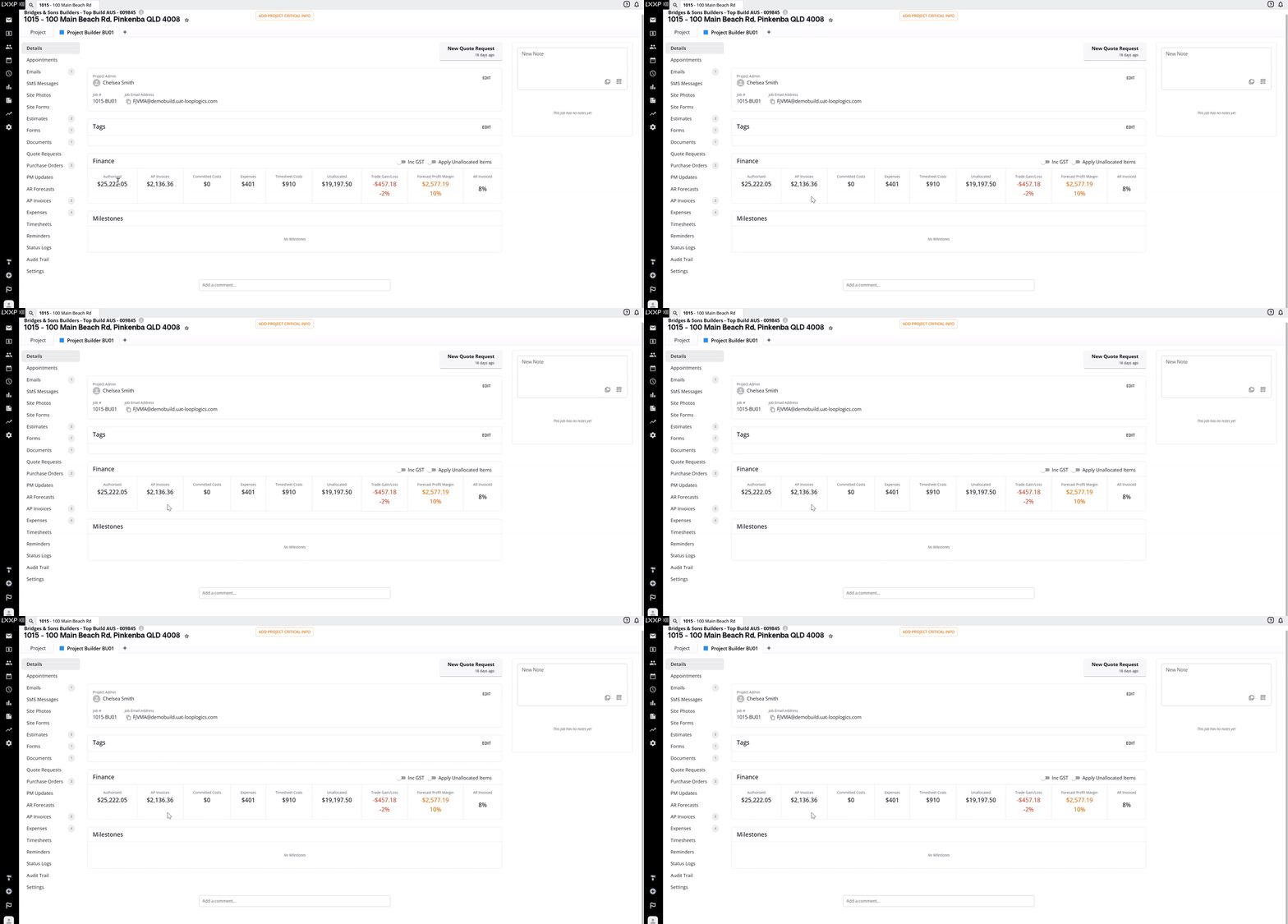
- The total of all authorised and paid invoices, including custom invoices.
- Voided AP invoices are automatically excluded from this total. Partial invoices submitted against a due-in-charge purchase order are shown, but don't affect the trade gain/loss amount or percentage until the final invoice is received.
Committed Costs
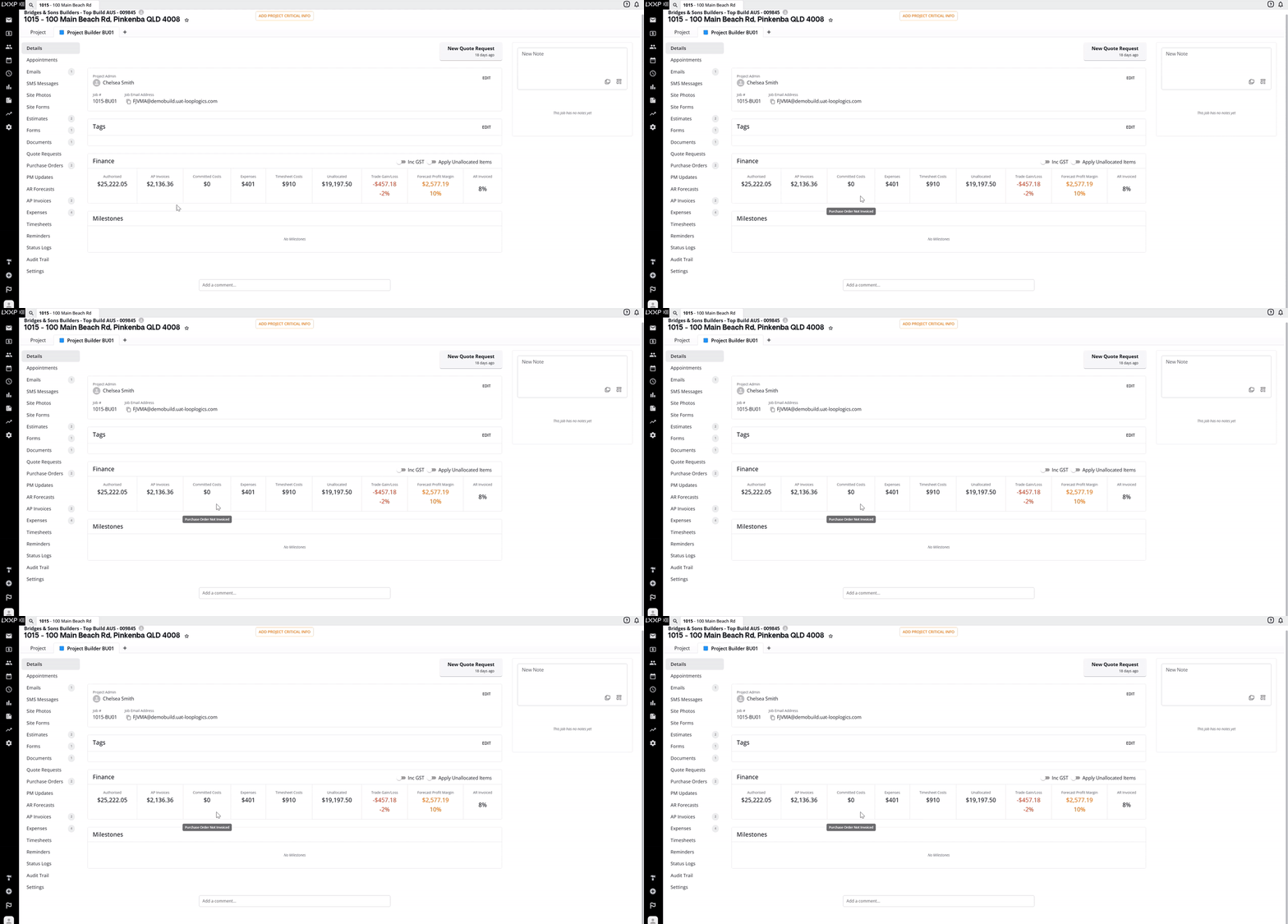
- The total of all sent and completed purchase orders on the job.
- Cancelled purchase orders are automatically removed from this total. Due-in-charge purchase orders from an authorised estimate will display line item totals from the estimate.
- Custom invoices raised as $0 aren't calculated into Committed Costs, as they have no dollar value.
Expenses
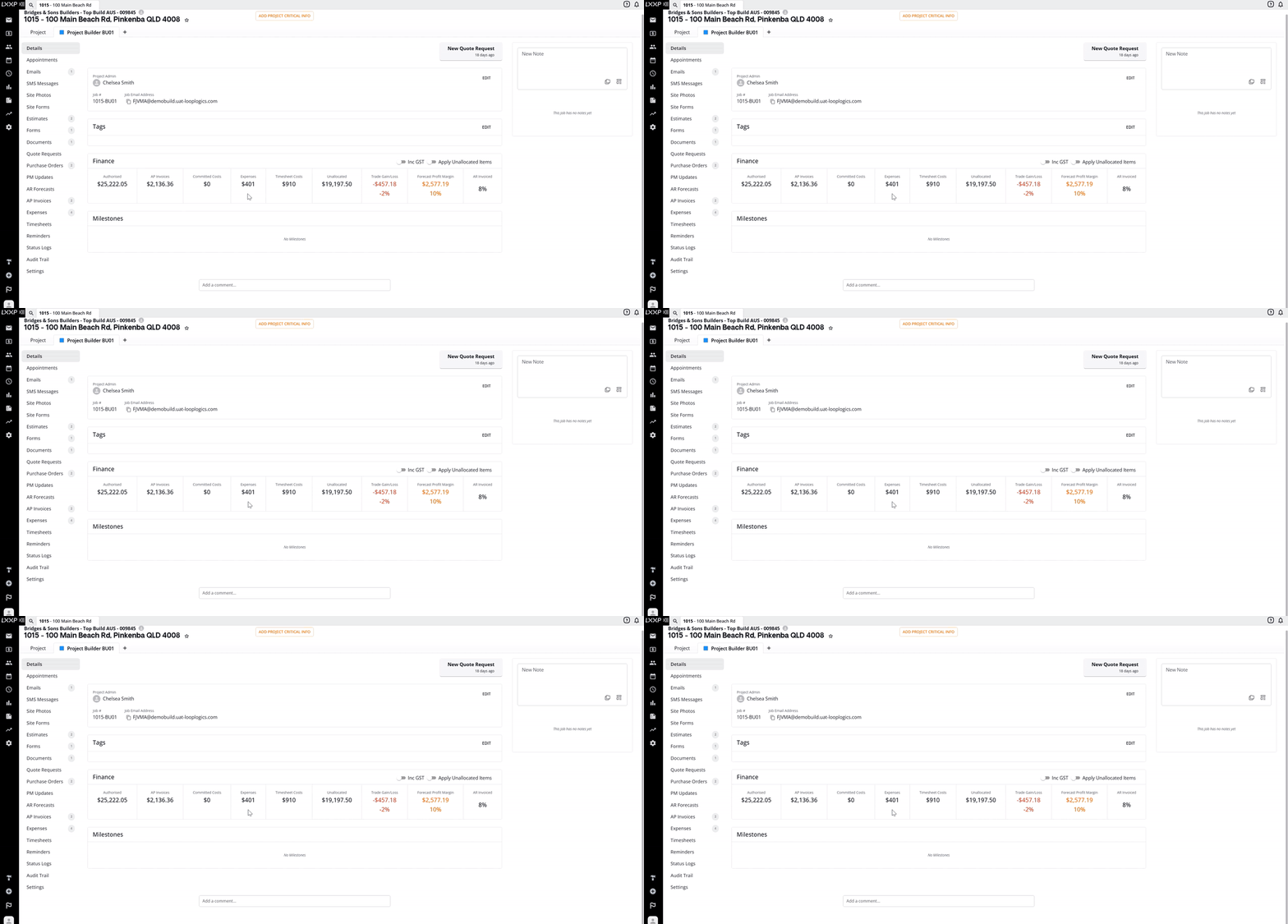
- The total of all authorised and paid expenses on the job. Draft expenses aren't included in this total.
Timesheet Costs
- The total of all authorised timesheets on the job. Hourly rates are configured in each user's profile, and are shown here excluding GST.
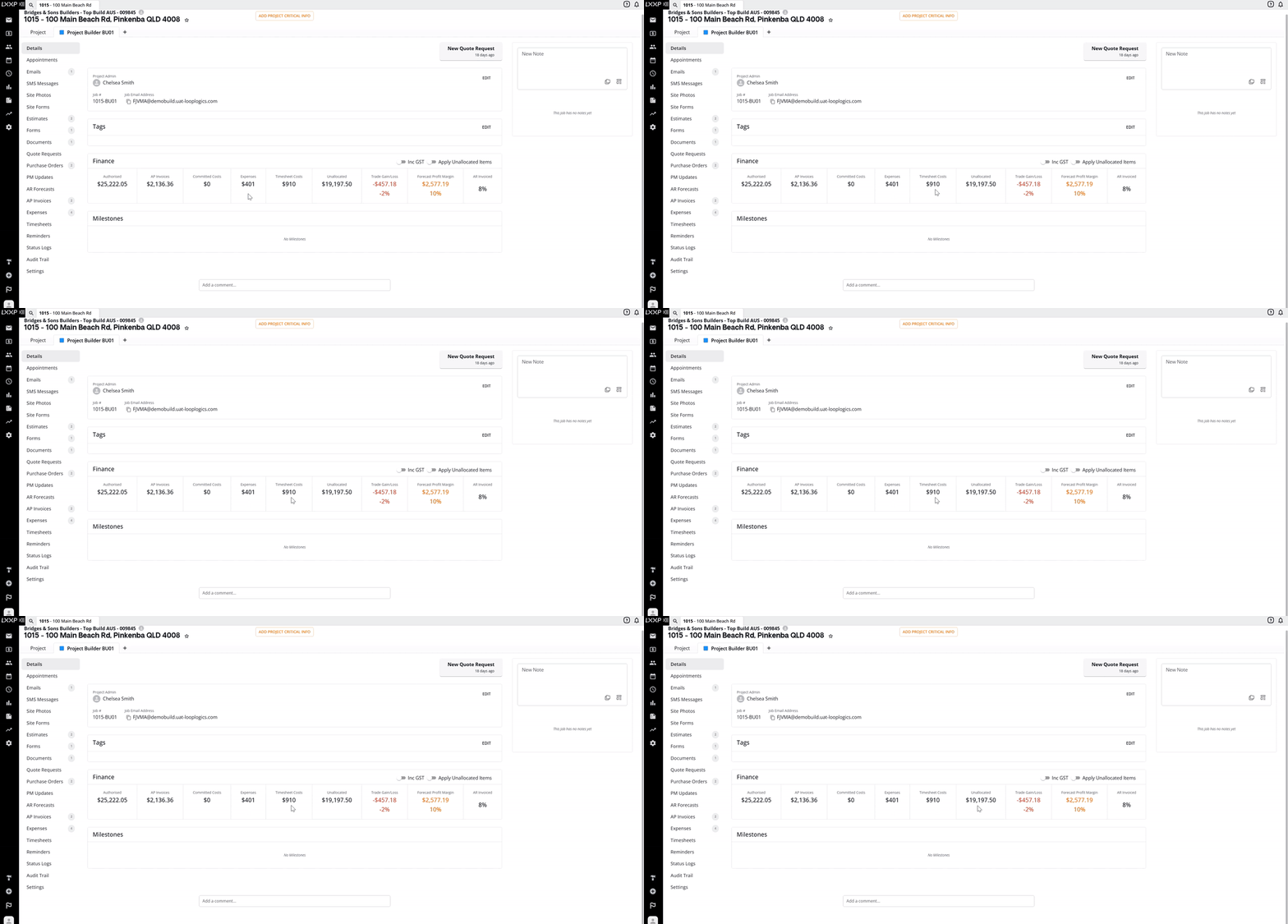
Unallocated
- The total of all estimate and variation line items not yet allocated to a purchase order, including partial line items.
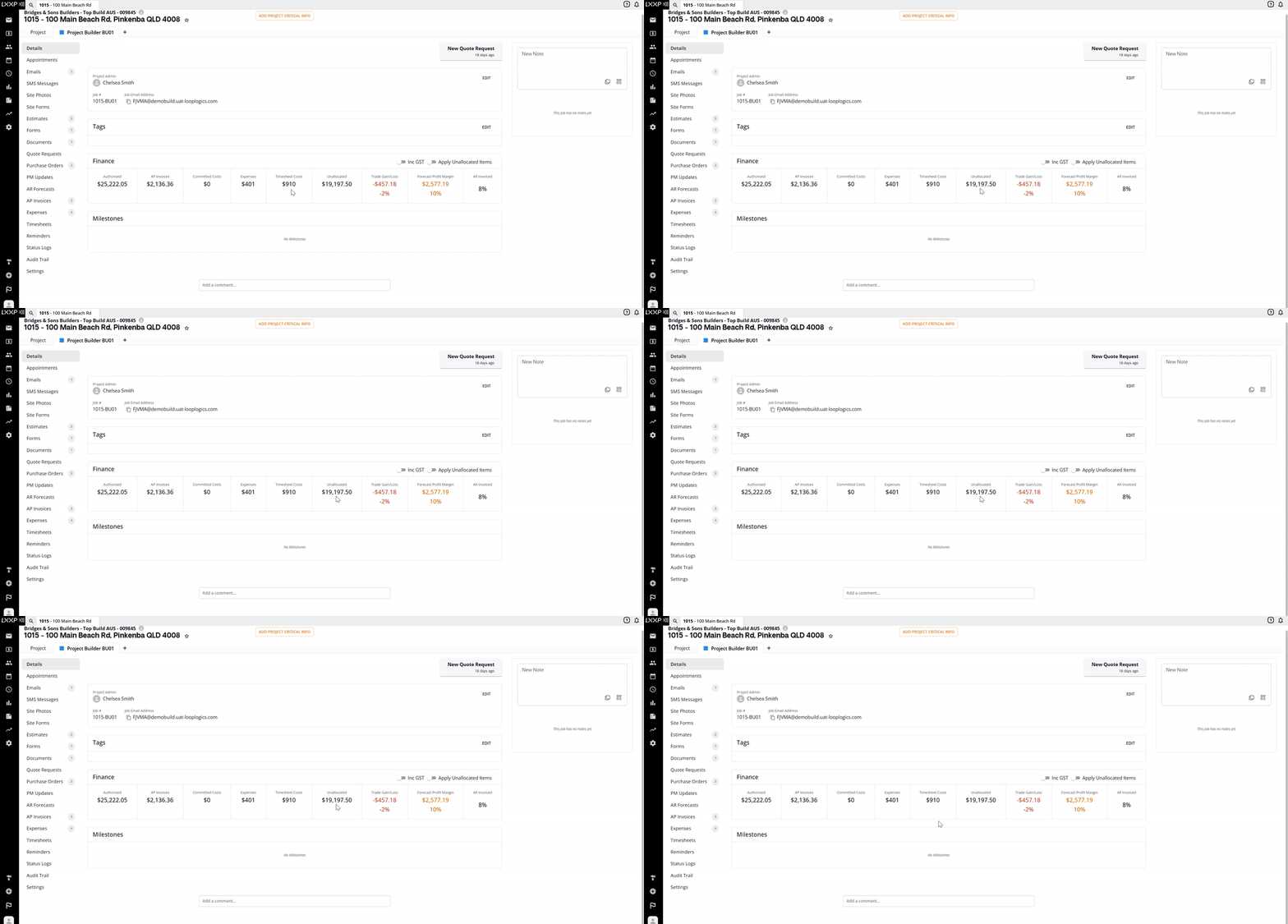
Trade Gain / Loss
- The margin made when a purchase order is authorised for less than its line item total — for example, if your authorised estimate prices painting at $1,000 and you issue a purchase order for painting at $800, this field shows a $200 trade gain, with the percentage calculated against the overall estimate amount.
- This is the cumulative total across all purchase orders on the job that carry a trade gain or loss.
- Due-in-charge purchase orders from authorised line items won't show a forecast trade gain/loss, instead, the amount is recognised as actual once the AP invoice is submitted.
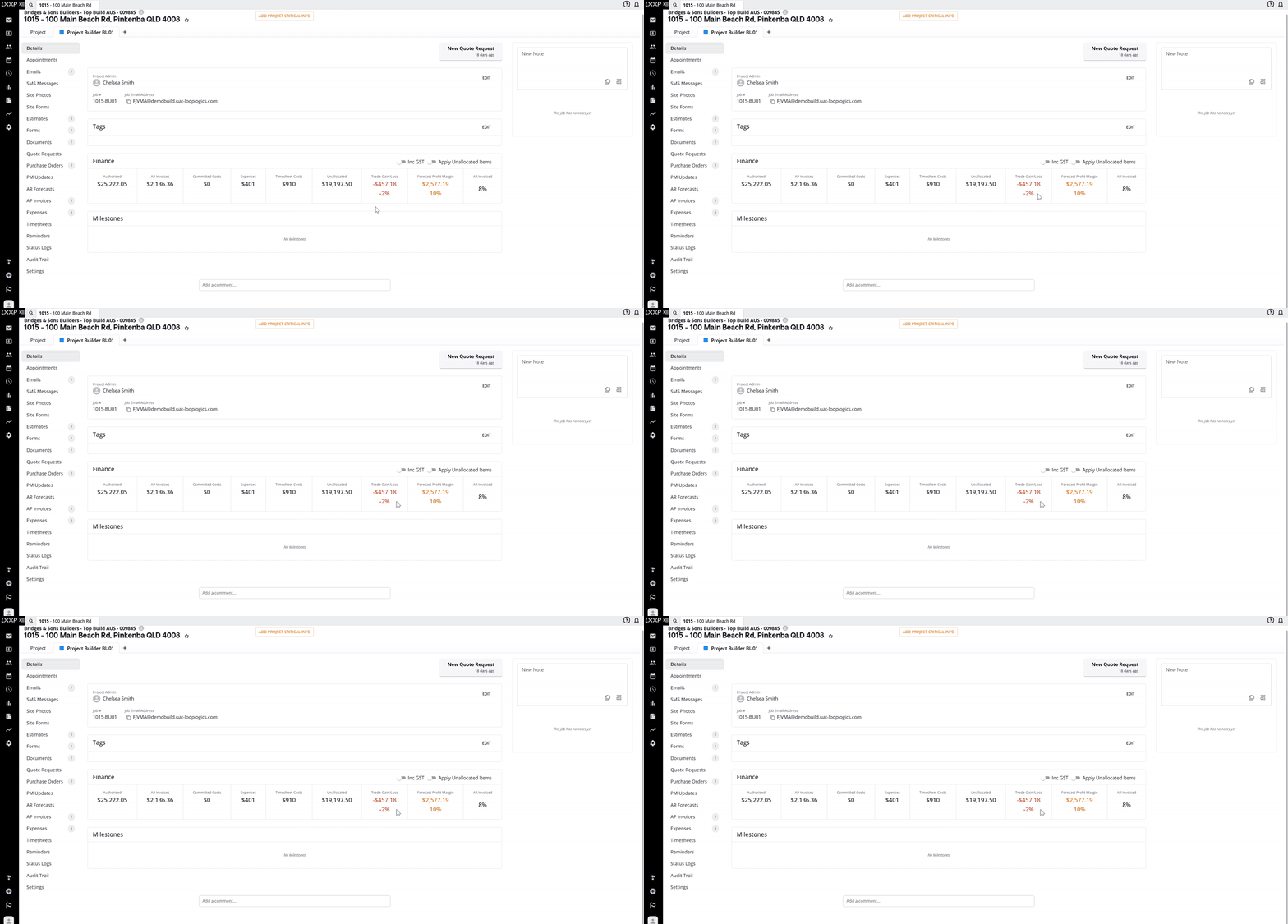
Forecast Profit Margin
- The estimated margin when an estimate or variation is authorised with allocated margin — if no margin is allocated, this displays as $0.
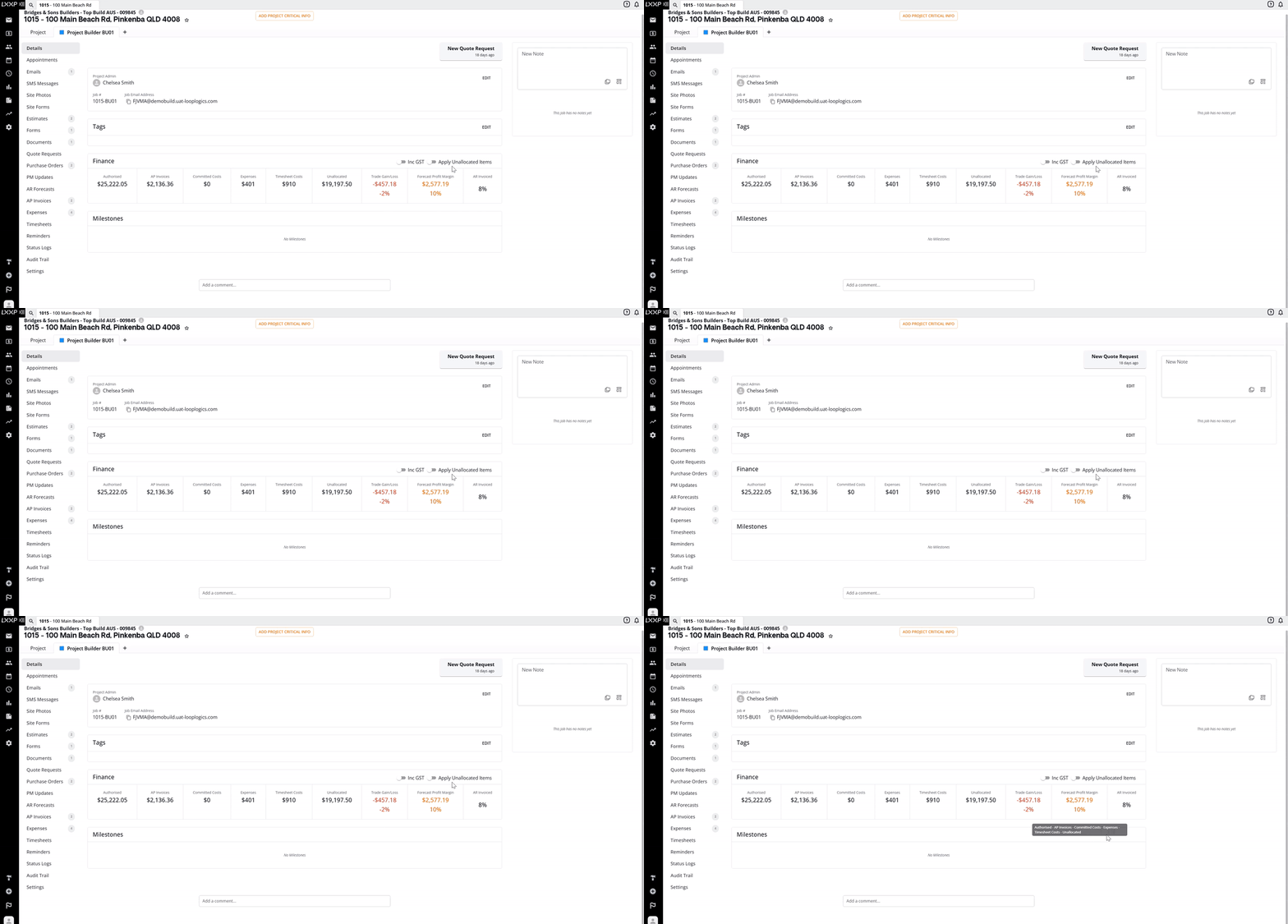
- It's calculated as Authorised minus AP Invoices, Committed Costs, Expenses, Timesheet Costs, and Unallocated, and includes the trade gain/loss amounts attributed to each purchase order.
- If the Apply Unallocated Items toggle is on, Unallocated is added to the total instead of subtracted.
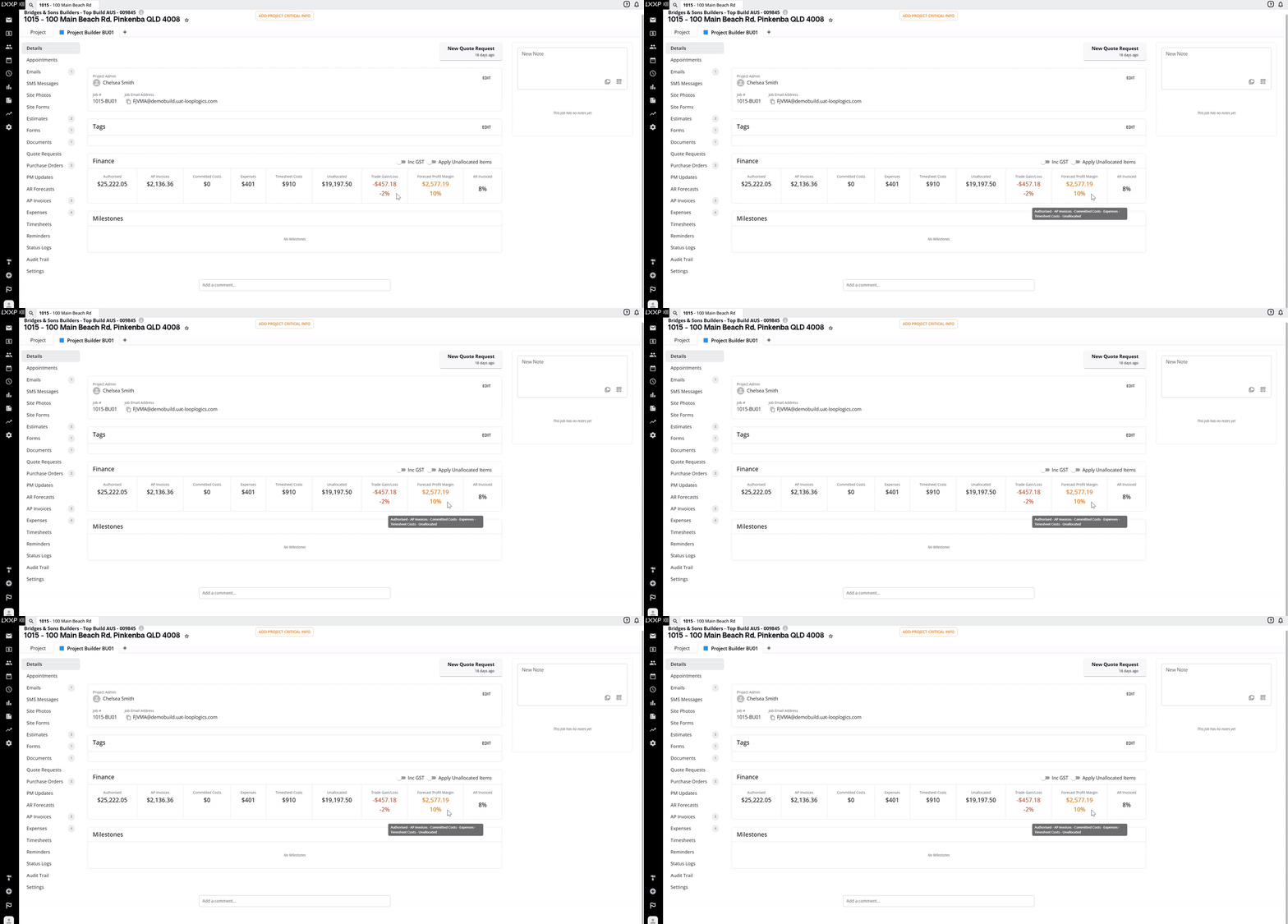
AR Invoiced
- The percentage of the authorised estimate(s) that has been invoiced so far.
Toggles
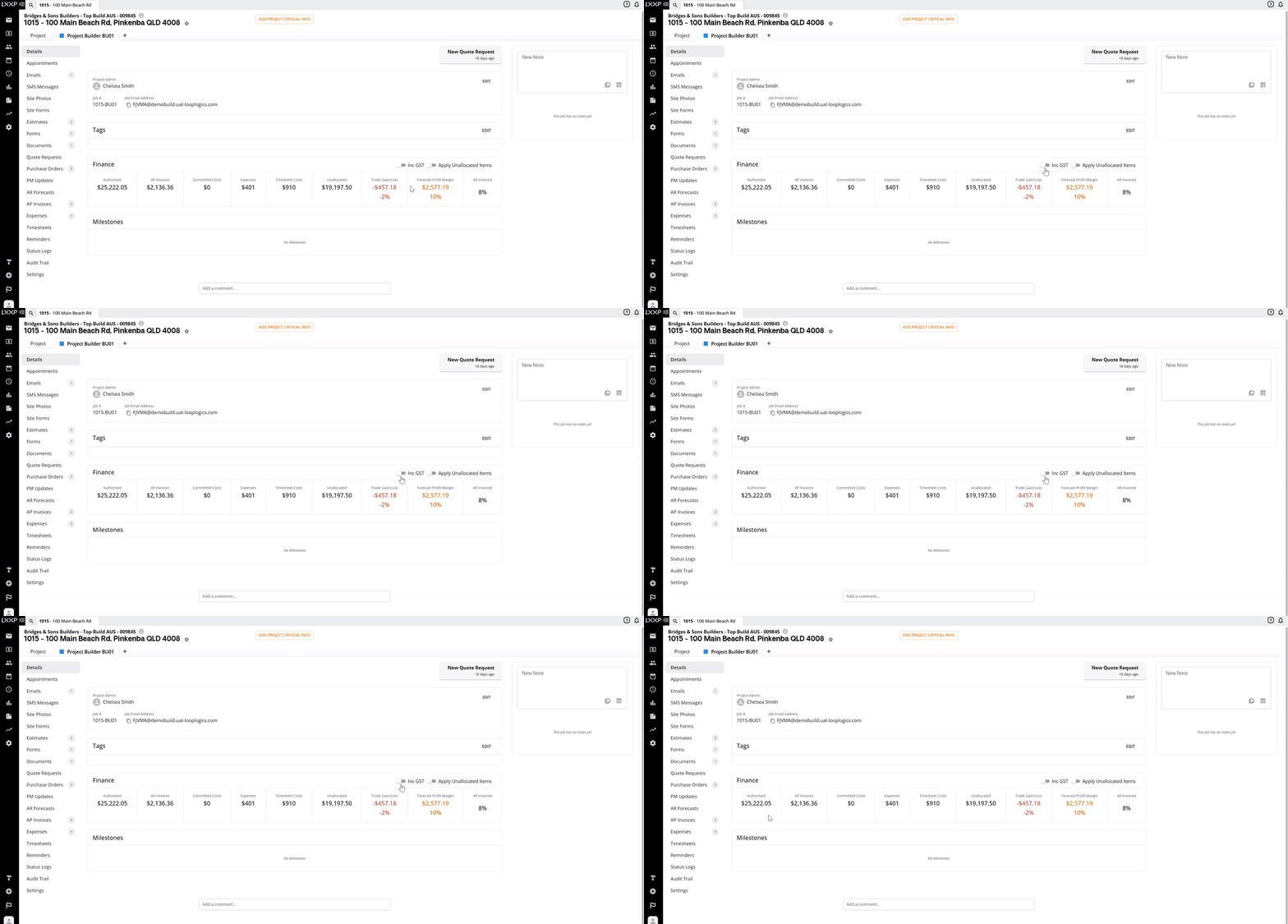
- Inc GST Adds or removes GST from the dollar amounts shown across the Finance Box. This is off (excluding GST) by default.
- Apply Unallocated Items Adds the Unallocated total into the Forecast Profit Margin calculation, rather than leaving it out.
Purchase Order Breakdown
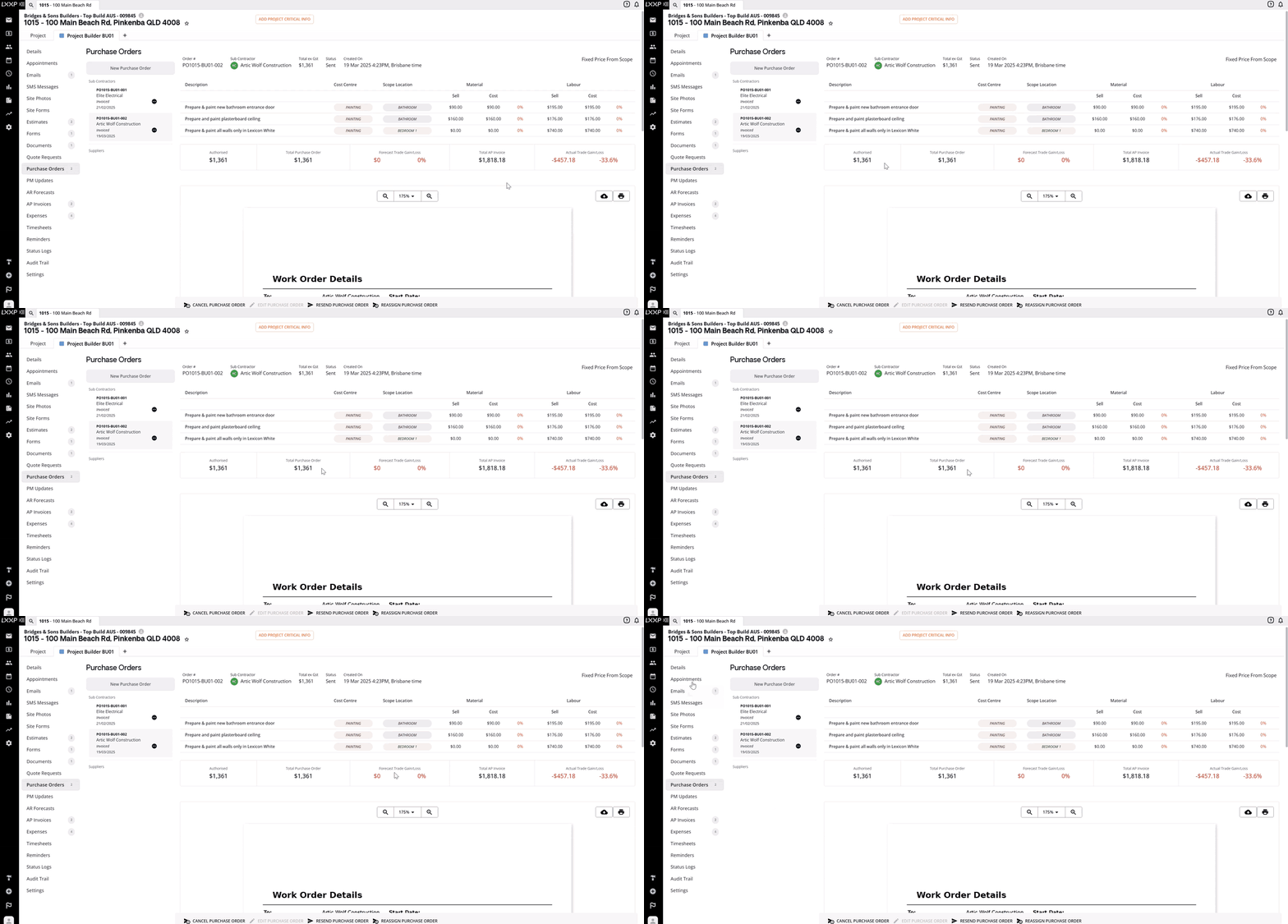
- On each purchase order you send, you'll find a breakdown showing: the authorised total of line items (deducted from Unallocated), the total purchase order amount (reflected in Committed Costs), and the trade gain made on that purchase order (reflected in Trade Gain/Loss in the Finance Box).
FAQ
Why is my Committed Costs field showing $0? Committed Costs only includes sent and completed purchase orders. If no purchase orders have been sent yet, or they've all been cancelled, this field will show $0.
Why doesn't my Forecast Profit Margin match what I expected? Check whether an estimate or variation has an allocated margin. If none is allocated, the forecast margin displays as $0. Also check whether the Apply Unallocated Items toggle is on, since this changes whether Unallocated is added to or subtracted from the total.
Does the Inc GST toggle affect every field? Yes, toggling Inc GST adds or removes GST across all the dollar figures in the Finance Box.
When does a due-in-charge purchase order affect Trade Gain/Loss? Due-in-charge purchase orders from authorised line items don't show a forecast trade gain/loss. The amount is only recognised as actual once the AP invoice is submitted.
❓ Need Help?
If you have questions or need assistance, use the chat box in the bottom-right corner to contact the Loop Logics support team or email support@looplogics.com