.png)
How to Use Timesheets
💡Here is how to complete a timesheet in desktop view. If you've been given access, you can select yourself or another user in Loop Logics as the staff member; if you haven't been given this access, entries are automatically logged under your own name.
Completing a Timesheet
-
On the left-hand side menu, click the clock icon to open the Staff Timesheets section.
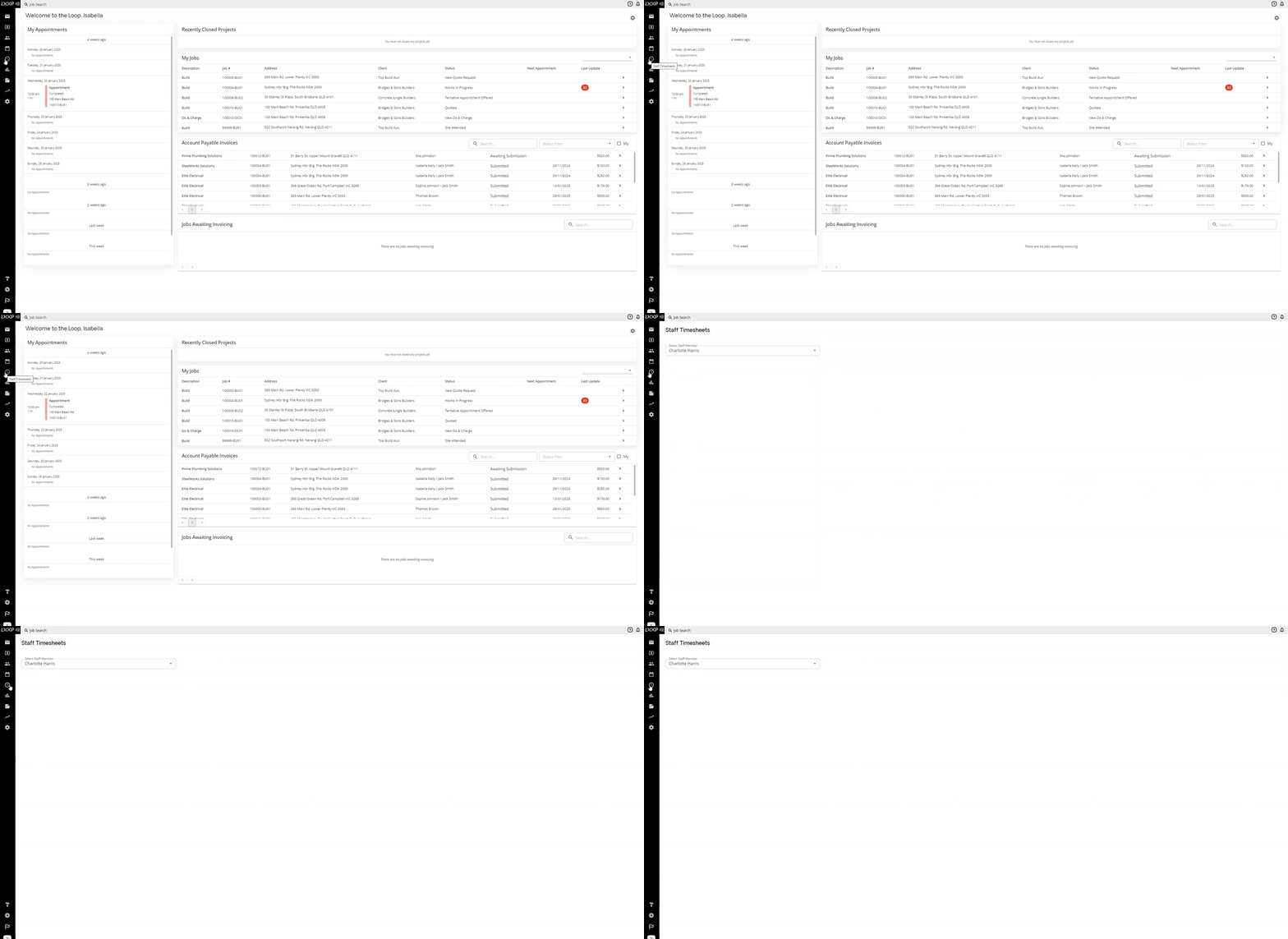
- If you have access, select the relevant staff member. The system displays the current week's dates by default: to adjust the date range, click the date bar and select the dates you want.

- Under the specific date, select New Timesheet Entry.

- Choose the relevant job, then enter your hours. If you'd prefer to set your time by duration, enable the Set by Duration toggle.

- If necessary, fill in the Category and Trade fields, and add any additional notes.

-
If needed, you also have the option to enter a lunch break, and billable travel time and distance. Select the relevant toggle for each. Note that travel time and distance are in addition to your daily logged hours, and should be entered in minutes. If the timesheet is for after hours, enable the After Hours toggle.
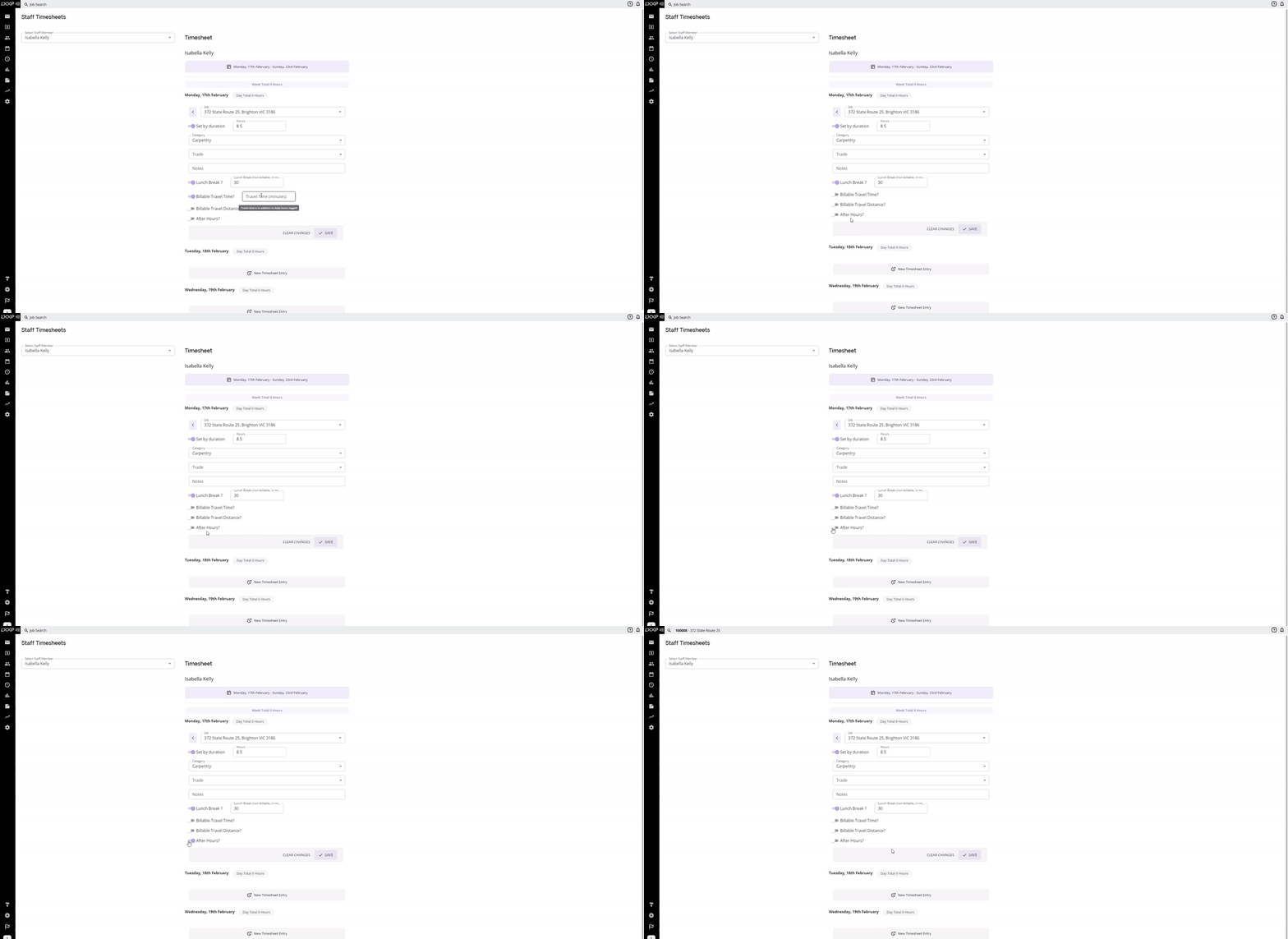
- Once you've completed your timesheet, select Save.

After Saving
The entered timesheet automatically populates under Timesheets in the relevant job. From there, your supervisor has the option to review and approve it.

FAQ
Can I log a timesheet for someone else? Yes, if you've been given access, you can select another user as the staff member when logging the entry. If you haven't been given this access, entries are automatically logged under your own name.
What's the difference between entering hours directly and using Set by Duration? Enabling Set by Duration lets you enter your total hours worked directly rather than start and end times.
Do lunch breaks and travel time count toward my logged hours? Lunch break is entered as non-billable time. Billable travel time and distance are added in addition to your daily logged hours, and should be entered in minutes.
What happens to my timesheet after I save it? It automatically populates under Timesheets in the relevant job, where your supervisor can review and approve it.
❓If you have questions or need assistance, use the chat box in the bottom-right corner to contact the Loop Logics support team or email support@looplogics.com